


Files and Storage

Jan 21, 2025
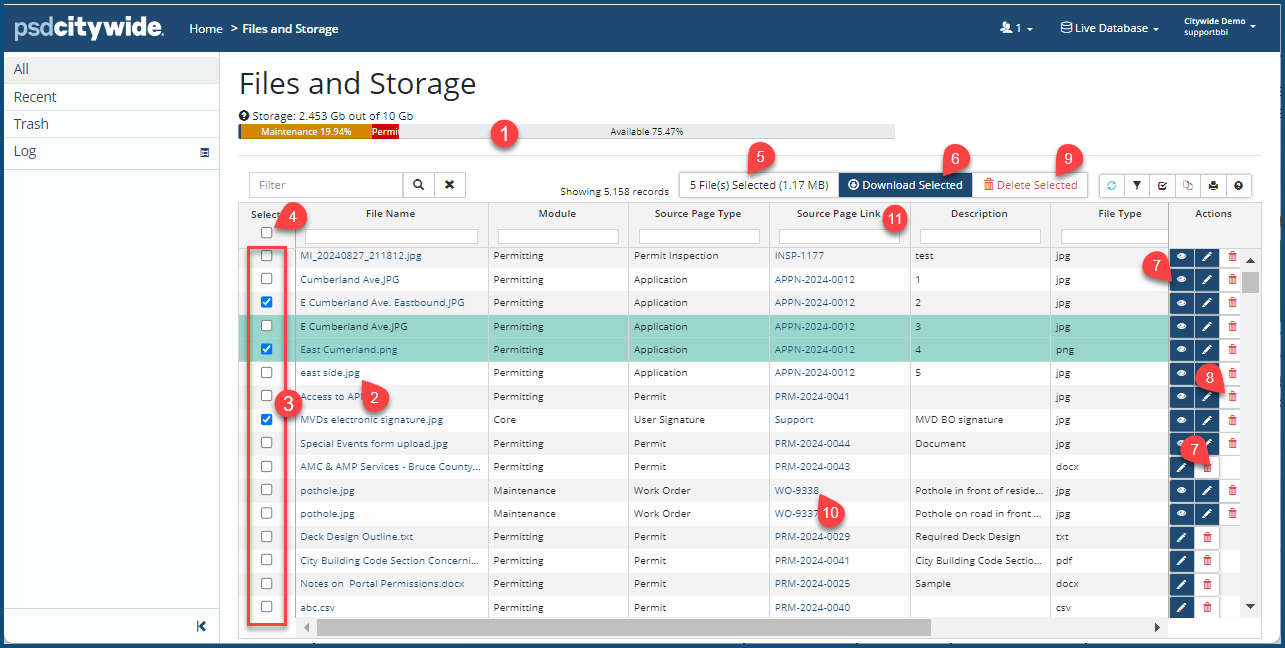
Files and Storage is a central location where Citywide admins can view, manage, download, and delete files that have been attached to Citywide. Each client is limited to 10GB of storage. The utilized and available amounts are visible in the storage bar ❶. The grid can be sorted, filtered, and columns reordered. (See Create a custom view for details.)
Download a single file
- Click the File Name ❷. Your file manager will appear.
- Select the file location in your file manager.
- Once downloaded, click to open.
Download multiple files
- Check ✅ each file in the Select column ❸. You can also check Select All ❹ in the column header, but before doing so, you might consider filtering the grid first. You may wish, for example, to download only e.g. Maintenance files or only jpg files, etc., or a combination of the two. The total number of files selected and total file size is shown above the grid ❺.
- Click the Download Selected ❻.
- Files will be copied will be encapsulated in a zip file named CitywideFileExport.zip, which can be renamed before being saved.
- Select the file location in your file manager.
- Once downloaded, click CitywideFileExport.zip to view and open (unzip) the file contents.
Preview a file
- Click the preview icon
 ❼.
❼.
Delete one or more files
- To delete a single file, click the delete icon
 ❽.
❽. - To delete multiple files at once, select each files ✅ ❽ to be deleted, and then click Delete Selected ❾.
View the source page
- To view the Citywide page where the file has been attached, click the link ❿ in the Source Page Link column ⓫.


