


Overview
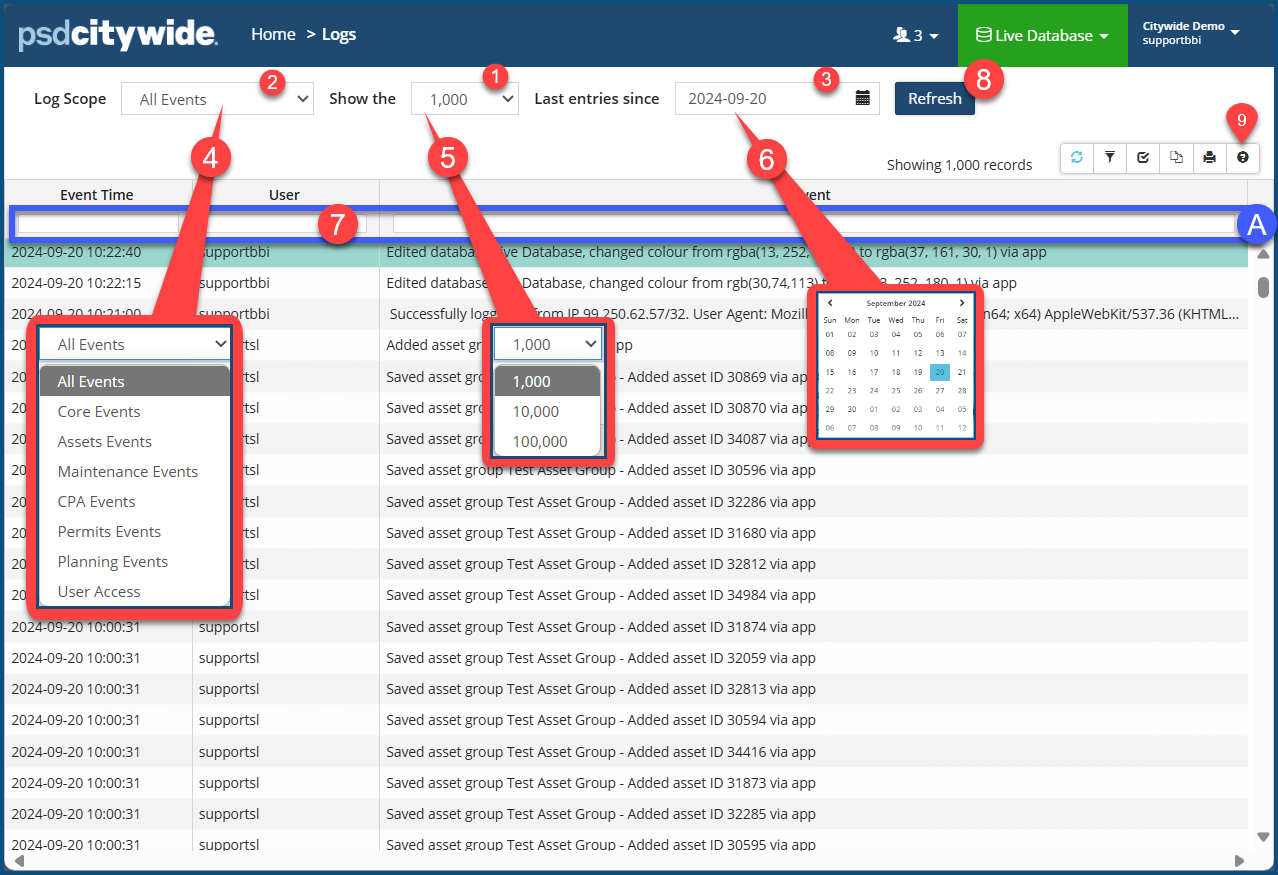
All activity (events) in Citywide is logged, and each log entry consists of the Event Time, the User, and various other types of details differentiated according to the module in which the event was initiated. The Logs page defaults to displaying 1,000 ❶ records of All Events ❷ (events from all the modules) in the system up to the Last entries since date ❸. All these settings can be changed from their respective pull-downs and the application of filters to produce restricted listings. Like other grids within Citywide you can refine, customize, export, and print logged events.
Defining the Scope
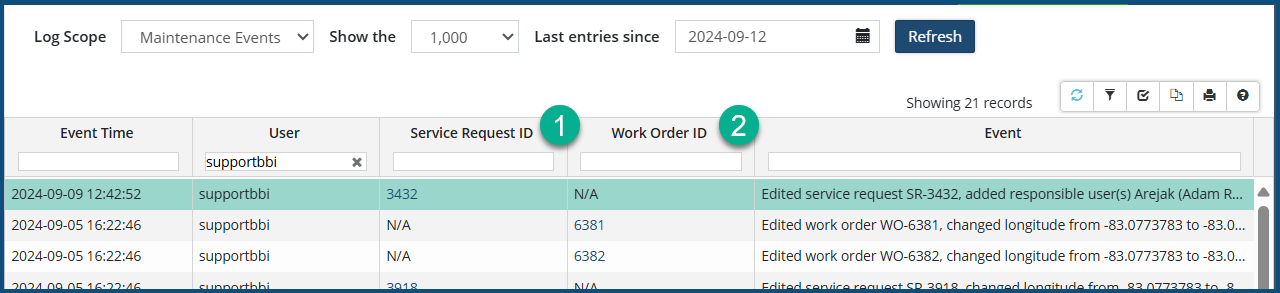
Select an item from the Log Scope pull-down to restrict the list events created in one of the modules or sub-modules, Core Events, or User Access (security events). The columns in the log and the entries beneath them will display pertinent information relating to this choice. Choosing Maintenance Events ❹, for example, displays Service Request IDs ❶ and Work Order IDs ❷:
The number of records ❺ can be changed from 1,000 to 10,000 or 100,000, and records prior to the selected date ❻.
Click Refresh ❽ to update the display according to your choices.
Filter and Sort
In addition to limiting the scope of the listing, the listing can further be restricted through the application of filters on any of the column headings  (e.g. User ❼). See Grid Customization for details.
The following is a guide to the application of filtering.
- ca will return cat and carrot
- 12 will return 12, 1234, and 12-ABC
- Numeric ranges can be used, i.e., 1 - 100 (inclusive)
- Logical filters can be used for more specific filtering: >, <, =, !
- Example: =1 will filter results whose value is exactly 1, not 100 or 11
- Example: >20 will filter results whose value is greater than 20
- Example: !abc will filter results that do NOT contain abc
Click Refresh ❽ to update the display according to your choices.
The overall listing can be displayed can be sorted on the basis of any column by clicking on its header. Each subsequent click will reverse the order from ascending to descending and vice versa.
Click on the Help icon  ❾ for additional filter and sort tips.


