


Timesheets

Jun 28, 2024
The Timesheets screen provides a summary grid view of work hours per worker, and is expandable to show WOs and wage type. Users with the appropriate permission levels can approve/reject timesheets individually or in bulk.
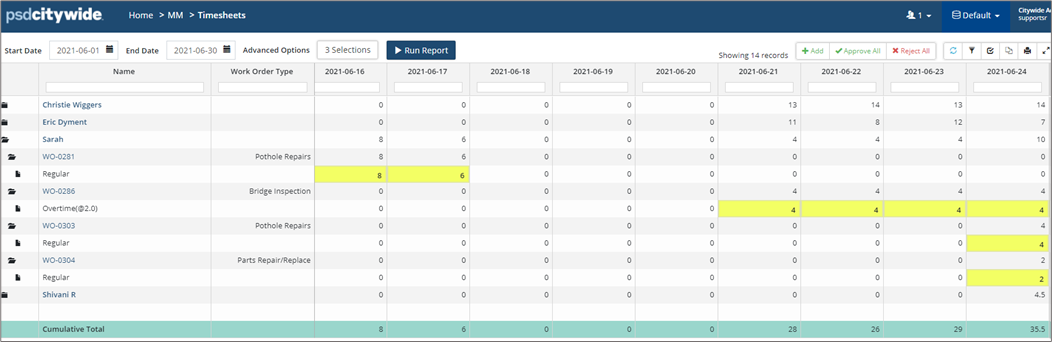
To generate a timesheet report for a group of workers:
- Click Maintenance 🢡 Timesheets.

- Enter a Start and End Date.
- Click Advanced Options: No Selection. Set filters as needed. For example:
- Click Worker and select one or more names (hold Ctrl + click to multi-select).
- Click Work Order Status and select Completed.
- Toggle Approval Status Theme to Show. This colour coded option makes it easy to identify hours that are pending, approved, or rejected.
Timesheets are useful for costing all labour, equipment and parts/materials used on a WO.
To cost out resources:
- Click +Add in the upper right area of the Timesheets
- Select an Entry Type
- Create New Work Order: Click Select to choose a Department, Work Order Type Group and Work Order Type. Add a Project and Notes as needed.
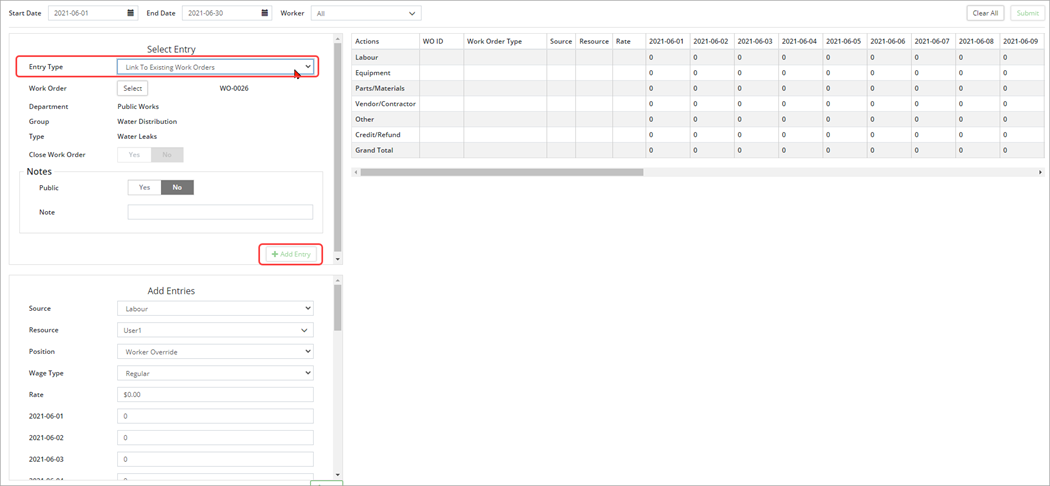
- Link to Existing Work Orders: Click Select to search and choose an existing WO. Add Notes as needed.
- Create New Work Order: Click Select to choose a Department, Work Order Type Group and Work Order Type. Add a Project and Notes as needed.
- Click +Add Entry.
- Select a Source and complete all necessary fields including hours for each date listed. Click +Add and a record will be added to the grid on the right.
- Continue to add entries with costing information for each resource. Citywide updates totals on the right as entries are added.
- Click Submit. Costing information is added to the WO and can be viewed on the Costs screen at the WO level.


