


The Replacement Cost is the current cost of replacing the asset and is required for asset management reports. Citywide provides several methods for calculating replacement costs and archives the value each time it is updated. It is recommended to update the replacement cost yearly so that capital projections are based on the best available information.

Replacement Cost Methods
The replacement cost field can be updated individually at the asset level or in bulk through an upload or using Default Values  in the Inventory view.
User-Defined Replacement Cost Method
Use this method when the replacement cost source is a report or study.
- At the asset view click Replacement Cost.
- Click Replacement Cost Method and select User-Defined Cost.

- Enter a Replacement Cost and an as of date.
- Reference the Replacement Cost Source (optional).
- Click Save. Click Yes when prompted to archive the replacement cost.
To update user-defined replacement cost in bulk use the Asset Sync template in the Upload Center. Customize the template to include the Replacement Cost Method, Replacement Cost Date (YYYY-MM-DD), and Replacement Cost fields.
Cost/Unit Replacement Cost Method
This method can also be used when the replacement cost source is a report or study.
- At the asset view click Replacement cost.
- Click Replacement Cost Method and select Cost/Unit.

- Enter a Replacement Cost Source (optional).
- Select a Valuation Basis.
- Initial Quantity - initial, unadjusted quantity of the asset
- Adjusted Quantity - initial quantity plus/minus any adjustments
- Lifecycle Quantity - lifecycle quantities specified for asset management purposes; when selecting this option enter a Funding Unit
- Enter a Replacement Cost/Unit.
- Enter an as of date.
- Click Save. Click Yes when prompted to archive the replacement cost.
To update replacement cost/unit on multiple assets at once use Default Values. Filter the inventory list to show only those assets that will have the same cost/unit and then click Default Values. Set the Default Type to Replacement cost and the Costing Method to Cost/Unit. Follow the steps above.
CPI Tables Replacement Cost Method
CPI tables are copied from Stats Canada and are updated once or twice per year. The indices include CPI (Consumer Price Index) and NRBCPI (Non-Residential Building Construction Price Index).
- At the asset view click Replacement Cost.
- Click Replacement Cost Method and select CPI Tables.
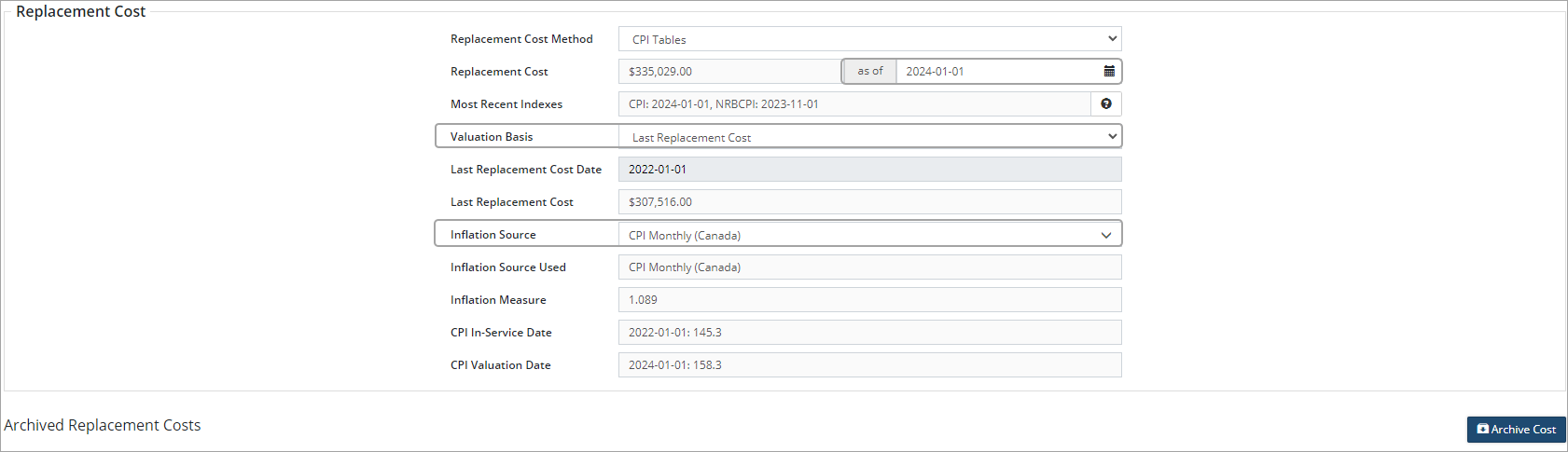
- Note the date in the Most Recent Indexes field.
- Select a Valuation Basis.
- Historical Cost - inflates the historical cost
- Adjusted Cost - inflates the historical cost plus/minus any recorded adjustments
- User-Defined - enter a Base Valuation Date and a Base Cost
- Last Replacement Cost - inflates the most recent recorded replacement cost
- Click Inflation Source and select a CPI index or NRBCPI index. If User-Defined is selected, enter an Inflation Source Used and Inflation Measure. The Inflation Source Used, Inflation Measure, and Date fields will auto-populate.
- Enter the most recent index date in the as of date field.
- Click Save. Click Yes when prompted to archive the replacement cost.
To update replacement cost using CPI Tables on multiple assets at once use Default Values. Filter the inventory list to show only those assets that will be updated and then click Default Values. Set the Default Type to Replacement cost and the Costing Method to CPI Tables. Enter a Cost Date using the date show in the Most Recent Indexes field. Follow the steps above.
When using the Flat Rate Inflation method, select a Valuation Basis, enter an Inflation Rate (%), and an as of date. Click Save.
Assets that will not be replaced when retired can be marked as not planned for replacement. These assets will not be reported on therefore avoiding unnecessarily inflating costing information in asset management reports.



