


Overview
The permit, planning or licence application process involves a number of stages in which municipal staff has to inform various departments of their current status and next-stage requirements. In Citywide, a user can set up notification sets for specific application statuses and permit / licence / planning application types. This can also include notifications for the various inspection types related to permits and licences as well as notifications concerning licence renewals based on expiry dates.
Structure of the Notifications Page
The email Notifications setup page is divided into the following notification categories:
Building Permit Notifications
- Building Permits
- Inactive Permits
- Inspections
Other Permit Notifications
- Other Permits
- Inspections
Licence Notifications
- Licences
- Licence Renewals
- Inspections
Planning Notifications
- Applications
Building Permit Notifications
Each notification set belongs to a notification category (for example, Decks Only belongs to the Building Permit Notifications🢡Building Permits). Therefore, a new notification set is added to the appropriate category.
To create a new building permit notification set:
- Click on + Add Permit Notification located in the building permit notification category ❶.
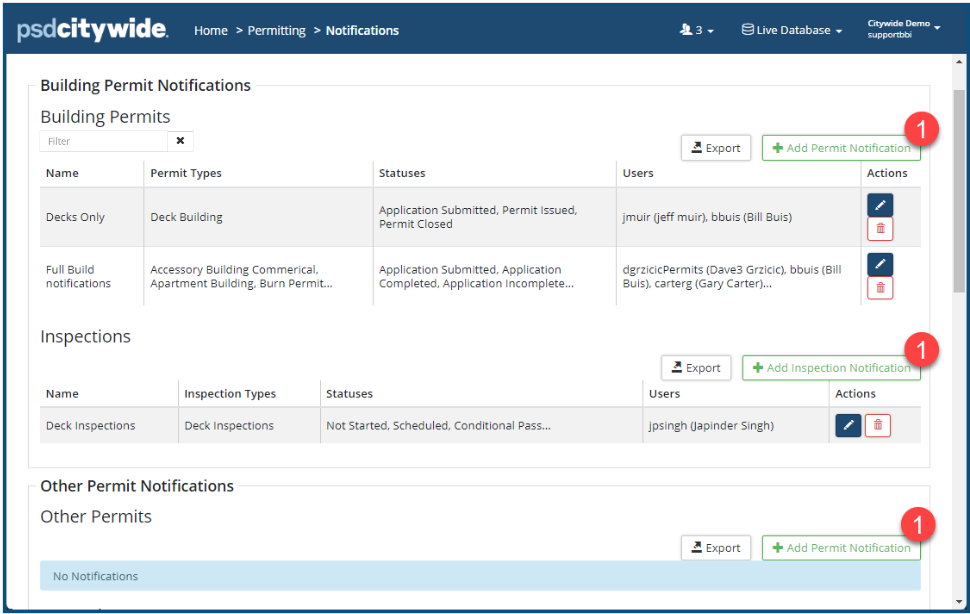
The New Notification dialog box appears:
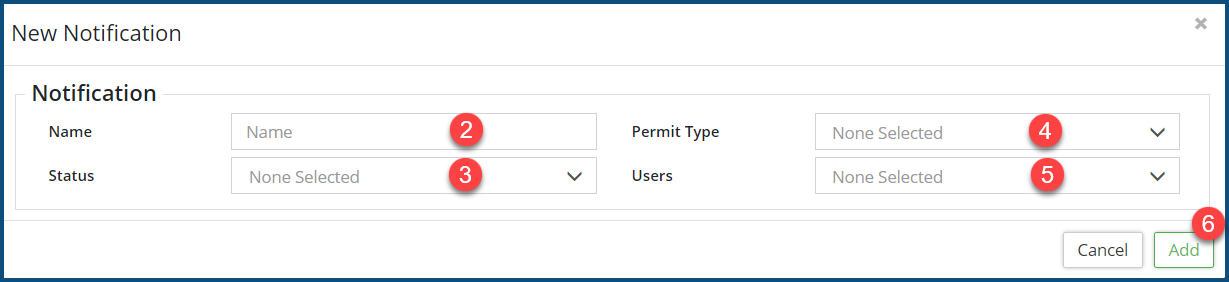
- Enter a descriptive Name ❷ for the notification set.
- Under Status ❸, select the status(es) that will be part of this notification set. (Hold down the Ctrl key to select more than one. Selected options will have a blue background. Payments completed and additional Contacts added during any status will also trigger an email notification)
- Select the Permit Type(s) ❹ that this set of notification will be used in.
- Select the User(s) ❺ that is going to receive the notification.
- Click Add ❻.
Each notification type can have any number of (uniquely-named, user-created) notification sets within it, and each notification set will involve a unique cluster of properties. Here, for example, are two Building Permit Notification sets ❶ within Building Permits: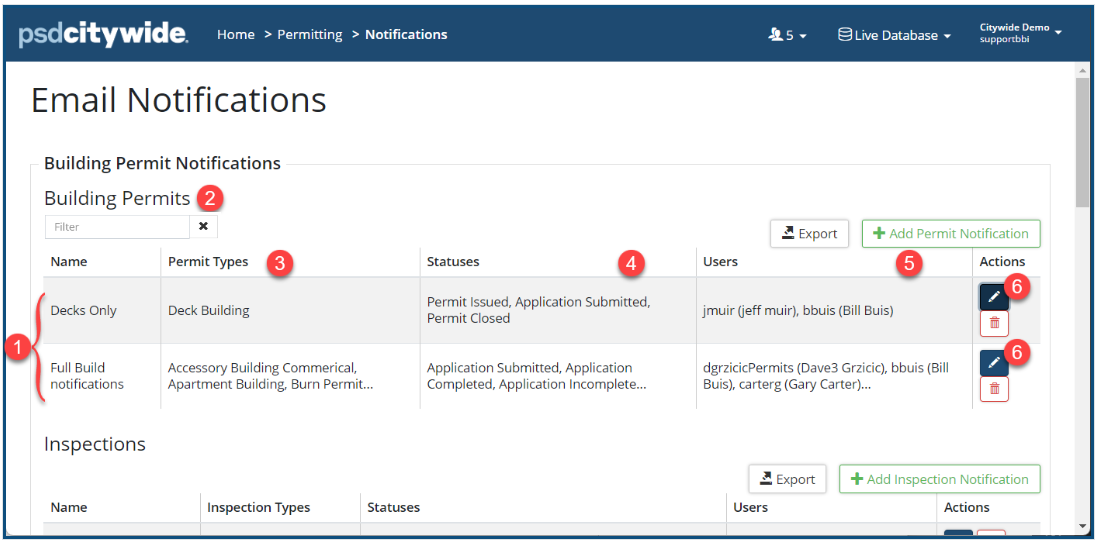
Decks Only notification is applied to only the Deck Building permit ❸, involving only three statuses ❹, and only two users will get the notification ❺.
Full Build Notifications is applied to a many different permits ❸, involving a many different statuses ❹, many more users receive the notification ❺ than the Decks Only notification set.
View/Edit Notification Set Properties
To view the notification properties associated with a notification set:
- Click on the Edit icon ❻. The Edit Notification dialog box appears, showing the Notification set Name and the number of selected Statuses ❼, Permit Types ❽, and Users ❾:
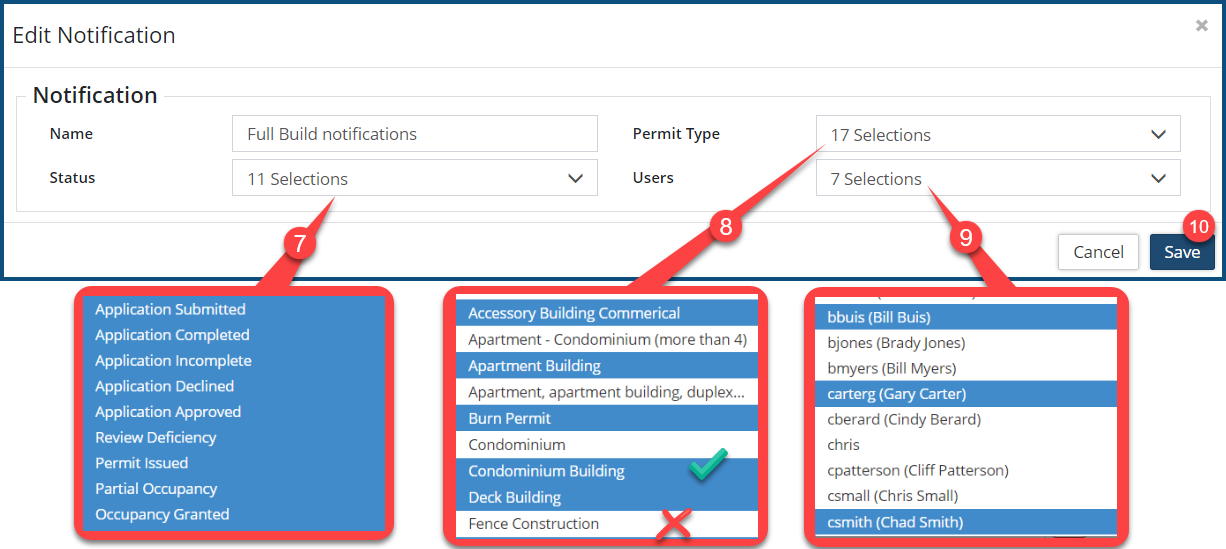
- Clicking on the Status, Permit Type, and Users pull-downs reveals the selected items in each of those properties. The items shaded blue represent selected properties (e.g. the Condominium Building Permit type), while unshaded (white) items are excluded (e.g. Fence Construction). In the above example, all statuses ❼ are checked, seventeen permit types are selected, and seven users ❾ are selected.
- To add or remove an item from any one of these properties:
- Click on the pull-down associated with it.
- Hold down the Ctrl key and click on a blue-shaded item to unselect it or click on an unshaded item to select it.
- Do so for all the properties as required.
- Click Save ❿.
Inactive Notifications
Notifications can be set up to notify Citywide users of inactive building permits. Inactive notifications can be set up and configured for the number of days in the specified building permit application status(es) to trigger the notification.
To create a new inactive notification set:
- Click on + Add Permit Notification located in the Inactive notification category
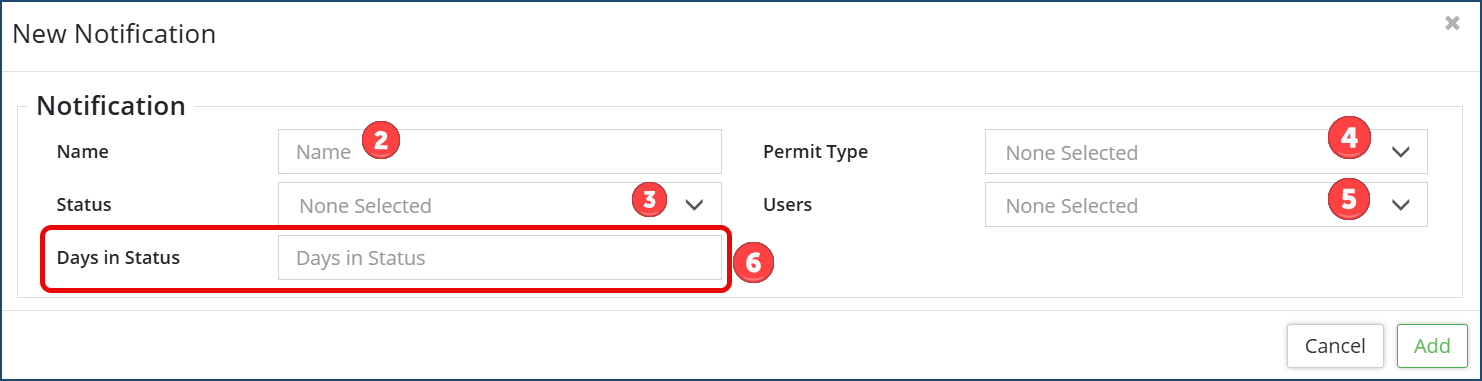
- Enter a descriptive Name ❷ for the notification set.
- Under Status ❸, select the status(es) that will be part of this notification set. Hold down the Ctrl key to select more than one. Selected options will have a blue background. Payments completed and additional Contacts added during any status will also trigger an email notification)
- Select the Permit Type(s) ❹ that this set of notification will be used in.
- Select the User(s) ❺ that are going to receive the notification.
- Enter the # of days in the selected status(es) of inactivity that will trigger the notification ❻.
- Click Add.
To view or edit Inactive Notification Set Properties, follow the steps above for View/Edit Notification Set Properties
Inspection Notifications
Inspection notifications can be set up and configured for any of the Inspection types and inspection status(es) to trigger an email notification to select user(s), for example the Inspector when an inspection is scheduled / requested.
To create a new inspection notification set:
- Click on + Add Inspection Notification located in the Inspections notification category.

The New Notification dialog box appears:
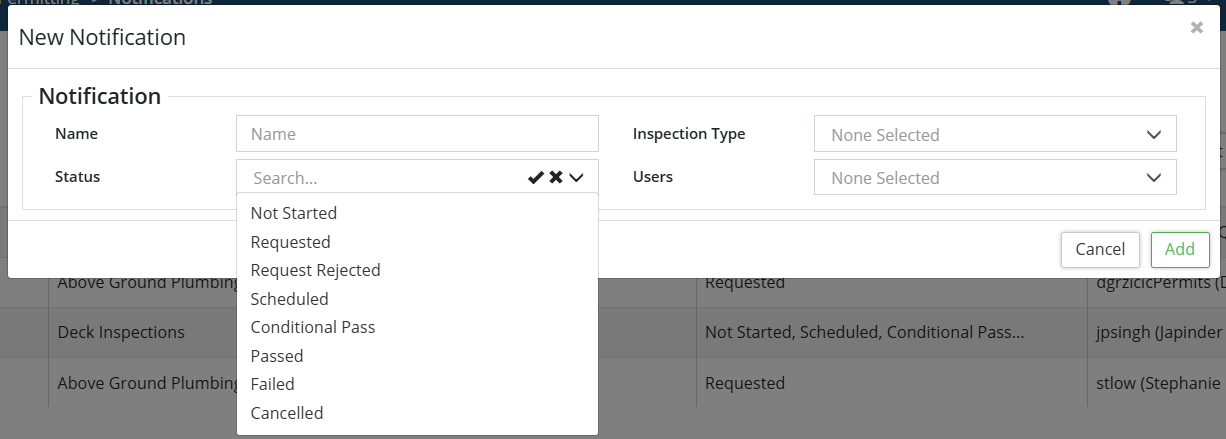
- Enter a descriptive Name for the notification set.
- Under Status, select the status(es) that will be part of this notification set. Hold down the Ctrl key to select more than one. Selected options will have a blue background.
- Select the Inspection Type(s) that this set of notification will apply to.
- Select the User(s) that is going to receive the notification.
- Click Add .
Other Permit Notifications
All non-building permits reside in the Other Permits module. Notifications can be triggered to select user(s) based on the other permit type(s) and status(es).
To create a new Other Permit notification set:
- Click on + Add Permit Notification located in the notification category ❶.
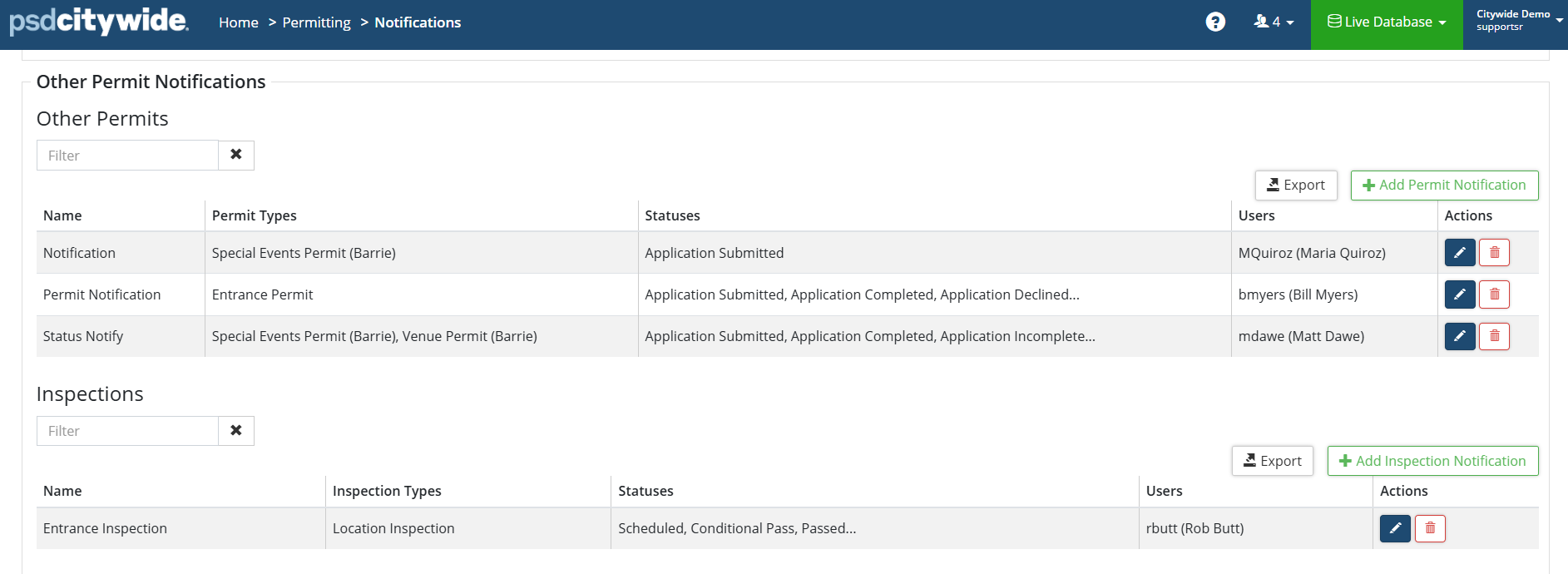
The New Notification dialog box appears:
- Enter a descriptive Name ❷ for the notification set.
- Under Status ❸, select the status(es) that will be part of this notification set. Hold down the Ctrl key to select more than one. Selected options will have a blue background. Payments completed and additional Contacts added during any selected status will also trigger an email notification to the selected user(s).
- Select the Permit Type(s) ❹ that this set of notification will apply to.
- Select the User(s) ❺ that is going to receive the notification.
- Click Add ❻.
Inspection Notification
Email notifications for Other Permit inspections will be set up in the same way as Building Permit inspection notifications. Please refer above.
Licence Notifications
Notifications for select or all Licence types can be set up based on the status(es) and sent to one or multiple users (staff).
To create a new Licence notification set:
Click on + Add Licence Notification located in the Licence notifications category.
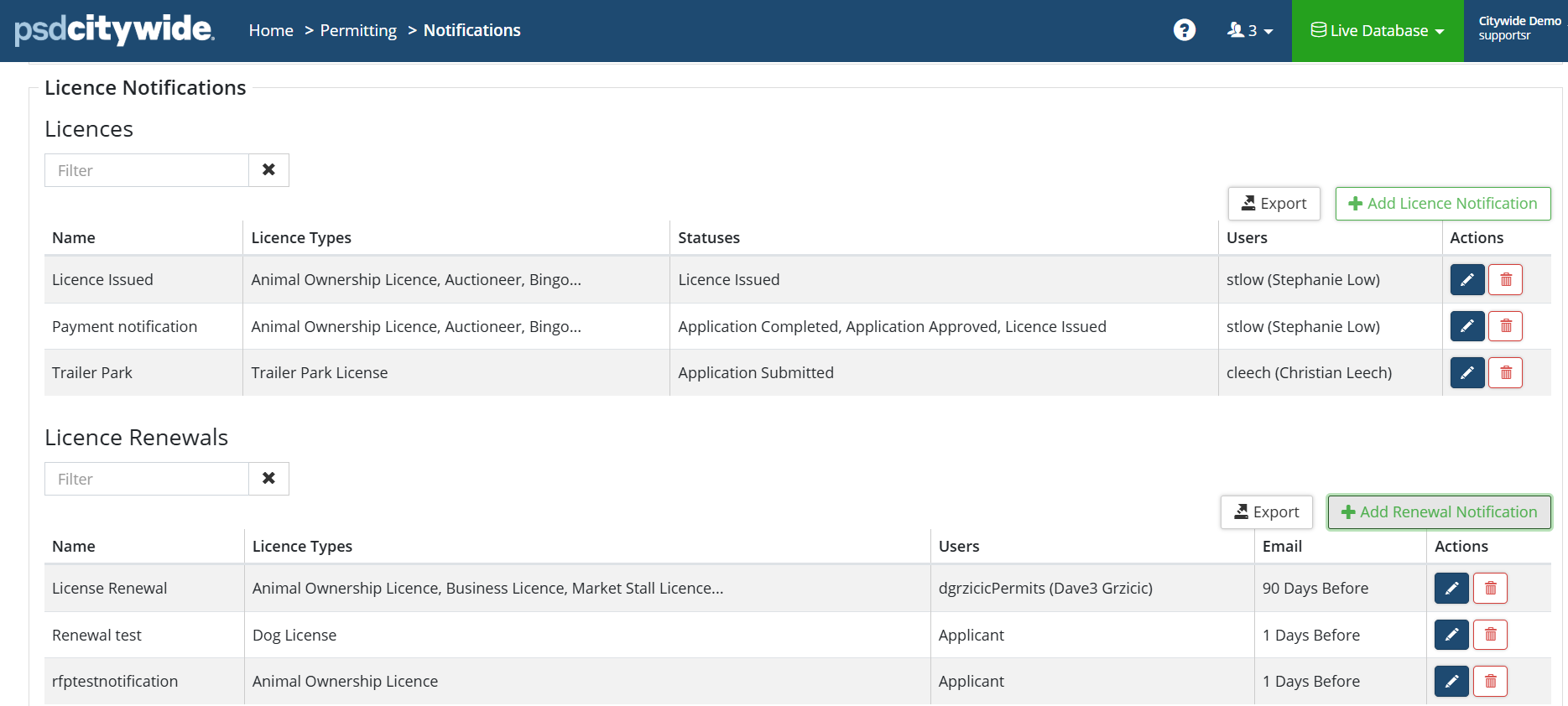
- The New Notification dialog box will appear. Enter a descriptive Name for the notification set.
- Under Status, select the status(es) that will be part of this notification set. Hold down the Ctrl key to select more than one. Selected options will have a blue background. Payments completed and additional Contacts added during any selected status will also trigger an email notification to the selected user(s).
- Select the Licence Type(s) that this set of notification will apply to.
- Select the User(s) that is going to receive the notification.
- Click Add .
Licence Renewals
Notifications can be sent to staff as well as to the Applicant to inform to inform the recipient that a licence needs to be renewed. The time-based notification can be sent based on the licence expiry date. The notification can be configured to get triggered a certain number of days / weeks / months / years before or after the expiry date.
To create a new licence renewal notification set:
- Click on + Add Renewal Notification located in the Licence notification category.
The New Notification dialog box appears: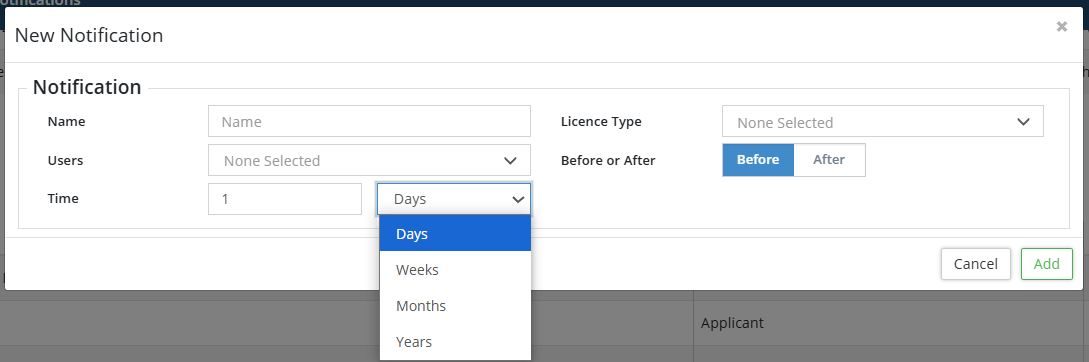
- Enter a descriptive Name for the notification set.
- Select the User(s) or Applicant that is going to receive the notification.
- Select the Licence Type(s) that this set of notification will apply to.
- Select Before or After depending on whether the notification will be sent before or after the licence expiry date.
- Set the Time (for before or after the expiry date) in terms of number of days / weeks / months / years.
- Click Add .
Inspection Notification
Email notifications for Licence inspections will be set up in the same way as Building Permit inspection notifications. Please refer above.
Planning Notifications
Notifications can be sent to select user(s) for select (or all) application type(s) based on the custom status(es) created by the Planning staff. When a certain application will be set to a certain status as specified in the notification set, certain user(s) will get notified.
To create a new planning application notification set:
- Click on + Add Application Notification located in the Planning notifications category.

The New Notification dialog box will appear.
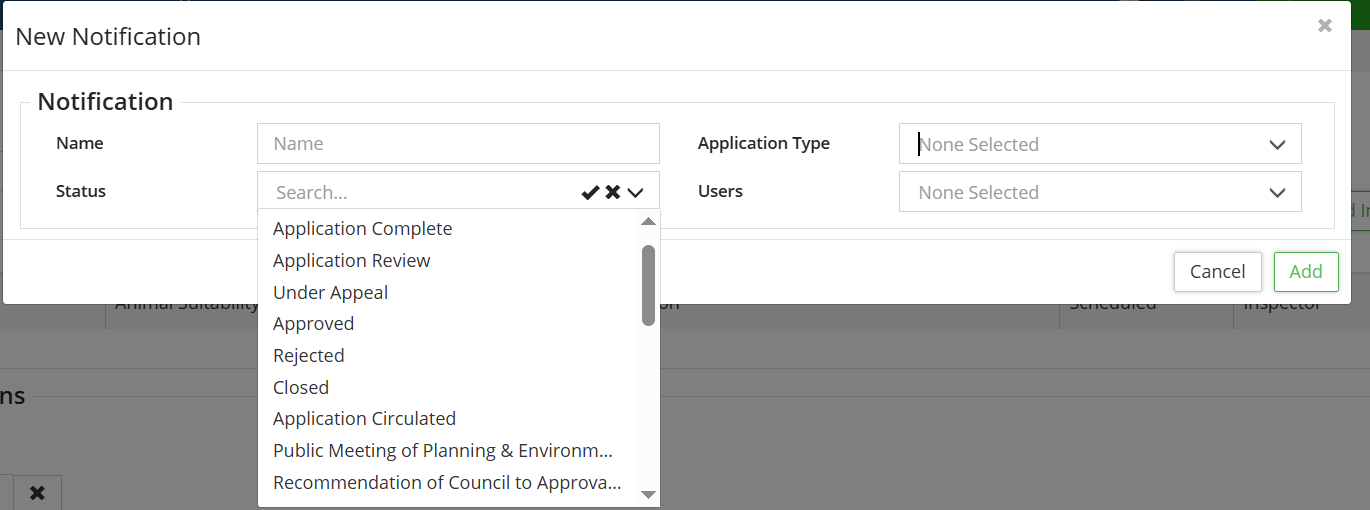
- Enter a descriptive Name for the notification set.
- Under Status, select the status(es) that will be part of this notification set. Hold down the Ctrl key to select more than one. Selected options will have a blue background. Payments completed and additional Contacts added during any selected status will also trigger an email notification to the selected user(s).
- Select the Application Type(s) that this set of notification will apply to.
- Select the User(s) that is going to receive the notification.
- Click Add .


