


The GIS Info page provides basic configuration information about the GIS database like Geocoder Type ❶ (Default or Custom), GIS License Type ❷ (Viewer Only or Full Access), and Geocoder Bounds ❸ which represents the top right and bottom left points used to generate the area bounds in which the geocoder search is limited to.
The Layers ❹ section lists all layers currently implemented in Citywide GIS. It provides some basic troubleshooting information that can be used in the event a layer is not performing as intended.
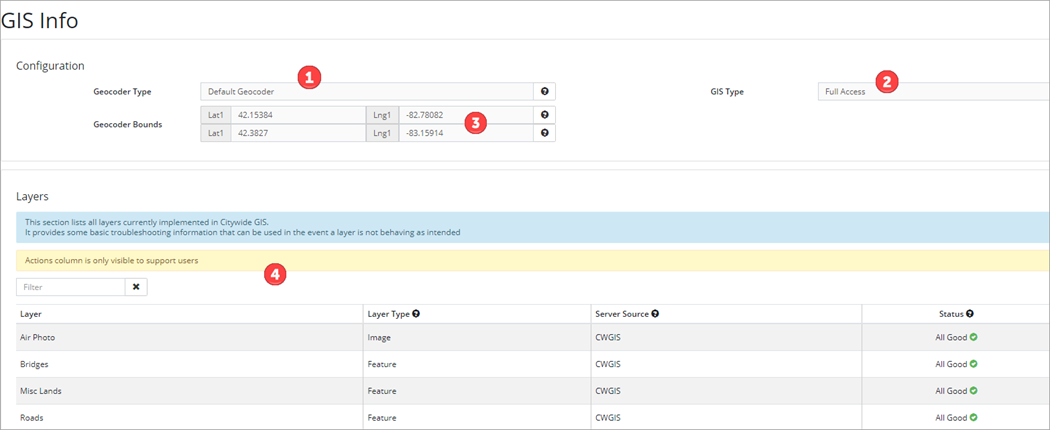
Configuration
Geocoder Type
Searching for an address by entering 123 Main Street in the search field is called a forward search. Clicking on the map or searching by mapping coordinates is called a reverse search, or reverse geocoding. Having a reliable geocoder to suit the needs of municipal clients is a high priority and Citywide offers four options, all of which allow for forward and reverse geocoding.
Default Geocoder
The open-source data from OpenStreetMaps is the default option in the geocoder for address searching and geolocating property addresses and location of service requests and work orders. A client-specific bounding box is applied to the geocoder to improve the quality of results, that constrains the spatial scope of the address search to approximately the municipality’s boundary.
Custom Geocoder
In a custom geocoder setup, locations are sourced from client data. There are three options for setting up custom address search capability:
- Custom Geocoder with an address point or parcel layer data - A client provides their address data in a shapefile format. We then process this data and parse it into a standard structure (House #, Street Name, Unit #, City, etc.) so it can be queried. If an address cannot be geocoded, the system will try using the default option. The address data can be updated on a monthly/quarterly basis as needed.
- Custom Geocoder with Web Map Service source data - A client provides their address data in the form of a web map service via a URL. We would process the data and the system pulls the latest data from the REST service each night.
- Geocoding Service provided by the Client - Instead of providing address data, the Client configures and shares a complete Geocoding service via their server.
GIS Type
The GIS Type for the database is either Viewer Only or Full Access, and is determined by the GIS module license. Viewer Only license does not include access to the layer editing tools below.
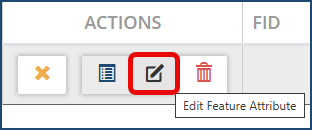
However, if the GIS License Type is Full Access, then the GIS layer features can be edited, new features can be created and existing ones deleted. All changes can be saved to the database.
To create a feature:
- Toggle on feature layers as needed.
- Click Create Feature and select the appropriate layer (i.e., water hydrants). The button will display the selected layer name.
- Navigate to the area of the map where the new feature is located and click to add the new feature.
- Click Edit Feature Attributes in the Attributes table as needed and then click the new feature to assign Feature Attributes
Layers
The Layers section lists all layers currently implemented in Citywide GIS and provides some basic troubleshooting information.
The Layer Type column lists the type of service a layer is requested as:
- Feature is any layer that is requested as individual features and can be used for linking
- Image is any layer that can only be used for imagery and cannot be used for linking.
Server Source shows the type of server a layer is sourced from:
- ESRI is any esri server (Arcgis, AGOL, etc.)
- EGIS is Citywide Enterprise GIS
- CWGIS is any layer stored on Citywide's map server
Status determines if the layer is currently accessible by Citywide GIS. Move the mouse over the icon next to a status (e.g.,  ) to get more info on the status.
Submit an implementation request through the Create Support Request at the top right corner drop down when new layers are required.  The support team will provide you with a GIS Service Integration Info and Requirements form to complete and send back so that layers can be created. You can only link GIS layers that exist in your GIS system.


