


Linking is the process of associating Citywide Assets with a GIS Feature by means of a common identifier. This is facilitated by a nightly linking script and allows the sharing of information between Assets and GIS records by using a linking key. For example, it lets users see Asset-derived condition/risk on their layers in the GIS viewer. It also facilitates the display of a map image at the asset-level Summary page and allows seamless navigation between the Assets module and GIS, i.e. between the Asset record in the Assets inventory and the Asset feature's location on the map.
The Nightly Report details the results and statistics related to the most recent data linking operation and is often used to diagnose linking issues. The last run date is shown in the completed field located in the upper left of the report screen.
The grid lists the GIS layers ❶ along with the corresponding linking key fields (Asset linking key and GIS linking key ❷). These fields contain the common identifier that is used to link GIS features with their related assets.
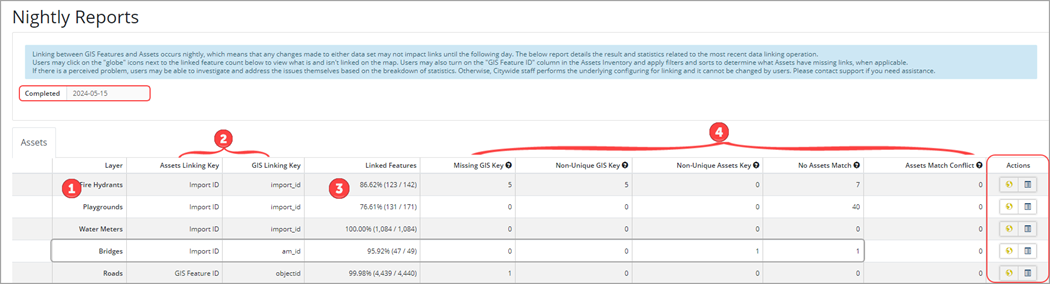
The Linked Features ❸ column shows the percentage of assets that are linked, as well as a count (total linked/total # of features) for each layer. The remaining columns ❹ list the number of unlinked features, and can be used to help identify and troubleshoot linking issues. The  in each of these columns provides an explanation of the issue and a resolution.
For example, the Bridge layer has 49 feature assets of which 47 (or 95.92%) are linked. Of the 2 that are unlinked, one has a non-unique Assets key meaning there are multiple assets with the same linking key value in the Assets inventory. To fix this issue, relevant assets must be updated so that there are no duplicated values in the field being used for linking. The second does not have an asset match meaning no asset was found with a key value to match the respective GIS Feature's key value. To fix this, relevant assets must be updated or created for the missing values.
View on Map
In the Action column a View on map  icon is available for each layer. Click this button to navigate into the viewer where the associated layer will be visible and set to a style where linked features display in green, and unlinked features in red. Select individual or groups of features and use the attribute table to assist in assessing why features may or may not be linked.
To view what is and isn't linked on the map. Users may also turn on the GIS Feature ID column in the Assets Inventory and apply filters and sorts to determine what assets have missing links.
If the layer style is set to External style, then the features will not display in green/red (linked/unlinked). Set Use External to no to enable the Linked Features layer style.


