


Overview
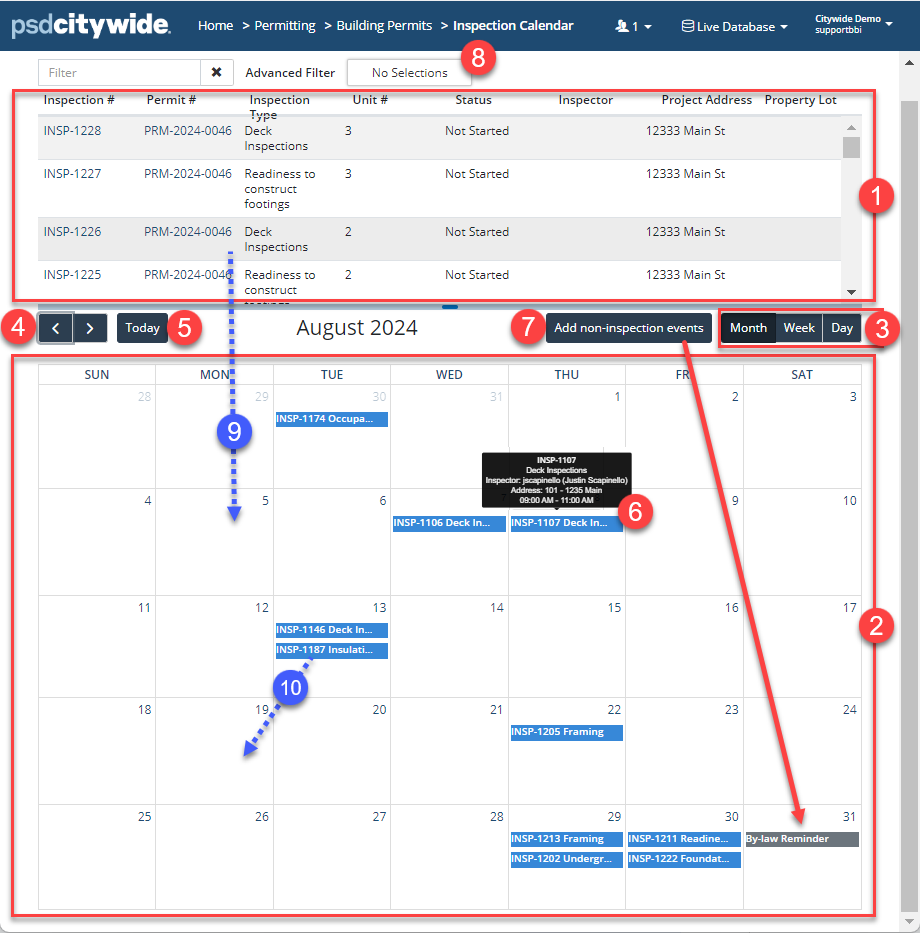
The Inspection Calendar is a useful tool which displays scheduled inspections on a calendar and allows you to easily schedule unscheduled inspections using a drag-and-drop method. It is divided into two parts: 1) the table in the upper half of the screen ❶ showing inspections to be scheduled or re-scheduled and 2) a calendar ❷ of inspections that are scheduled in the lower half of the screen. Both divisions can be filtered using a variety of different criteria to aid the scheduling process. In addition to scheduling inspections, non-inspection entries that may be useful or important to anyone having to consult the inspections schedule can be added to the calendar.
Setting Calendar Views
The opening view defaults by showing all of the latest 100 inspections to be scheduled in the upper division and all of the latest 100 scheduled inspections for the current month in the calendar. The view can be changed from the Monthly view, to the Weekly view, or to the single Day view ❸. Clicking on the forward > and back < arrows ❹ will advance/roll back the view to the next or previous month/week/day, depending on which view has been selected. Clicking on Today ❺ will set the calendar to today's month/week/day.
Mousing over a scheduled entry ❻ in the calendar will display essential information about it, including: the inspection type, the name of the assigned inspector, the property address, and the start time and time span for the inspection. (The same time span will be expanded and show across the number of hours involved in the Day view.
In addition to inspections, non-inspection entries ❼ can be added to the calendar. In the following example a "By-law Reminder" note has been added on the last day of the month. It's purpose is to remind anyone looking at the calendar that a new by-law comes into effect for enforcement from Sept 1 forward.
Applying Filters
There can be hundreds of inspections scheduled in a single month in various municipalities, involving dozens of different inspection types, and a multitude of inspectors. Only the latest 100 inspections are initially visible. Being able to pinpoint and limit various types of information is essential to scheduling. Do you wish to see all the inspections for a particular inspector in the current month? Do you wish to further limit that view to a particular type of inspection? Are you looking to balance inspections type X across the following month for two or three different inspectors? If so, using the filtering options will allow you to do all these things quite handily.
Both the unscheduled inspections in the table and the scheduled inspection in the calendar can be filtered. In both cases:
- Click on the the Advanced Filter box ❽. The Filter dialog box appears, showing the two divisions ❶:
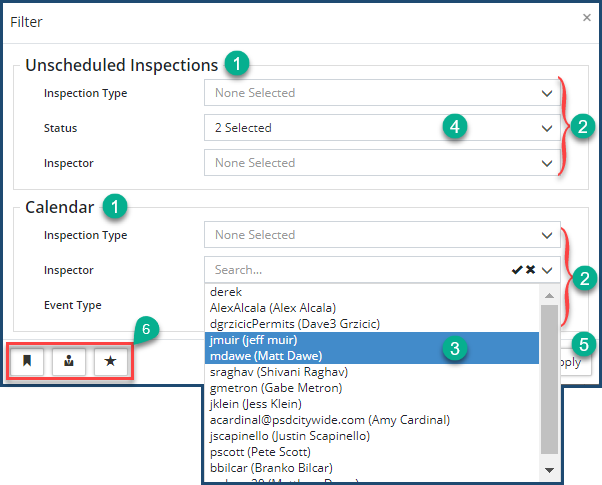
- Click on any one of the fields in either division to set one or more filters on that basis of the selected field(s) ❷. You can select multiple items under each field by holding down the CTRL key while clicking on individual items. In the above example, the calendar will be filtered down to show the scheduled inspection for two inspectors (shown with the open Inspector ❸ pull-down) and the unscheduled inspections will be filtered down to two Statuses ❹ ("Conditional Pass" and "Failed" - unseen here) in the unscheduled inspections table.
- Click Apply ❺.
- You may wish to use or set filter pre-sets by clicking on the appropriate icon ❻:
 - to load system default filters
 - to load user default filters (those that you have saved in the past)
 - to set the current filter set as the default.
Scheduling/Rescheduling an Inspection
Unscheduled inspections are scheduled by dragging the inspection record from the unscheduled inspections table ❶ to the appropriate location ❾ in the calendar ❷.
Scheduled inspections can be rescheduled by simply dragging the inspection ❿ from its current time slot to another time slot if it is within the current purview. That is, if e.g. you are in the monthly view and you want to reschedule an inspection for another date and time, you can drag it to the new (monthly) calendar cell (but not, for example, to another month). Or, if you are in the Day view and you wish to reschedule the inspection to an earlier or later time on that same day, you can drag it to a new hourly slot.
Scheduled calendar inspections can also be rescheduled by simply clicking on the inspection to be rescheduled, and then entering the pertinent details in the Schedule Inspection dialog box.
Any time you either schedule and reschedule an inspection, the Schedule Inspection dialog box appears, allowing you to precisely set all the inspection parameters:
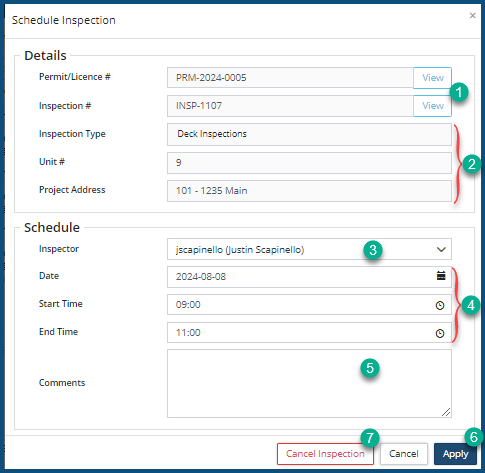
- Clicking on the View ❶ button will open either the Permit or Inspection record, depending on which one you clicked on. The remaining fields in the Details section are informational, derived from the Inspection record ❷.
- Select one or more Inspectors from the Inspector ❸ pull-down. (Hold the CTRL key and click on names in the pull-down to select more than one.)
- Set the Date, Start and End Times for the Inspection ❹.
- Optionally, add Comments ❺ that may be important or helpful to e.g. the inspector when s/he goes out to do the inspection.
- Click Apply ❻.
To Cancel an Inspection, click on Cancel Inspection ❼.


