


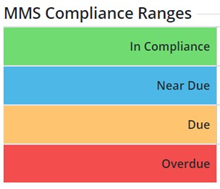
In the Asset Compliance Map View, Maintenance GIS map is styled by the Current Compliance Status of road segments using the MMS compliance Range colours setup for statuses in Maintenance classes.
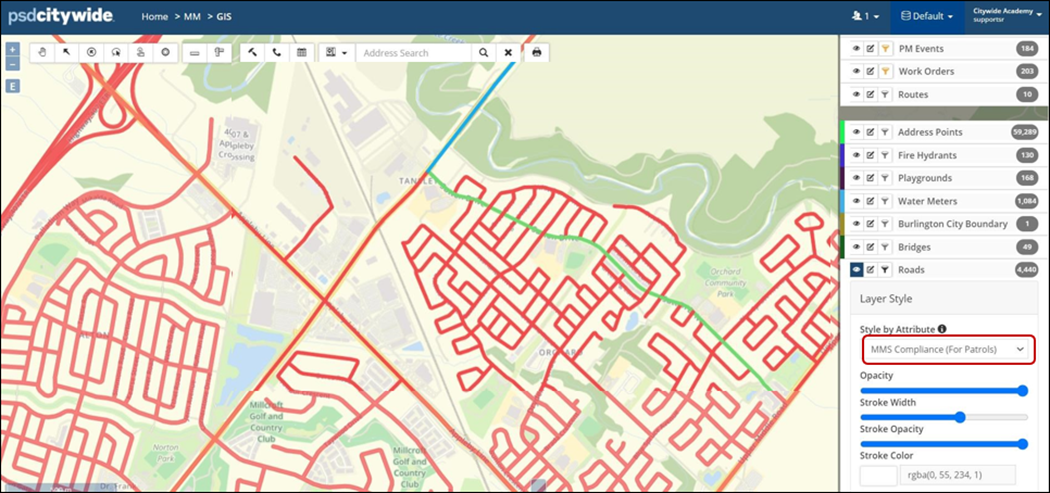
The road MMS compliance layer styling will not show for road features that are not linked in AM. Unlinked Road features will be displayed in Grey, denoting Unknown MMS Compliance Status.
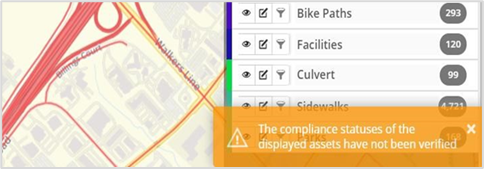
If MMS Asset Compliance is not activated for the database, then the Asset Compliance Map view displays the following Warning message: The compliance statuses of the displayed assets have not been verified.
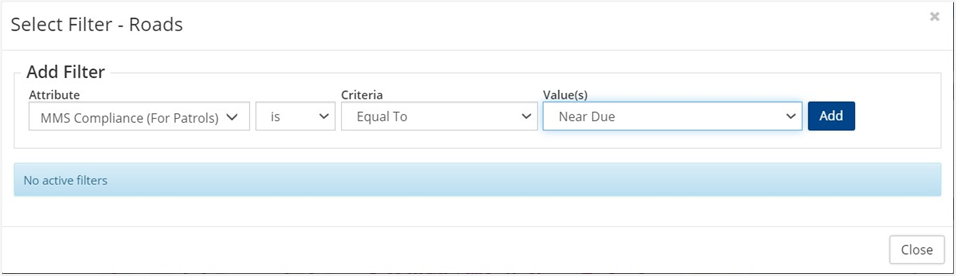
The road layer can be filtered using the Advanced Filter for the layer to show only those segments which are, say, in compliance status or near due for patrolling.
The MMS Asset Compliance Map can be printed as a PDF by using the Print tool.
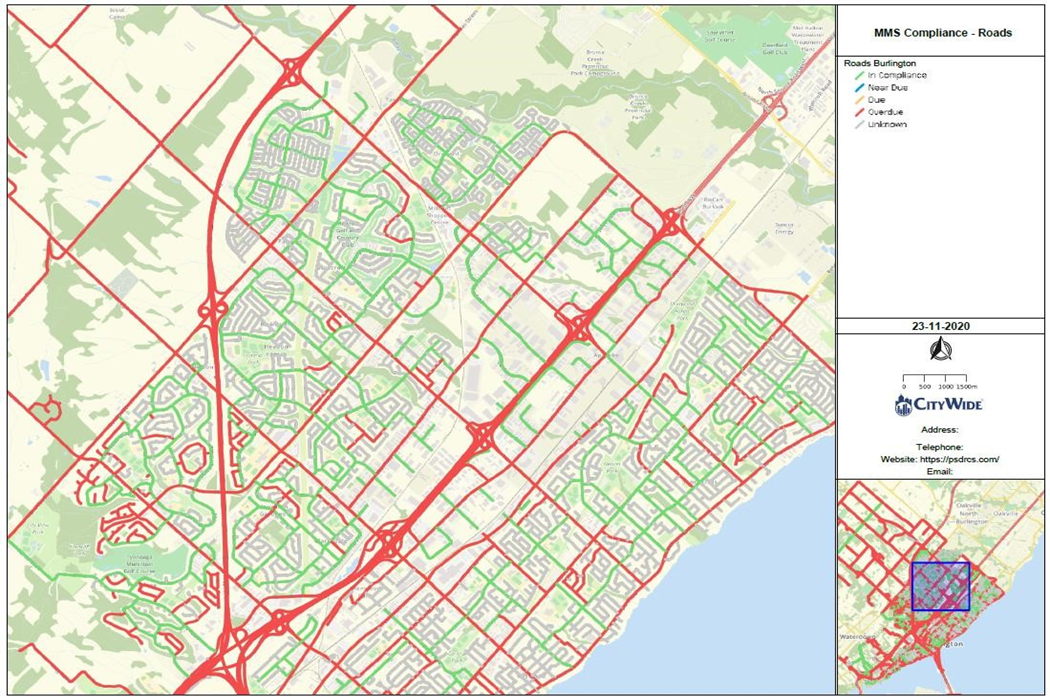
The legend for the colour-coding is the same as the colours set up in the MMS Compliance Range.


