


Overview
Work Fields are permit attributes used to capture important data fields that are usually present on the paper Permit Application Form used by municipalities. These fields are in many cases used to calculate permit fees (e.g., when the fee is a factor of the project value, the work area of a building, or the number of electrical fixtures to be installed in it).
Work Fields accessibility: Home 🢡 Permitting 🢡 Building Permits 🢡 Work Fields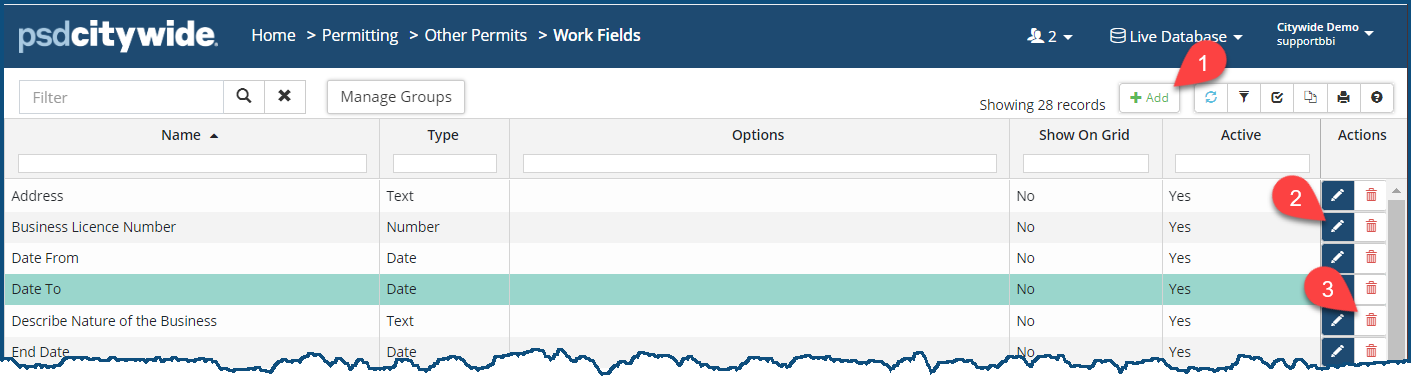
Add a Work Field
- Click + Add ❶ on the Work Fields grid. The New Field dialog box appears:
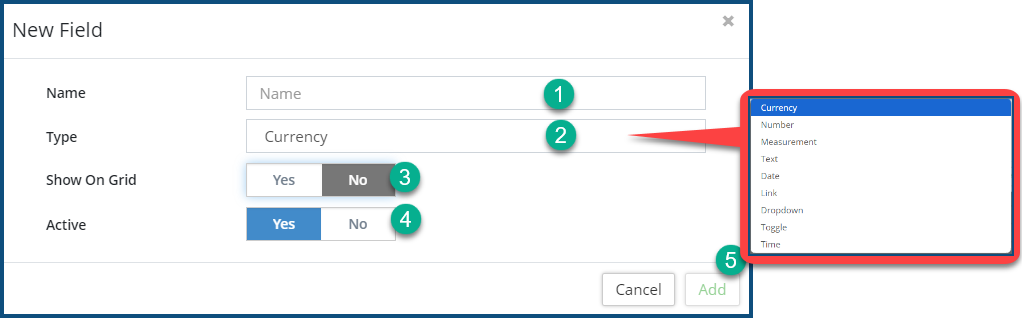
- Enter a Name ❶ for the field.
- Select the field Type ❷ (i.e., number, text, link to an external file, dropdown list of options, etc.). The available field types are defined by your Citywide administrator.
- Set Show On Grid ❸ to Yes if the field is to be displayed by default on the grid.
- Ensure the Active ❹ flag is set to Yes. If set to No, the work field will not be available when creating new permits. “No” might be the setting for a new field to be used some time in the future, or it could be the setting for an existing field that is no longer used (but not deleted, so that data pertaining to it is retained in the system).
- Click Add ❺.
- Click on the Edit tool
 ❷. The Edit Field dialog box will appear with the above fields.
 - Make the required changes.
- Click on Edit.
- Click on the Delete tool
 ❸. When prompted, click on Remove.
Work Field Groups Described
Work field groups are essentially “toolboxes” into which work fields will be placed when Permits are being created or modified. Just as electrical tools (wire strippers, voltmeters, etc.) pertain to an electrical project, and plumbing tools (pipe wrenches, drain augers, etc.) pertain to plumbing projects, so, too, different sets of fields apply to different Permit types. The particular group of fields in each case will vary according to their relevance and usefulness in defining the Permit type. To be sure, the Other Permits that are being discussed here will not have to same array and classification of fields that Building Permits will, but the same functionality and ability to organize field groups applies here as well. The following example is taken (for the purposes of greater clarification) from a Building Permit—Deck Building. Here all the fields concerned with deck dimensions are grouped within the Dimensions ❶ section, including “deck width,” “deck height,” and “deck length.”
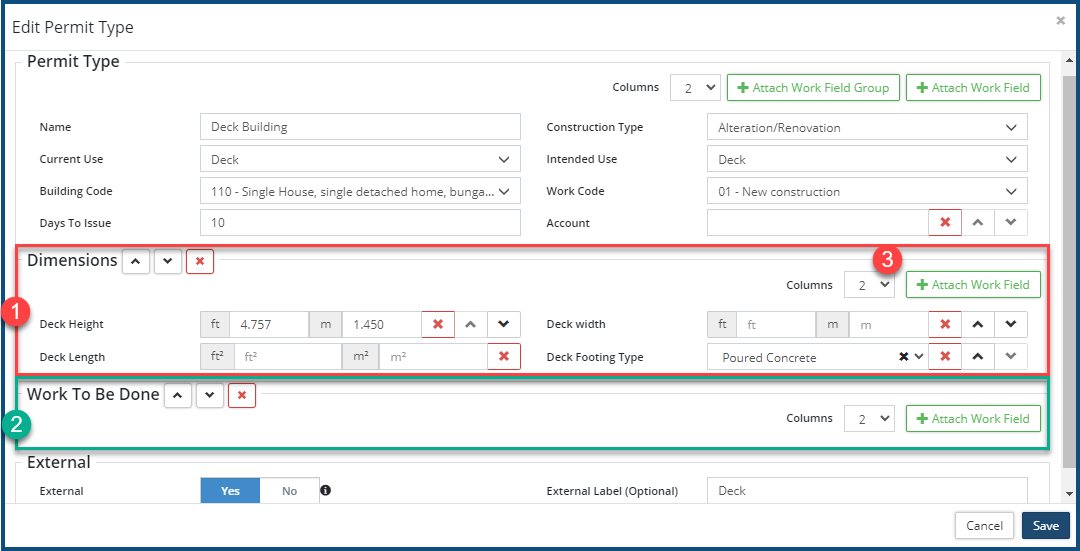
Just beneath it is the Work to Be Done” ❷ work field Group which, so far, has not had any fields added to it. Any number of additional work field groups could be added to this building permit type, spanning anywhere between one and four columns ❸.
Both of these work field groups can and will have different fields associated with them as they appear under different Permit Types. For example, the Building Permit Type for "Residential Addition" may well have a "Dimensions" work field group, but its fields will involve "wall height" and other related dimensions, and, needless to say, exclude any reference to "deck" dimensions!
Add a Work Field Group
To create a Field Group:
- Click on Manage Groups ❶. The Manage Groups dialog box ❷ will appear:
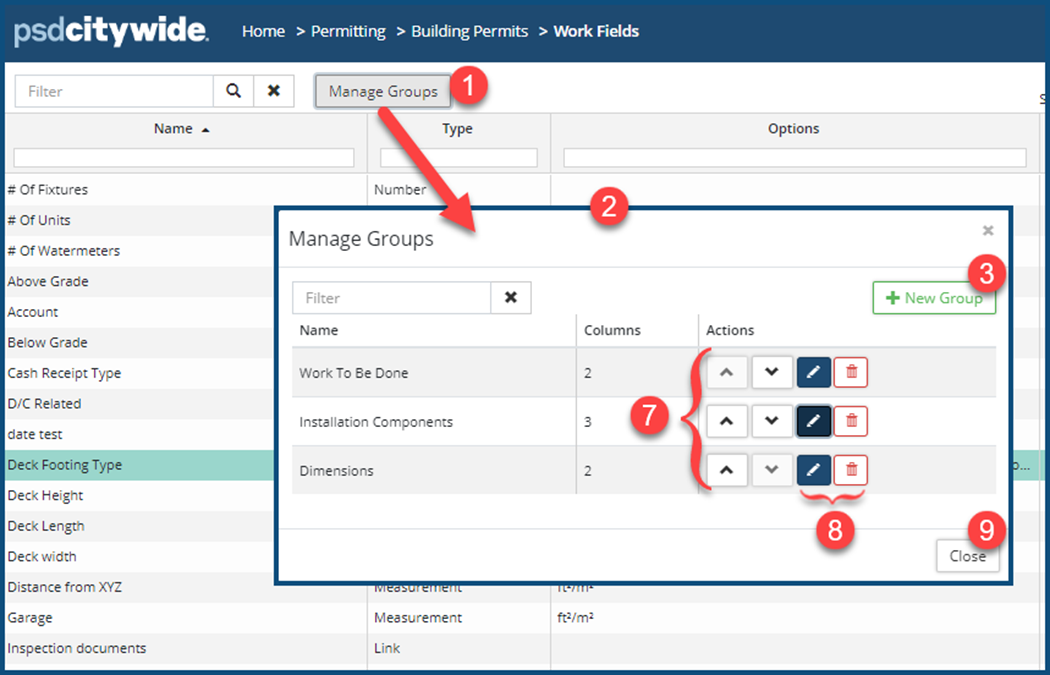
- Chick on + New Group ❸. The New Group dialog box will appear:
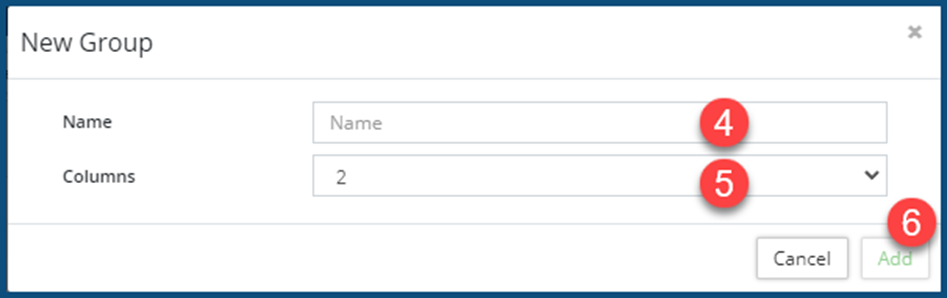
- Enter a Name ❹ for the work field group and the number of columns ❺ (1-4) that the to-be-added fields will occupy. (The columns setting can be changed later, if necessary.)
- Click Add ❻.
- Set the order in which the work groups will appear by clicking on the up/down arrows ❼ in the row you wish to move. (In the above example, “Dimensions” appears above “Work to be Done.” You may also choose to Edit or Delete a group, as well ❽.
- Click Add ❾.
For information on how to add fields to a work field group, see Permit Types. It is there that the fields associated with a particular building permit type are chosen.


