


Fees (Licences)

Sep 19, 2025
Overview
Licence Fee types can be defined and then attached to Licence Type templates. Licence Fees can be calculated on various bases: 1) as flat fixed cost fees, 2) based on other Fees, and 3) per work field (e.g. variable fee based on number of employees).
Navigate to Home > Permitting > Licences > Fees
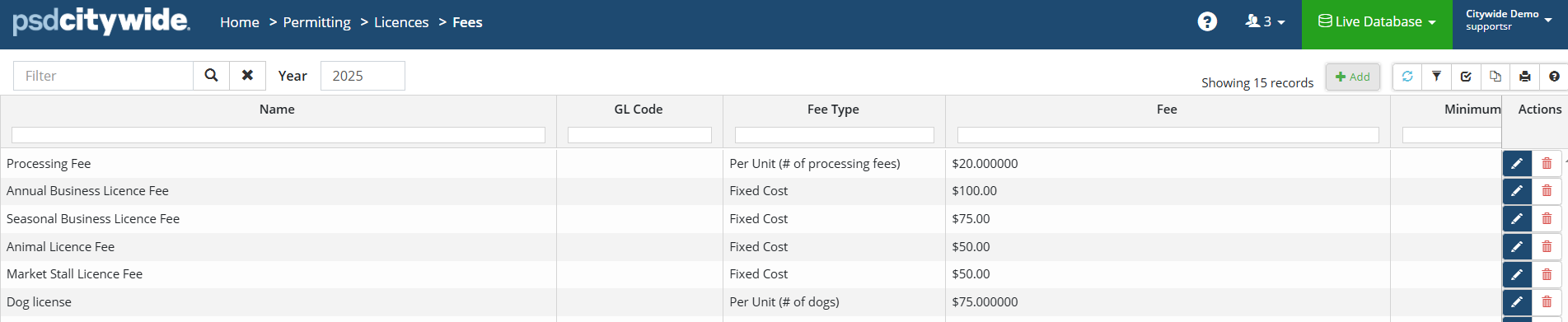
- Click +Add on the Fees grid. The New Fee dialog box appears:
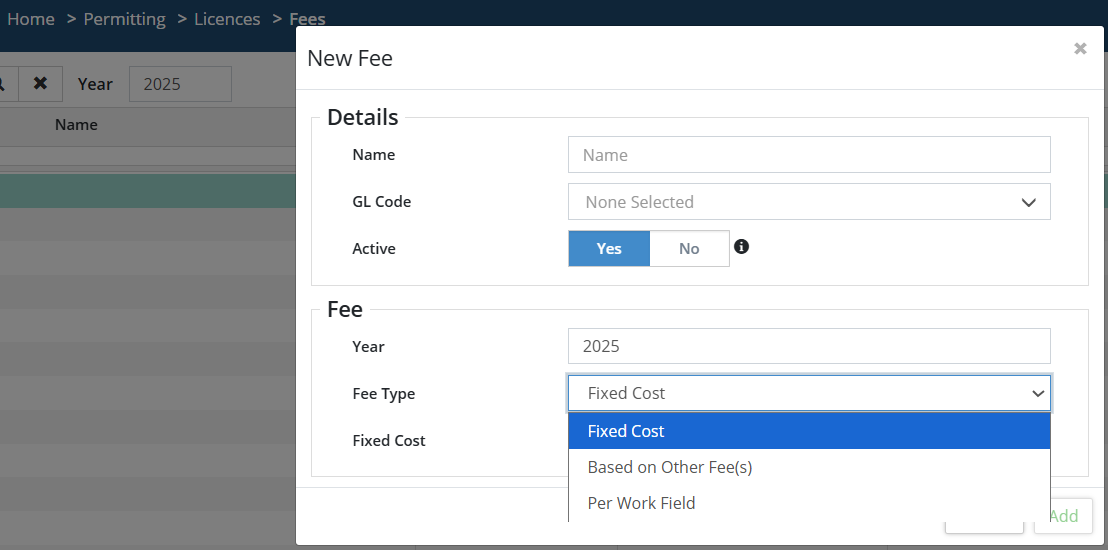
- Give the fee a Name.
- Provide a GL Code (optional). GL Codes are maintained in the General Ledger Codes.
- Ensure the Active flag is set to Yes. If set to No, the fee will not be available when creating new licences. “No” might be the setting for a new fee to be used some time in the future, or it could be the setting for an existing fee that is no longer used (but not deleted, so that data pertaining to it is retained in the system).
- Select the Year in which the fee will be active. The system defaults to the current year. Use the controls at the far right to the field to cycle through the years.
- Select the Fee Type. Your options within the remainder of the dialog box will change depending on your choice here.
- Fee Type: Fixed Cost
- Enter the Fixed Cost
- Fee Type: Based on Other Fee(s).
- Select whether the Fee is Flat or Tiered. Tiered values involve a calculated (percentage) amount or an entered flat amount which varies from one tier to another.
- If Tiered, the Tiers subsection will appear:
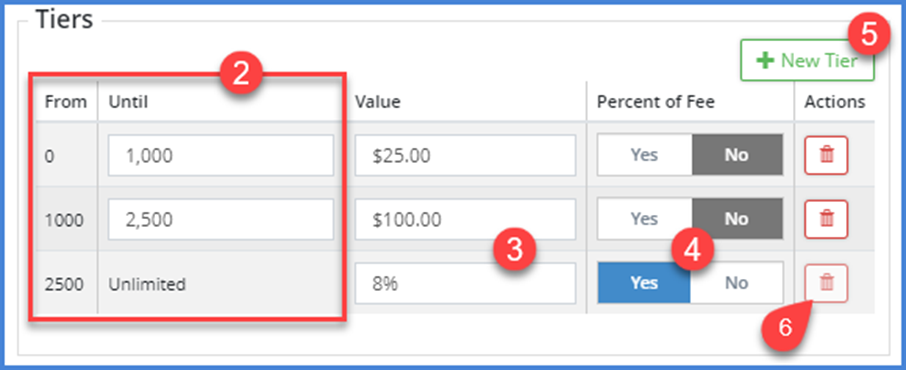
Each row (tier) involves a fee that is applied within a From > Until (Other Fees) range ❷. The amount of the fee appears in the Value column ❸. It can be either a flat dollar amount or percentage of the range amount ❸, depending on whether Percent of Fee ❹ is enabled (“Yes”) or disabled (“No). - Click on + New Tier ❺ to add a new row (tier).
- Click on the Delete icon
 ❻ to remove a row.
- If Tiered, the Tiers subsection will appear:
- If Flat:
- Select whether the fee is based on a single (other) fee or if it applies to the total of all (other) fees ❼:
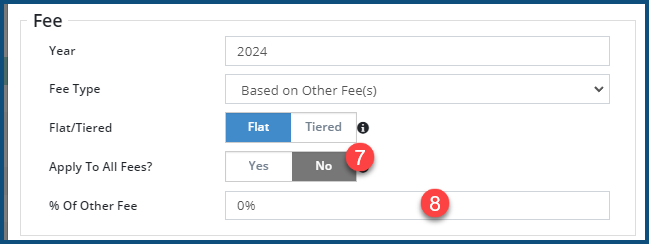
- Enter a % of Other Fee(s) ❽ amount to be calculated.
- Select whether the fee is based on a single (other) fee or if it applies to the total of all (other) fees ❼:
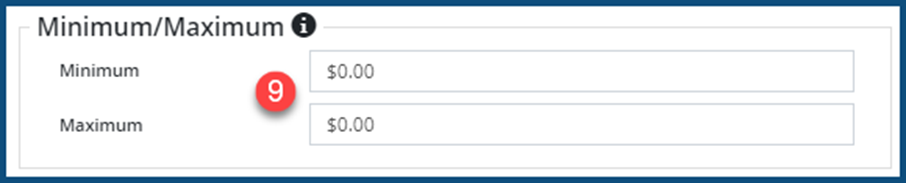
- In either of the above Flat or Tier cases, enter the Minimum and Maximum ❾ (calculated or flat) fee amounts:
- Select whether the Fee is Flat or Tiered. Tiered values involve a calculated (percentage) amount or an entered flat amount which varies from one tier to another.
- Fee Type: Per Work Field
- Select the Work Field ❶.
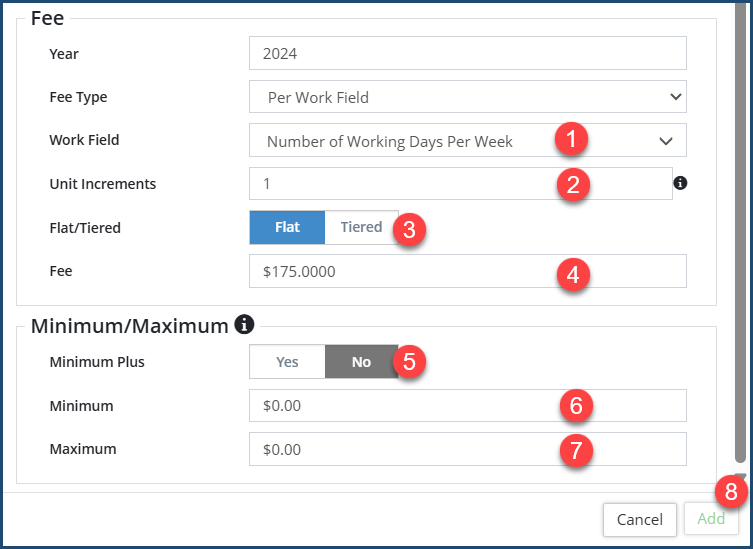
The list that comes up is maintained in Work Fields. The name of the field immediately beneath the Work Field field and the form it takes dependents on the work field type and its property setting. In the above example, “Number of Work Days Per Week” appears in the Work field ❶, and the field beneath it is Unit Increments ❷. The fee in the above (flat rate) example would be calculated on a daily basis related to the number of days within a week that the Food Vehicle would be operating. - Select the Unit Increments ❷. Unit increments specifies the units used to define the tiered structure, in this case 1 day.
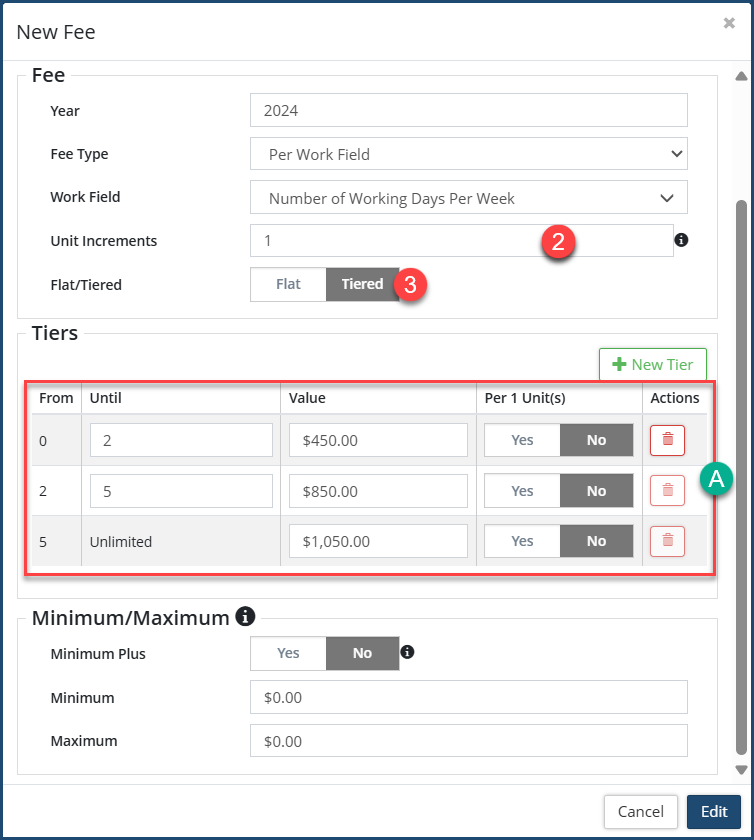
- Select whether the Fee is Flat or Tiered ❸. Tiered values involve a calculated (percentage) amount or an entered flat amount which varies from one tier to another.
- If Tiered, refer to the Tiered subsection discussion above. It might in this example take the form 🅐: Fee 1 = $450 for 1-2 days; Fee 2 = $850 for 1-5 days; Fee 3 = $1050 for 1-7 days:
- If Flat ❸, enter the Fee amount that will apply to each incremental unit (e.g., $175 for each operational day within the week in the above example).
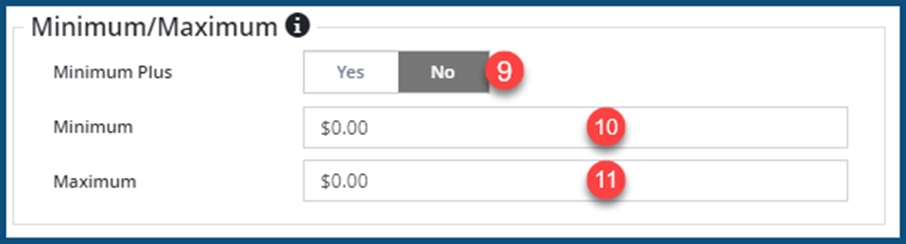
- Set the Minimum/Maximum amounts:
Select Yes for Minimum Plus ❾ rate is to be added to the Minimum rate.
Enter the Minimum ❿ and Maximum ⓫ (calculated or flat) fee amounts.
- If Tiered, refer to the Tiered subsection discussion above. It might in this example take the form 🅐: Fee 1 = $450 for 1-2 days; Fee 2 = $850 for 1-5 days; Fee 3 = $1050 for 1-7 days:
- Select the Work Field ❶.
- Fee Type: Fixed Cost
- Click on Add ❽.
- Click on the Edit tool
 . The Edit Fee dialog box will appear with the above fields.
 - Make the required changes.
- Click on Edit.
- Click on the Delete tool
 . When prompted, click on Remove


