Processes

Jul 11, 2025
Overview
Processes are setup here and can be added to Work Order Types. Each process has a name and a list of tasks to accomplish. When linking a process to Work Order Types, users can choose if these tasks are mandatory or optional.
Navigate to Home > Maintenance > Work Flow > Processes.
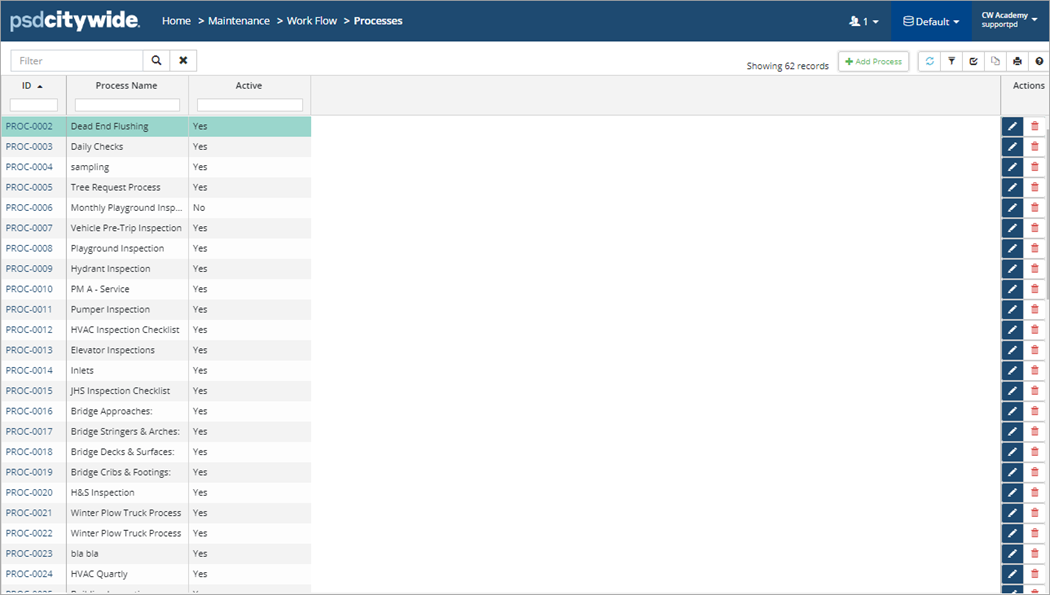
- To add a process, click +New Process.
- Enter a Name and click Add. Creating a Task list is optional.
- To edit/delete a Process, click
 /
/ on the right.
 - To deactivate a Process, click to open the process. Toggle the Process Status flag to Inactive.

Tasks
Tasks are steps within the Process used to accomplish the goal of the Work Order / Inspection.
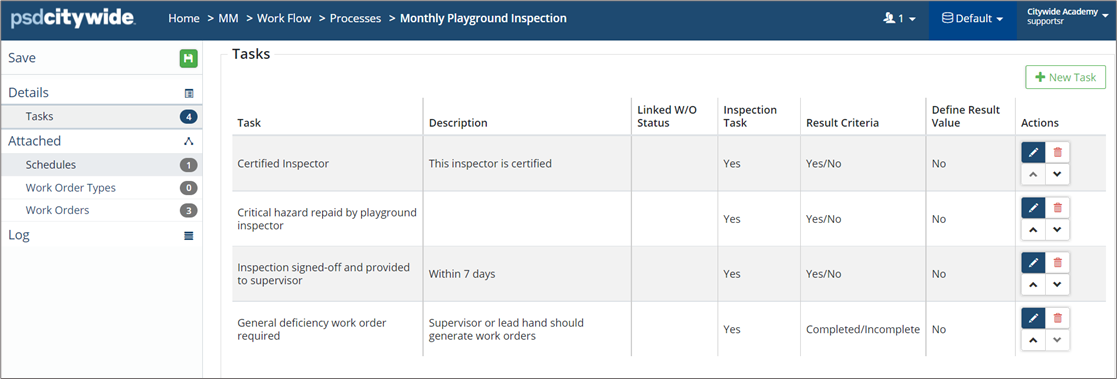
Add a new task, open a Process:
- Click +New Task.
- Complete the New Task wizard as needed. Click Add.
- To edit a task, click Edit
 .
. - To delete a task, click Delete
 .
.
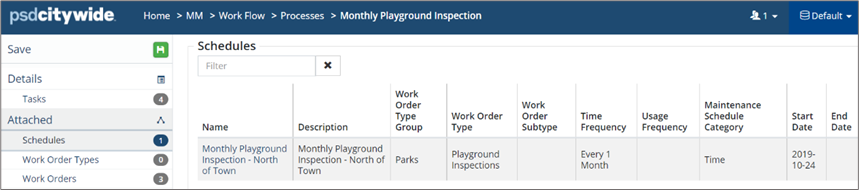
Processes can be attached to Maintenance Schedules such that when the scheduled work order will be created, the process will be pre-attached to the work order.