


Set the Reporting Year

Jul 21, 2025
Overview
The reporting year is shown on the banner when in the Inventory view. Calculations at the asset level, (i.e., asset age, service life remaining, etc.) are relative to the reporting year set for the database.

To change the reporting year for the database
- Navigate to Home 🢡 Assets 🢡 Inventory.
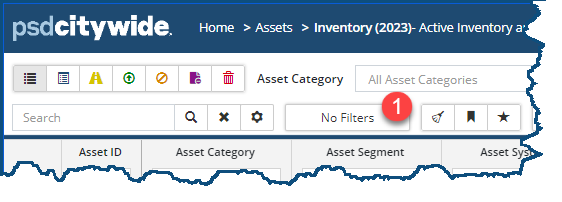
- Click No Filters ❶ (Note: this button may be labelled "# Filters" if options have been set):
The Advance Options and Filters dialog box appears:
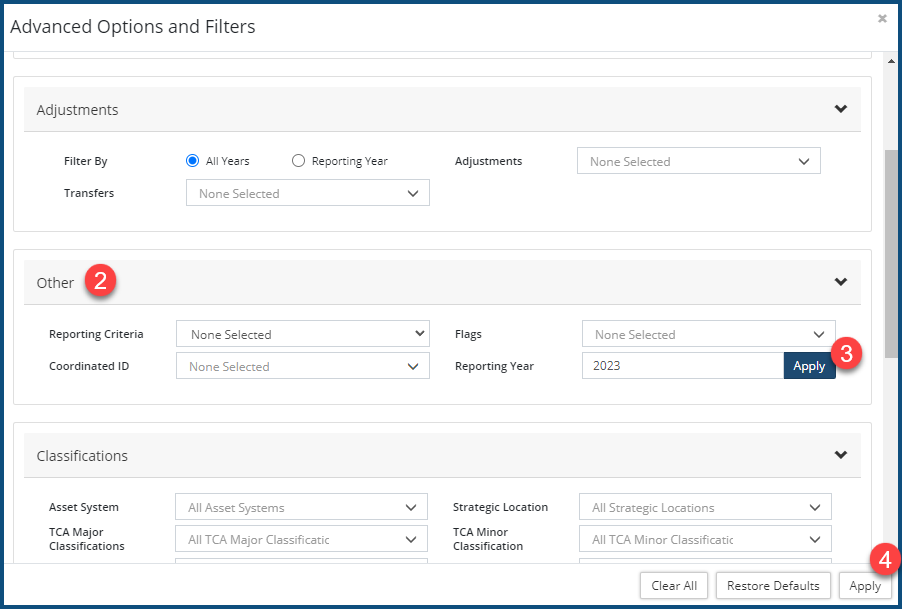
- Navigate down to the Other ❷ section.
- Enter a year value in the Reporting Year field and click Apply ❸.
- The year will update for all users (this may take a minute).
- Click Apply ❹ or close the window.


