


Overview
Store Locations refer to physical locations in which various types of inventory (parts, materials, supplies, etc.) are stored. All store locations are listed and managed on this screen. New locations can be created, and existing locations can be merged with either a new location or an existing location. Two distinct smaller locations may, for example, both be relocated and merged into a new, significantly expanded cost-effective single location.
The inventory assigned to each of the Store Locations, and all the pertinent details concerning that inventory, is managed in Home 🢡 Maintenance 🢡 Resources 🢡 Data: Parts/Materials.
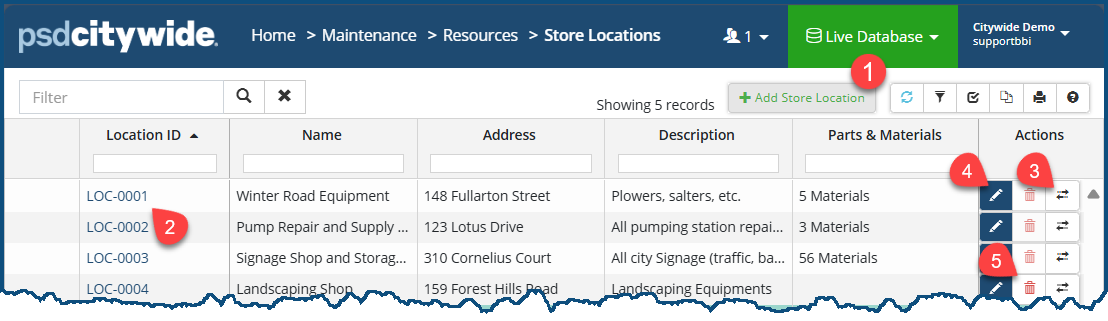
Add a Store Location
To add a new store location:
- Click + Add Store Location ❶. The New Store Location dialog box appears:
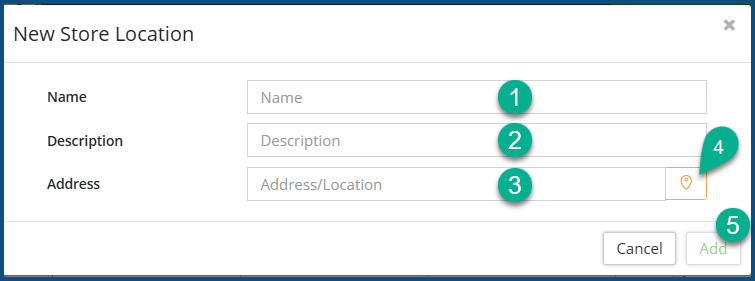
- Enter a Name ❶ and Description ❷.
- Enter an Address ❸ or click
 ❹ to select an address from a map in the GIS viewer.
 - Click Add ❺.
View Store Location Details
To view the details pertaining to a store location:
- Click on the store's Location ID ❷. The store location's page opens, defaulting on Details:
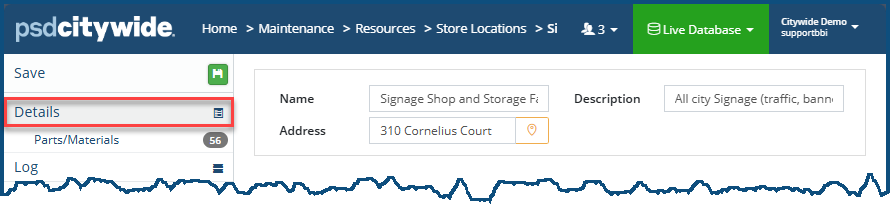
- Click on any of the fields the edit them.
- Click on Parts/Materials to view the parts and materials stored at this location. The read-only Parts/Materials list appears:
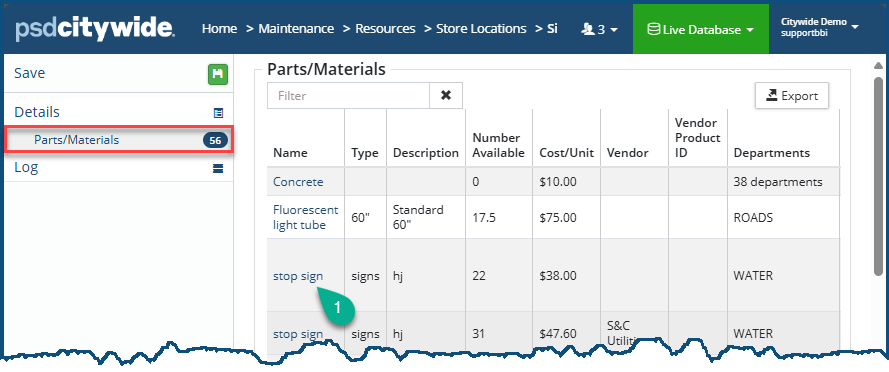
- Click on a part or material Name ❶ to view the corresponding record. It is here that the record can be edited in its entirety.
Merge Store Locations
Two locations can be merged at one time. To do so:
- Click on the Merge icon
 ❸. The Merge dialog box will appear with the name of the store to be merged in its heading:
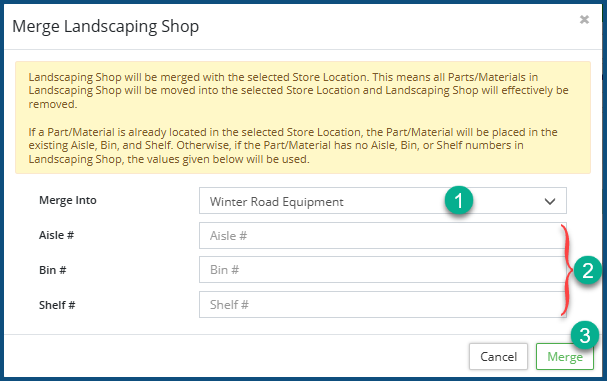
- Select the Store Location the current location will Merge Into ❶. (In this example the Landscaping Shop will be merged into the Winter Road Equipment location.)
- Fill in the remaining fields ❷ if that information is available at this time. Otherwise, that information can be added later in Home 🢡 Maintenance 🢡 Resources 🢡 Data: Parts/Materials.
- Click Merge ❸.
To edit a Store Location, click the Edit icon  ❹.
❹.
To delete a a Store Location, click he delete icon  ❺.
❺.


