


Overview
In all Citywide modules, each has their own grid of data. In Assets for example, the grid displays all active and WIP (work in progress) assets. In Maintenance, you can view a grid of service requests or work orders. In Permitting, you can view a grid of Building or Other permits. Users can define a set of filters to load automatically upon logging in. For example in Assets, rather than view the full asset inventory a user may want to view only Road Network assets.
Image 1: No filters have been saved and the full active and WIP asset inventory loads which totals 27,517 records .
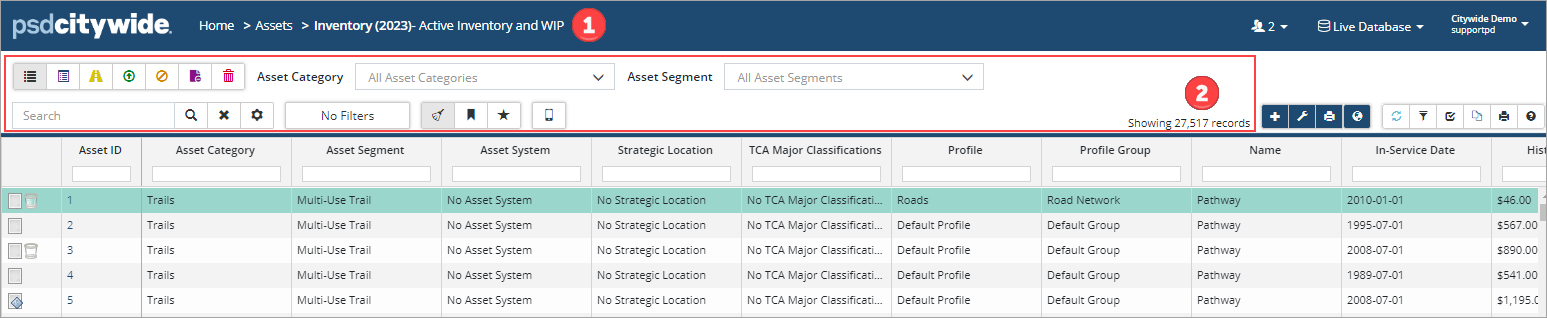
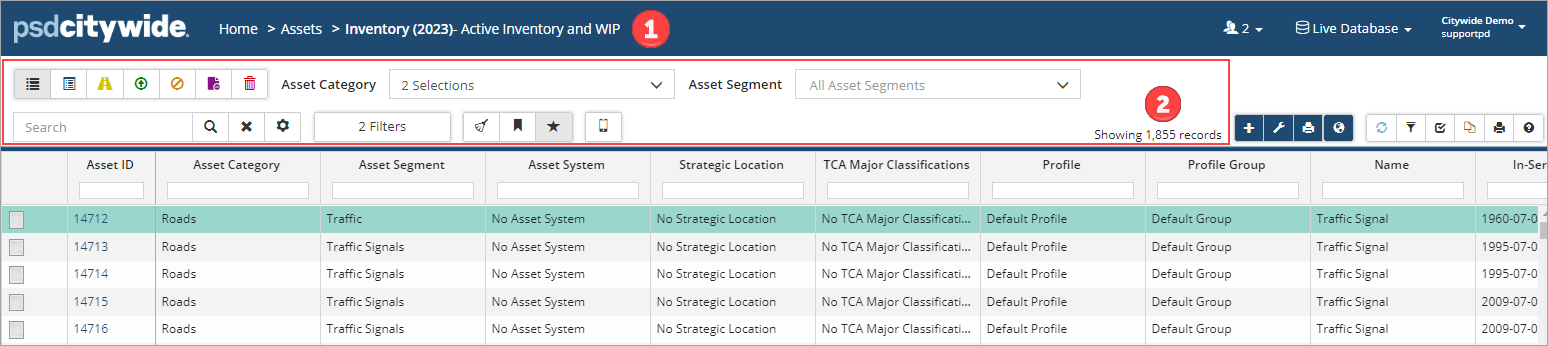
Image 2: Default filters have been saved and includes 2 asset categories and advanced filters set to exclude past disposals and fully transferred assets. 1,855 records load upon login .
- Navigate to the applicable Citywide module and grid list (ie. Assets, Maintenance or Permitting)
- Set filters or Advanced Filters as needed. Depending on the Citywide module you are viewing, the filter options may vary. Example of filter options include but are not limited to:
- Category/segments
- Service Request Type or Date
- Work Order Type or Date
- Permit Type or Status
- Inspection Type or Status
Click Save Default Filters  . Going forward, each time the user logs into Citywide the selected filters will automatically load. Saved default filters are user-specific.
The grid can be returned to the full list during a session by clearing all filters.
- Click Clear All Filters.
- Click Load Default Filters
 to reload the saved defaults. Otherwise the next time the user logs into Citywide the saved default filters will automatically load.
To permanently clear saved default filters:
Saved default filters can be permanently cleared if you no longer wish to have the grid list filtered upon login.
- Click Clear All Filters.
- Click Save Default Filters . This saves all cleared filters back as the default.
Additional Articles:


