The Asset Age Report provides asset age information based on either the assets in-service date and EUL (financial) or the assessed condition. The report will also calculate an average age and average remaining useful life for the grouping.
| Report Type | |
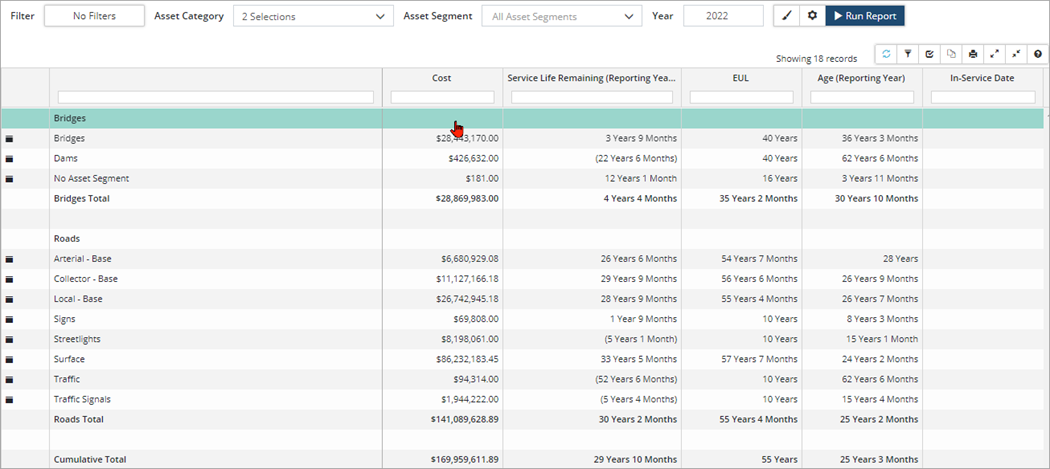
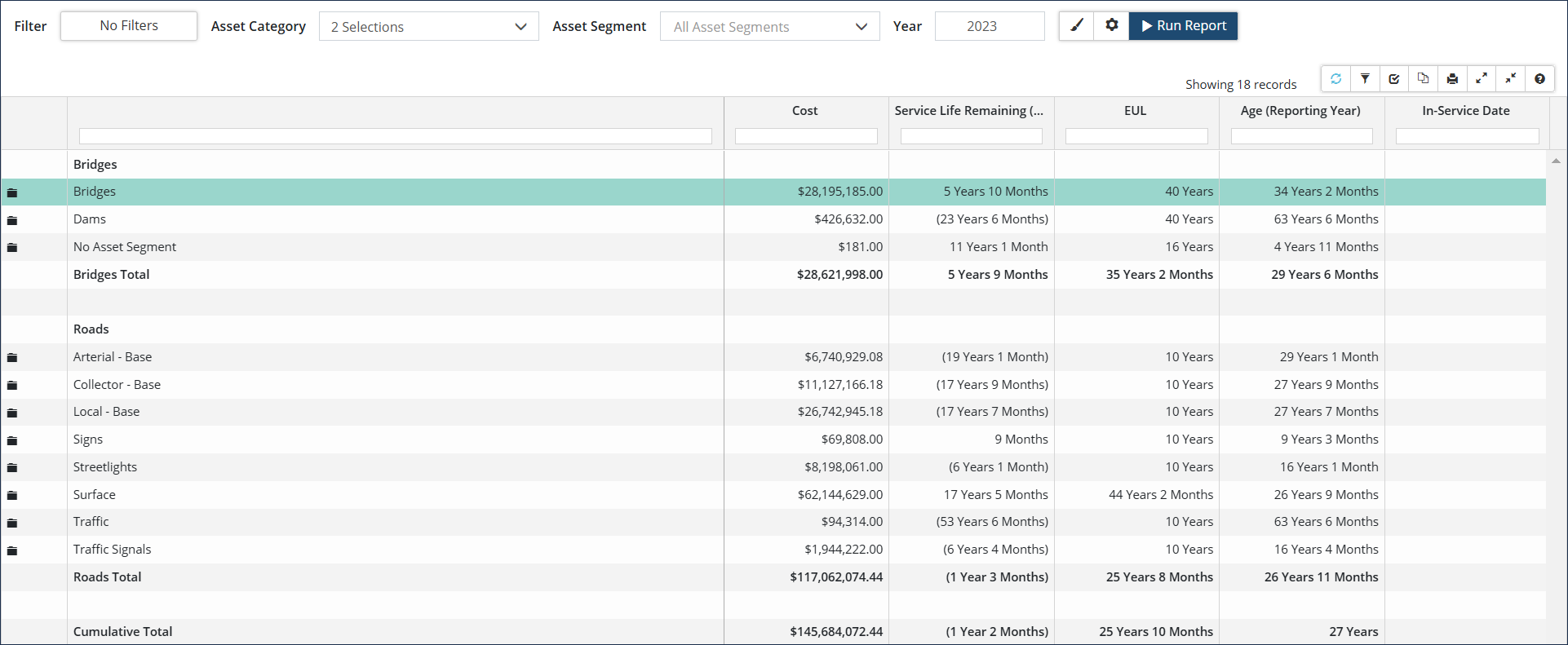
| Data View: Classic report view showing Service Life Remaining and Asset Age for the reporting year. Lifecycle events can be included or excluded in the reporting to view their impact. Expand a folder to view In-Service-Date information.
ClickModify Report settings to adjust options such as Include Lifecycle Events. Event Start Year, the Strategy Method or Costing method. |
 |
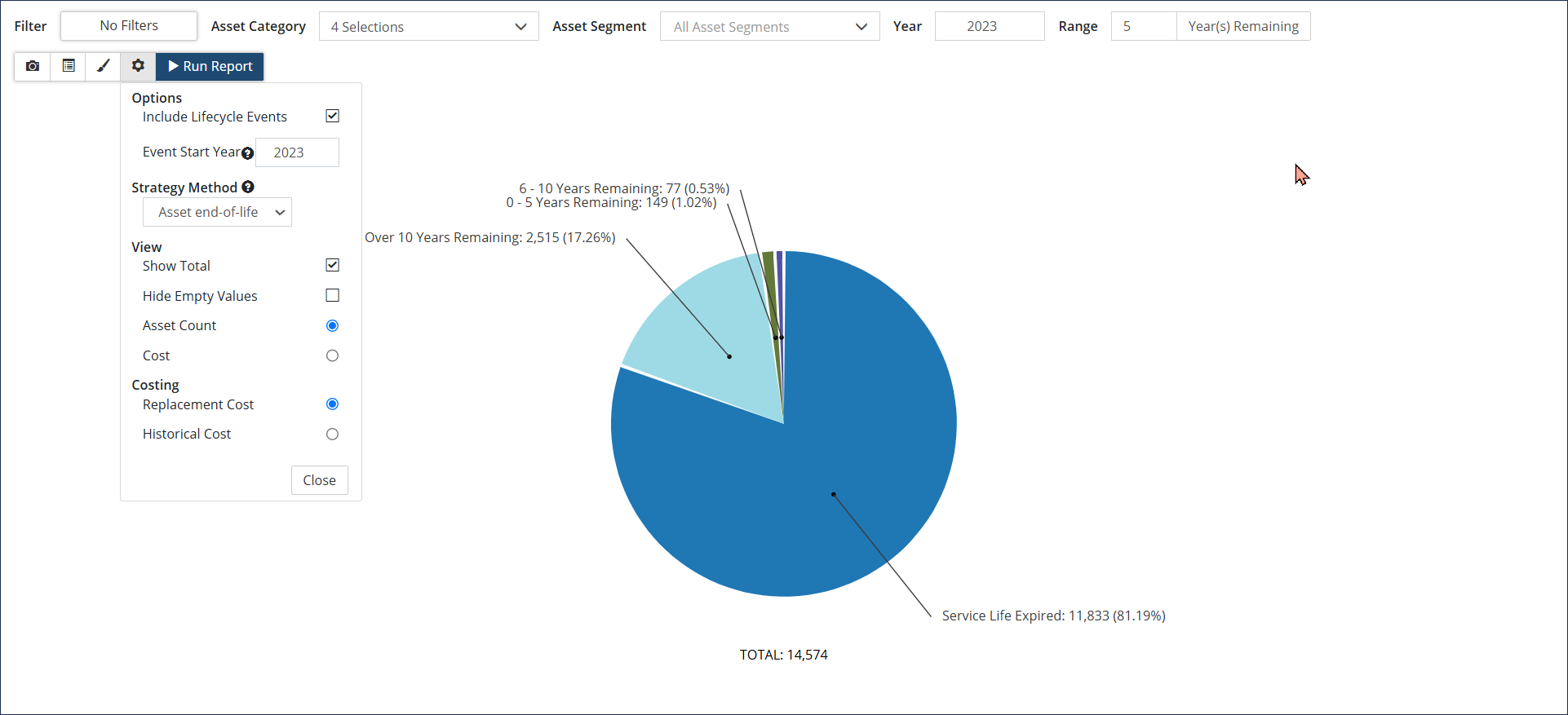
| Pie/Bar Chart: Visualization of Asset Age showing either an Asset Count or Cost (Replacement Cost or Historical Cost).
Click Modify Report settings to adjust options such as Include Lifecycle Events, Event Start Year, the Strategy Method or Costing method. View options include Asset Count or Cost. |
 |
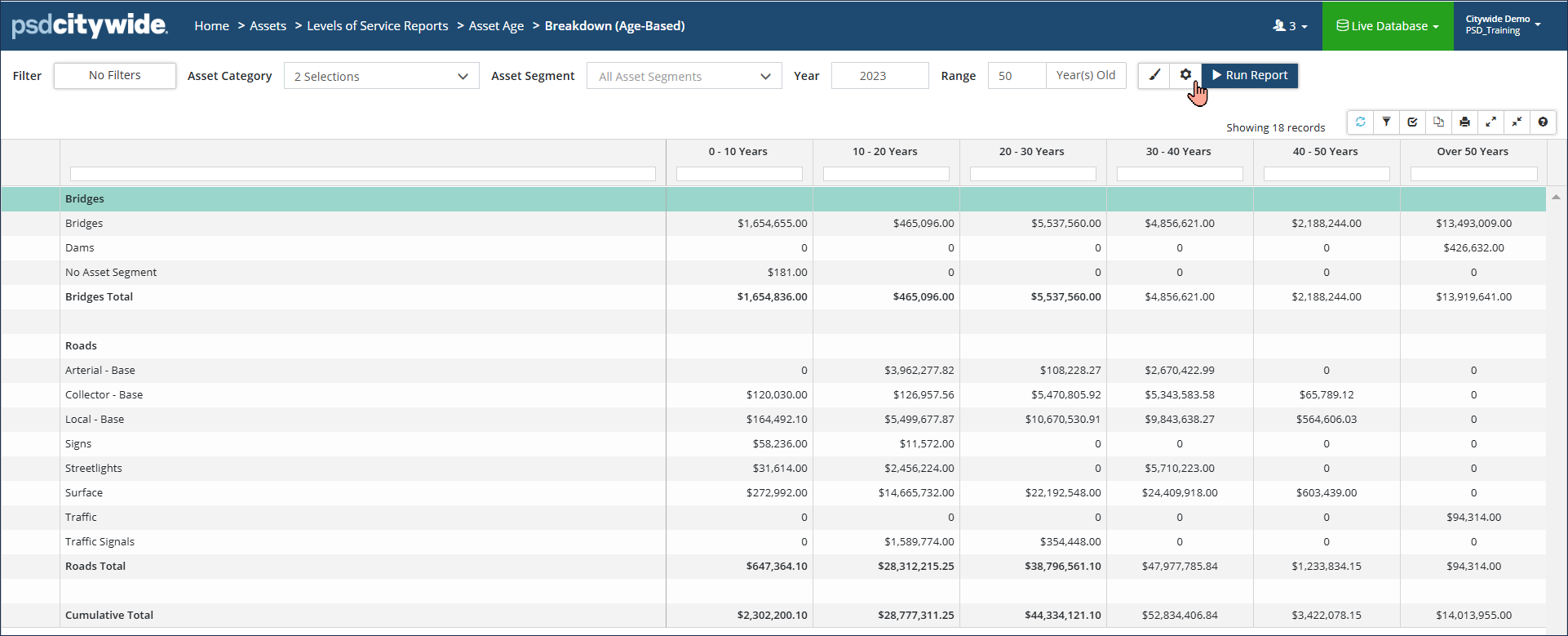
| Breakdown: Provides a summary based on Service Life Remaining or Asset Age. The breakdown method defaults to Service Life Remaining. Click Modify Report settings icon to change the breakdown to Asset Age.
This is non-expandable report summarizing age, condition, and includes the lifecycle strategy as defined in the asset’s profile. |
 |
Run an Asset Age Report
The Asset Age report can run based on the assets original Estimated Useful Life (EUL) or on the assessed condition (i.e., the projected age and projected service life remaining).
Step 1
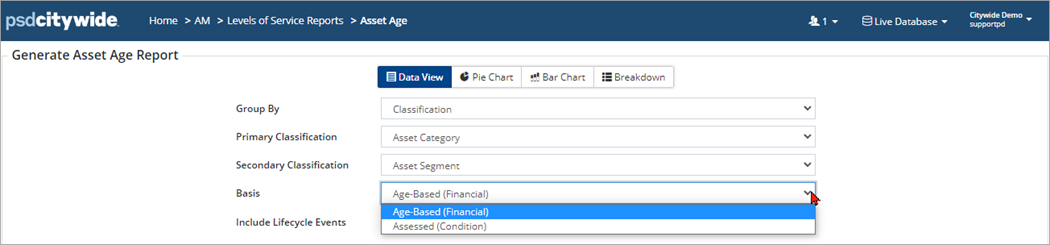
- Selected a Report Type and Group by option.
- Click the Basis drop-down arrow to select:
- Age-Based (Financial) – reports on the original EUL. The In-Service Date and EUL are used to calculate the Asset Age and Service Life Remaining for the reporting year.
- Assessed (Condition) – reports on the assessed condition. The Projected Age and Projected Service Life Remaining data is used to summarize Asset Age and Service Life Remaining for the reporting year.
- The Include Lifecycle Events flag defaults to Yes.
Step 2