


The Citywide Mobile app is used to collect, view and input data in the field. You can upload images, edit asset attributes and add asset conditions on-the-go. In addition, streamline your operations to accurately prioritize, schedule and track all maintenance activities. Calculate resources, gather data, seamlessly manage inspections, events and work orders conveniently from a mobile device.
- Check that you have the latest updates on your mobile device. Minimum versions: Android 11+ and iOS 15+
- Ensure the mobile device has access/connection to the cellular data network and/or wifi, location services and camera in the settings.
Citywide Mobile app is designed to work offline and store data locally if necessary. Once the mobile device is back online and connected to a cellular network or wifi, data needs to be manually synchronized to Citywide. Click the following link for step-by-step instructions on how to 'Sync data to the web platform'.
Downloading Citywide Mobile app
- Visit the Play store (Android) or App Store (iOS) on your mobile device
- Search for: Citywide Mobile, then tap to get and/or install
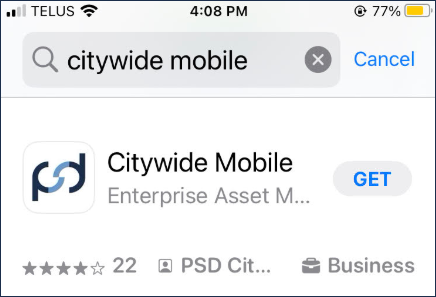
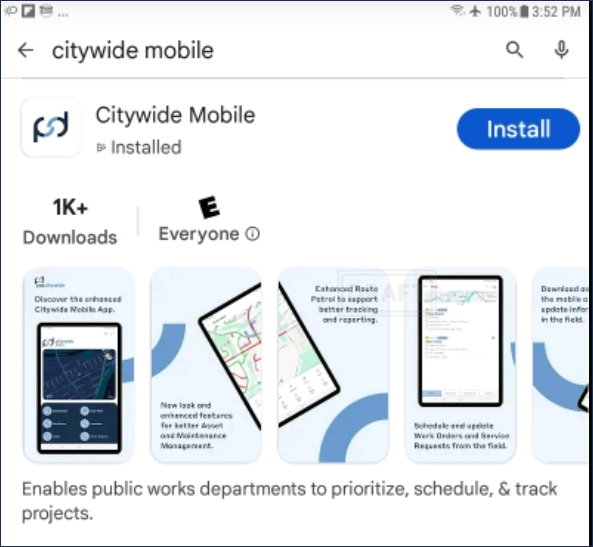
Once the app is downloaded, ensure that you enable location services and cellular data in the app settings.
Your administrator must first add you as a user in the Citywide web platform with the appropriate permissions. Your administrator will provide your username and password login credentials.
If you are already a Citywide web user with mobile permissions, you can log into the mobile app with the same user credentials.
- Tap the Citywide Mobile app icon
- Enter your database name (provided by your administrator)
- Tap Continue
- Enter your username and password (Note: SSO* authentication does not require a password)
- Tap Continue
*SSO (Single Sign On): For security reasons, users using SSO must fully logout of the application when sharing devices with co-workers.
The app will synchronize and fetch data from Citywide. The main menu page will show the options available to you as enabled by your administrator. In the sample screenshot below, the main menu options showing has the Assets, Maintenance and Route Patrol modules enabled:
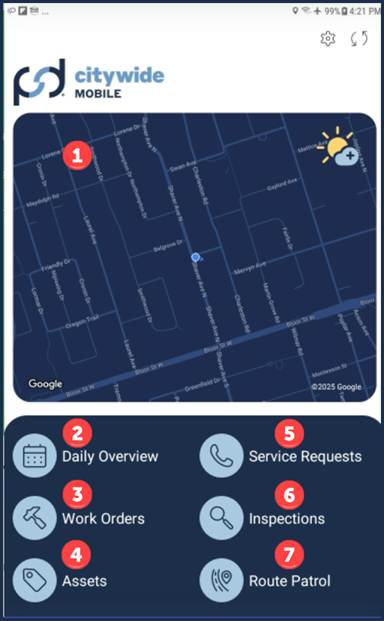
- Map
- Daily Overview
- Work Orders
- Assets
- Service Requests
- Inspections
- Route Patrol
Settings 
At the top right corner, view mobile app settings such as:
- Preferences
- Filters
- Mobile FAQ documents
- About (details including mobile app version)
- Logout
To log out of the mobile app:
- Prior to logging out, synchronize any updates to Citywide web first.
- Tap the Settings icon on the top right corner
- Tap Logout


