


The Map functionality in the mobile app will display your current location and allows you to view assets, work orders or service requests, schedule and track all maintenance activities (if Maintenance is enabled) via your map GIS layers or mobile phone profiles. It can also be used to collect, view and input asset data from out in the field. Upload images, edit asset attributes and add asset conditions as needed.
- Check that you have the latest updates on your mobile device. Minimum versions: Android 11+ and iOS 15+
- Ensure the mobile app has location services enabled.
Map View
Downloaded assets, work orders and service requests can be viewed and accessed in Map view. For steps on how to download assets on the mobile app, click here. Assets are identified by individual asset tags or can display in clusters when larger numbers are closely located.
To work with assets in Map view:
- On the home screen navigate to Map, download assets and sync.
- Tap Layers and select a layer(s) to view, select done.
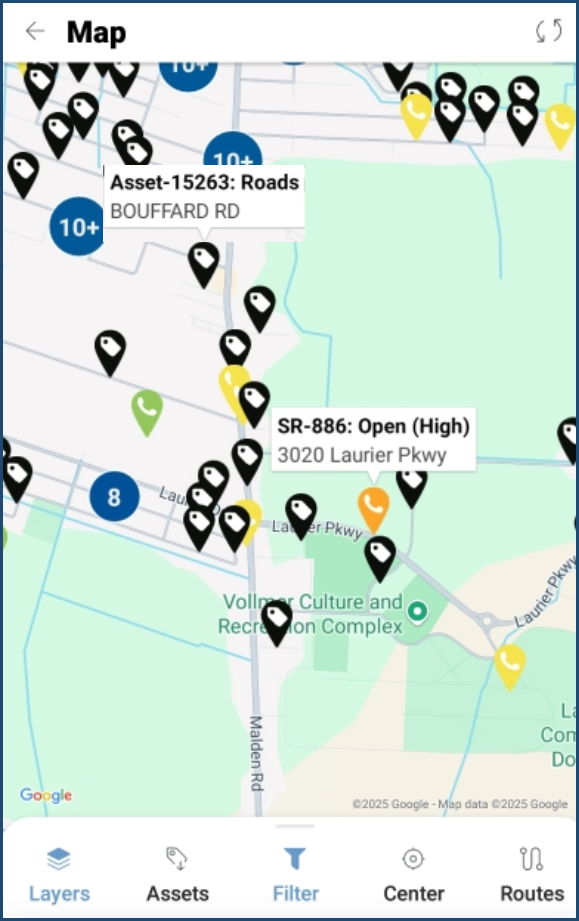 |
Icons in map view:
|
 Asset tag – select to view asset location/details
 Overlapping Asset tags – select to view a popup menu listing each asset
 Cluster – tap to zoom in and view individual asset tags
 Service Request tag - select to view service request details
- Locate an asset, tap the asset tag to display Asset ID, Type (Segment) and Name.
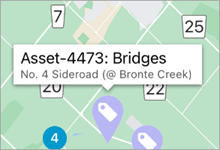
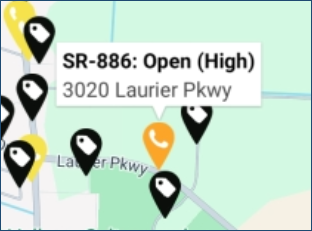
- Tap the Asset ID to see the asset’s detail and update attributes or add a condition assessment as needed
- Or Tap the SR ID to see the service request priority and details.
- Tap
to save any edits.
- Expand the tool bar at the bottom and select Create Asset to locate and collect a new Asset.
Additional Information
Q: Am I able to edit the location of an existing asset?
Yes, but the asset must already be linked to a point-based GIS feature (not multipoint or shape geometry) and hosted on either the Citywide GIS or EGIS server (not ESRI). This assumes your server has GIS edit permissions, and your user has Asset Mobile edit permissions.
Q: When does my Asset Location update on GIS/EGIS?
When moving an asset on mobile, the location will update in GIS/EGIS immediately. If a feature connected to an asset on GIS (web) or EGIS is moved, the geometry will be updated overnight, meaning that these changes won’t be seen on mobile until the next day.
See the Citywide Mobile Application Update: Edit Asset Locations user guide for additional information (Home 🢡 Help & Support 🢡 User Guides).


