Overview
Letters is used in Citywide to create custom letters and/or documents with information that relates to a permit, planning or licence application. Custom letters can be generated and saved as a PDF to send to contacts as needed.
- On the Home page, click Letters
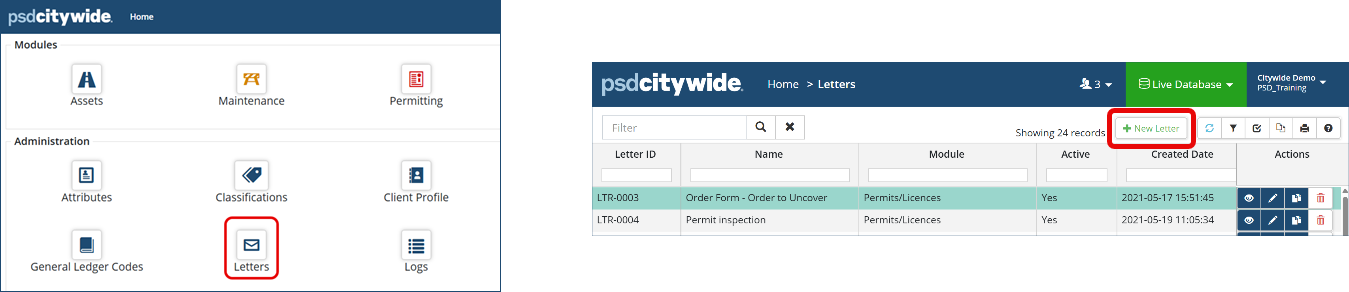
- Click +New Letter
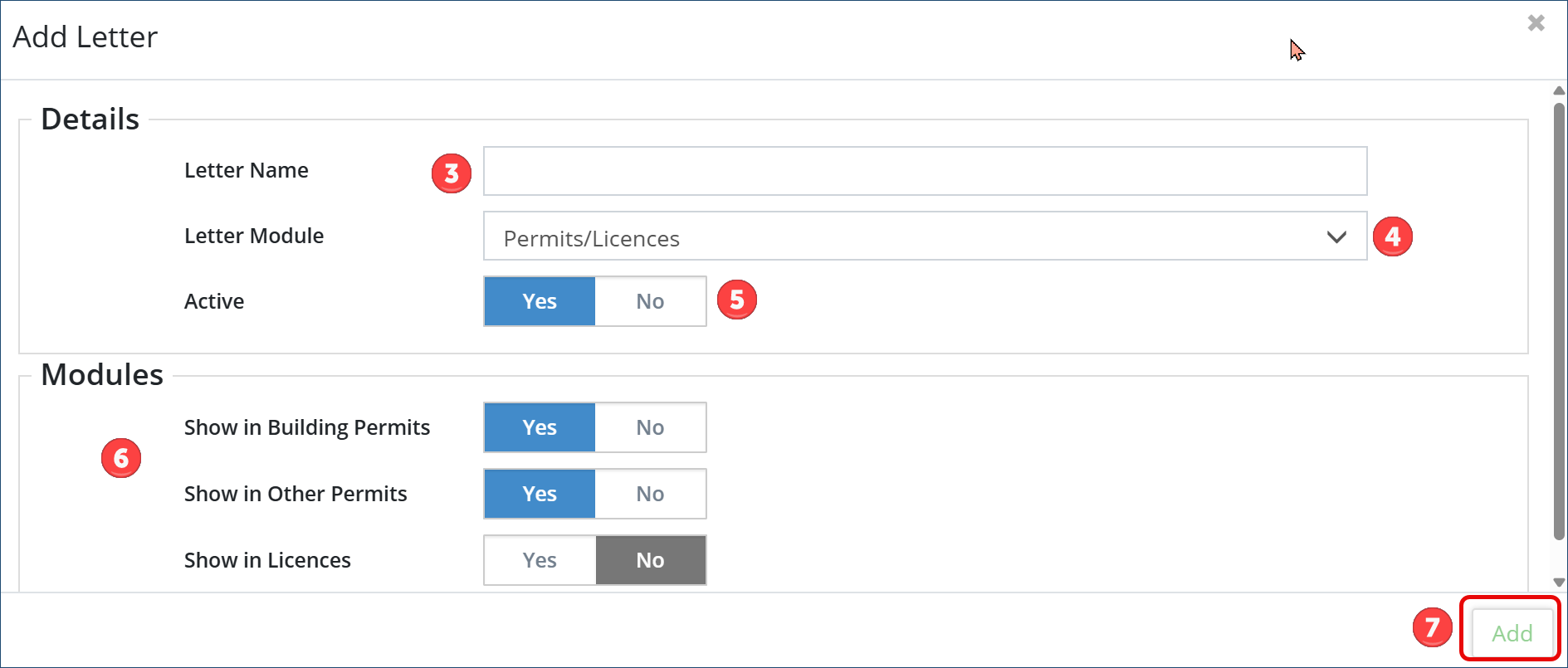
- Enter the Letter Name
- Select from the drop down which Letter Module this will apply to
- Select if the letter is Active: Yes or No
- Modules: Using the Yes or No toggles, select which module(s) this letter will 'show in'
- Click Add
- From the list of letters added, click the pencil icon
 on the applicable letter to build.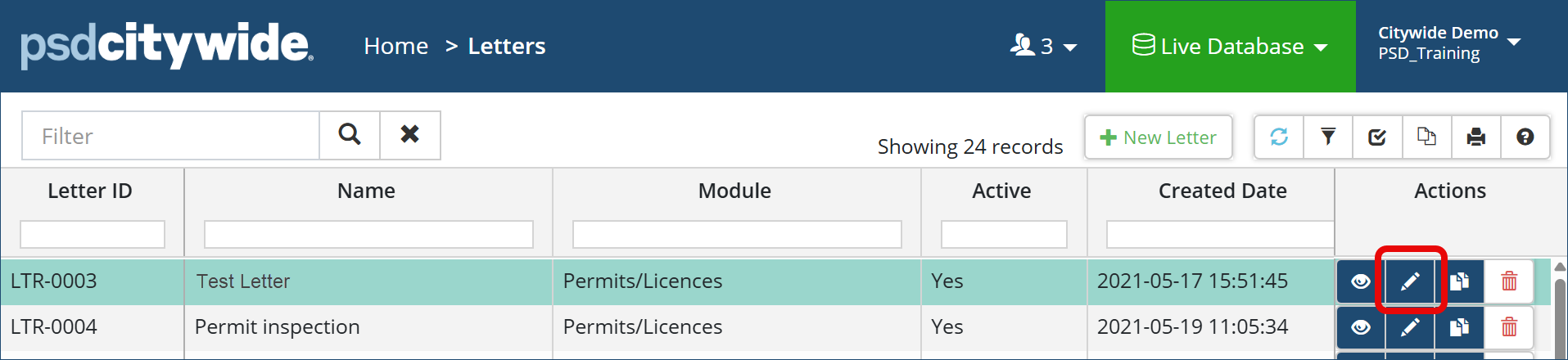
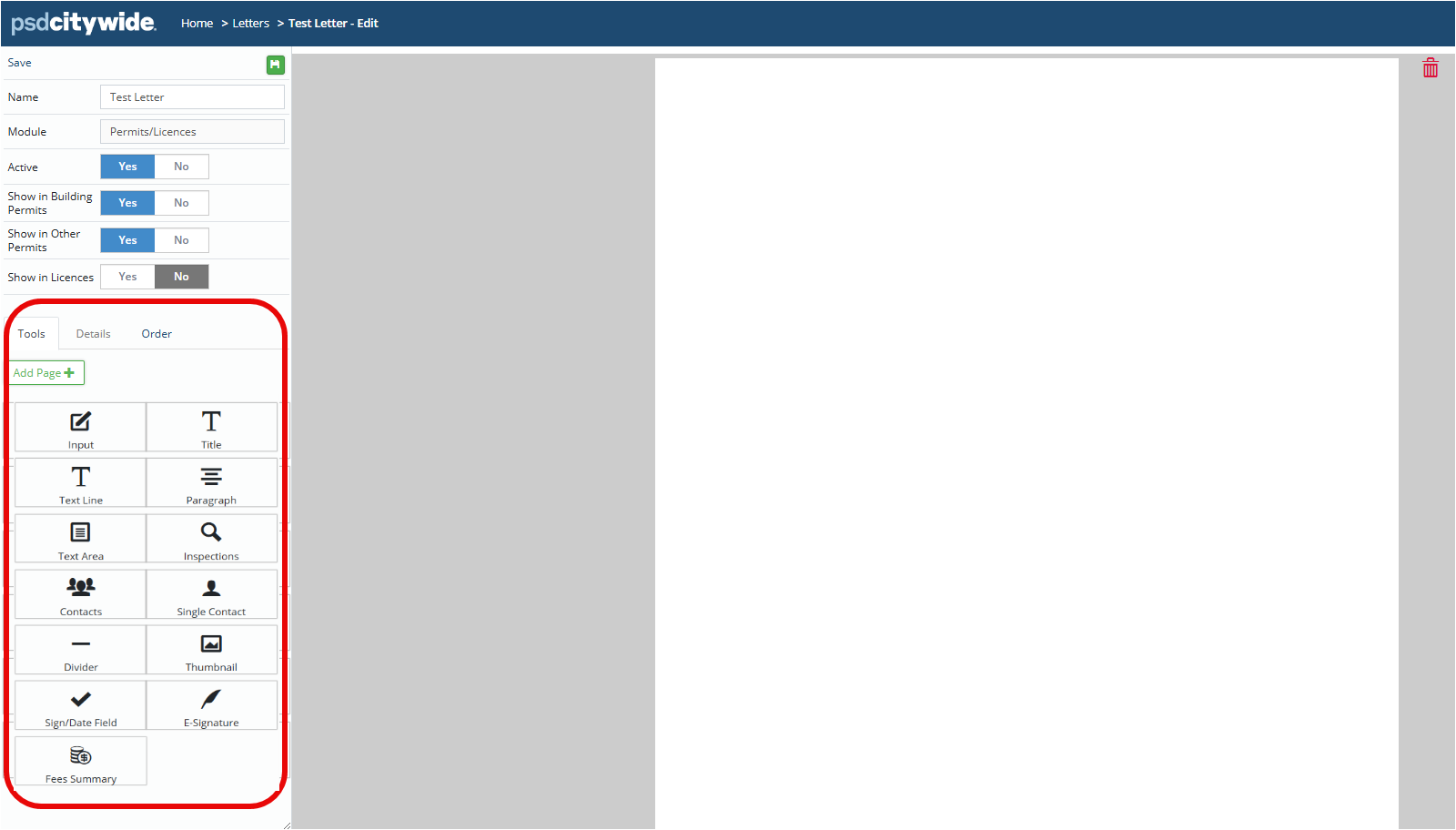
- Using the various 'Tools', click and drag each selected tool icon as needed to the blank page on the right to include in the document:
|
Tool Icon |
Tool |
Description |
 |
Add Page | To add multiple pages to your letter/document |
 |
Input | To add a field where Citywide users can add specific input/text to the document before generating. |
 |
Title | To add a page or document title |
 |
Text Line | To add one line/row of text. This can also be used for automatic generated text based on the application. (ie. Permit/Licence number, issued date, property address, etc.) |
 |
Paragraph | To add a paragraph with multiple lines/rows of text. |
 |
Text Area | To add a text area. Citywide users can add specific text to the document before generating. |
 |
Inspections | To include a list of inspections related to the application type. |
 |
Contacts | To include the full list of contacts attached to the application. |
 |
Single Contact | To include a single selected contact details. |
 |
Divider | To add a divider line to the page. |
 |
Thumbnail | To include a logo or image file stored in the database (Home > Client Profile). |
 |
Sign/Date Field | To include a blank signature field or automatically generated issued date from the application. |
 |
E-Signature | To include a user or client e-signature file stored in the database. |
 |
Fees Summary |
To include the summary table of fees based on the application type. |
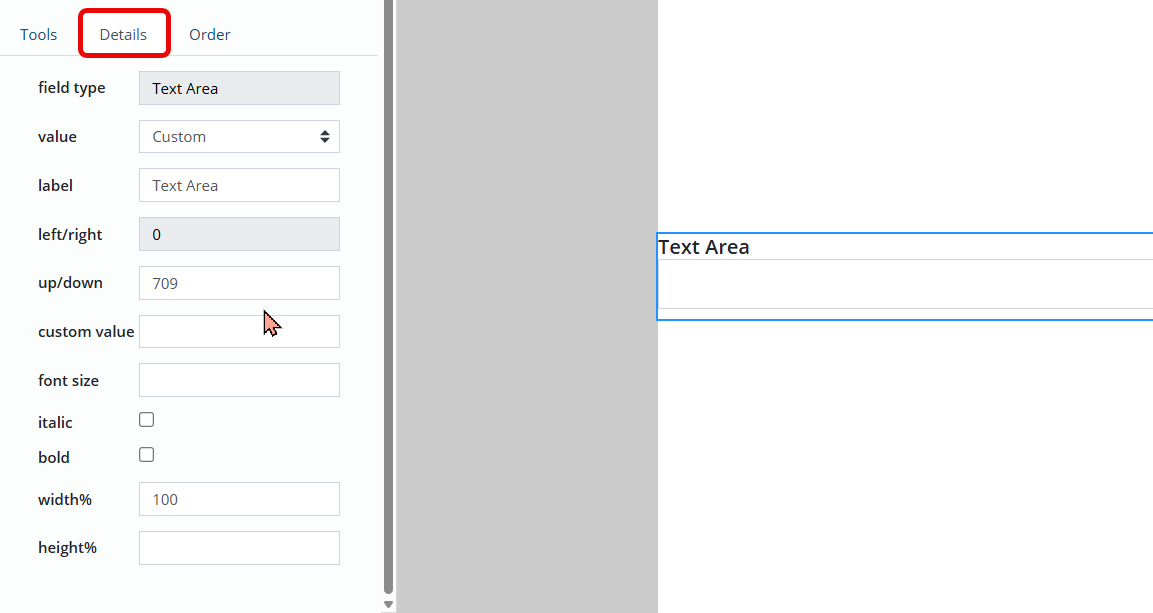
- Each tool has its own 'Details' tab that can be configured based on the needs.
- For example, the various text tools will allow you to customize the text details such as the label, value, custom value, position, font size and width.
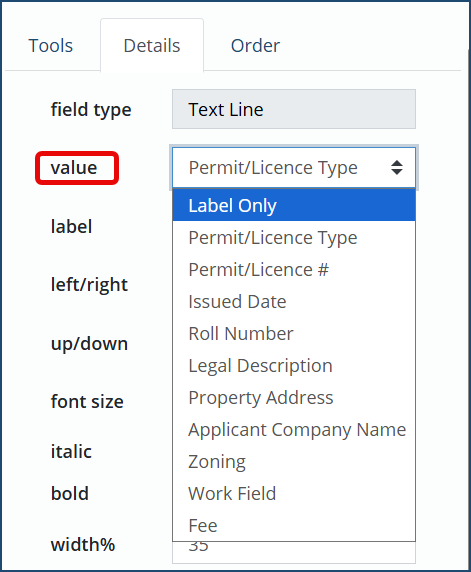
- The 'value' drop down also allows for various details related to the application to be included on your custom letter. Values such as: Permit/Licence #, Issued date and Work Fields.
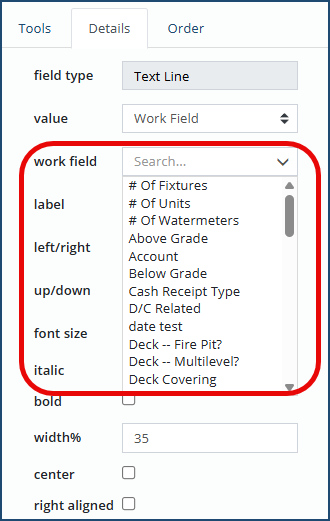
- When 'Work Field' is selected, you can select the required Work Field you want to include on your custom letter.
- If using the 'Contacts' tool, you can 'hide details' of the contacts' information - this won't include the contact(s) address, phone numbers and email addresses on the document.

3. Configure the details of each tool selected on your custom document as needed.
4. Once you are complete, click Save  at the top left to save your custom letter.
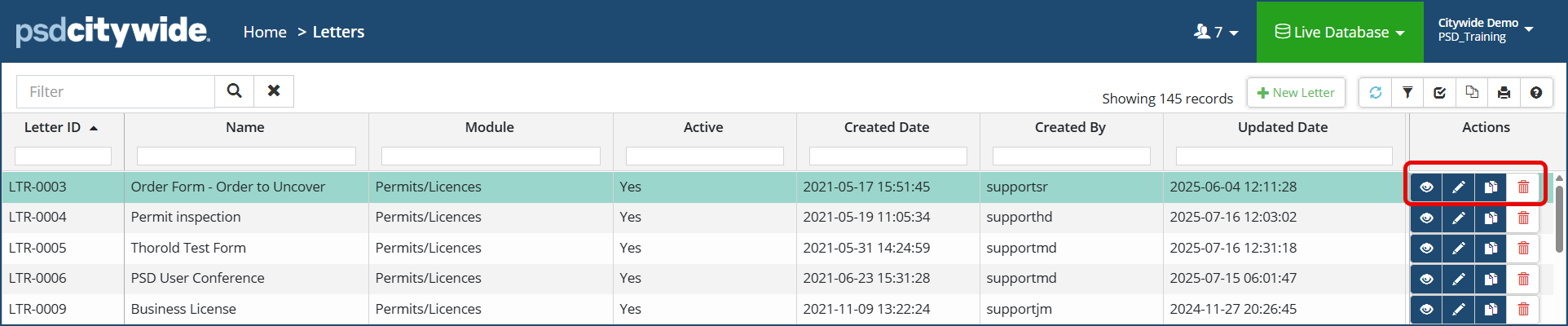
- To preview your custom letter, return to the letters list and click the preview icon
 to the right of the desired letter.
 - To edit your custom letter, click the pencil icon
 .
. - To create a copy of a custom letter, click the copy
 icon.
icon. - To delete a custom letter, click the delete
 icon.
icon.
Below are samples of custom letters that can be created and generated in Citywide. In Figure 1. below, it shows a custom 'Building Permit' letter using the following tools:
- Title
- Text line(s) - for the automatically generated info based on the application (ie. Permit No., Date Issued, Construction Location)
- Text area
- Paragraph
- Inspections
Figure 1. Building Permit custom letter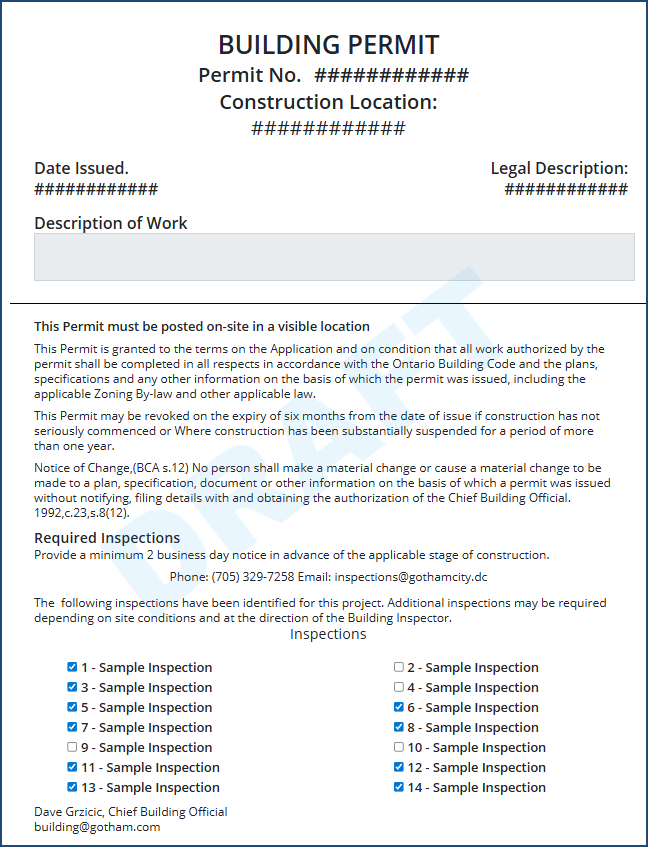
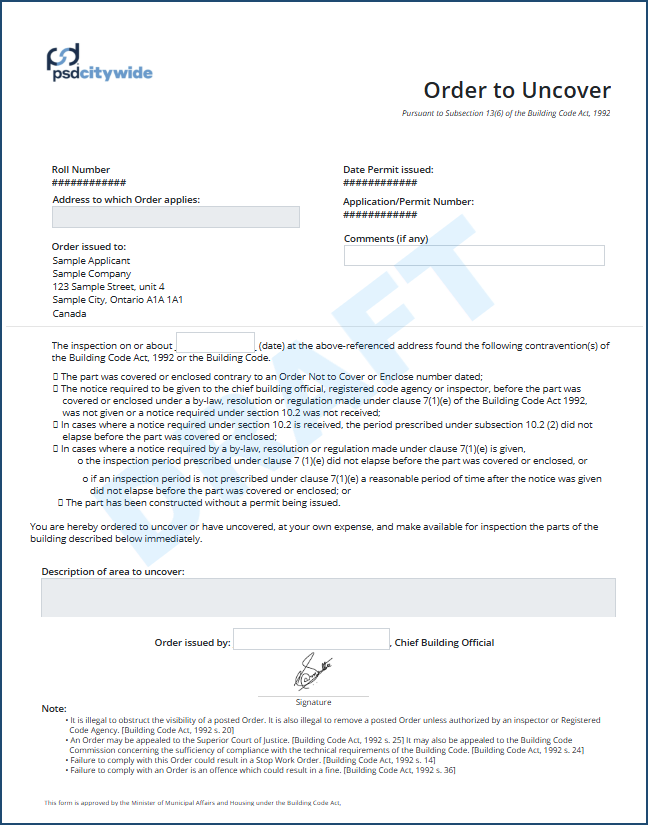
In Figure 2. below, it shows a custom compliance letter using the following tools:
- Text line(s)
- Input
- Single Contact
- Paragraph
- Text Area
- E-Signature
Figure 2. Compliance Order custom letter