


Citywide Permitting offers several Licence reports meeting a variety of reporting requirements. Each report type includes parameters, filters and display settings to change if desired. All Citywide reports can also be exported to Excel as required. 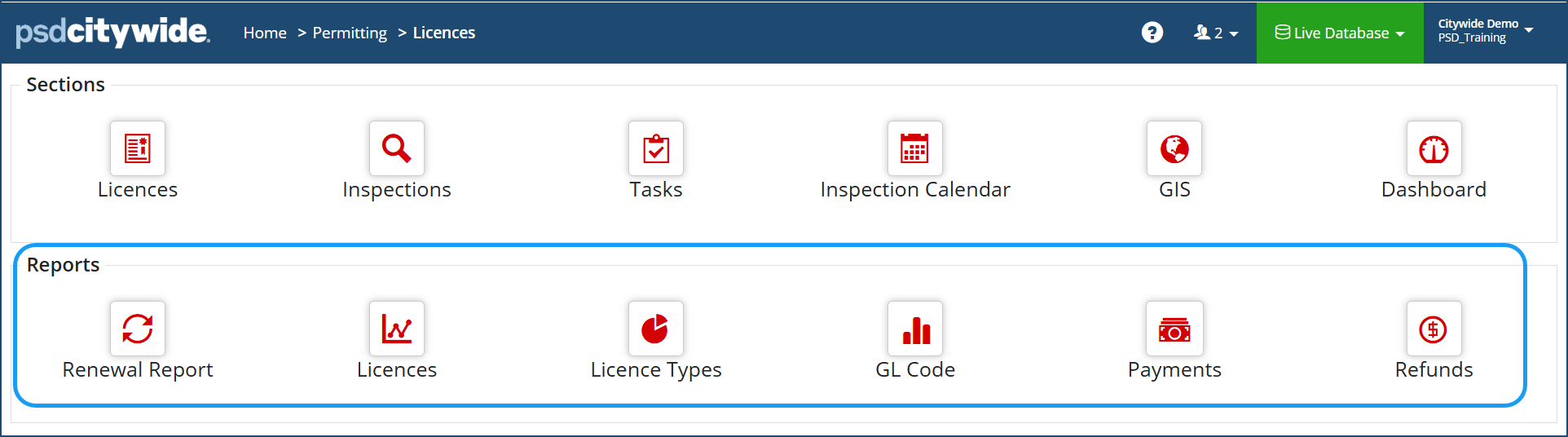
| Report | Description |
| Renewal Report | This report shows the list of all licence applications that are approaching renewal specified by the licence type and expiry date filters selected. |
| Licences | This report shows the list of all licence applications as specified by the filters and/or report options selected. |
| Licence Types | This report shows the number of licence applications based on licence type as specified by the filters and/or report options selected (ie. status or dates). |
| GL Codes |
This report shows the total fees of all licence applications based on General Ledger (GL) Codes (Note: GL codes must be configured in the database first. Click here to view how to set up GL codes) |
| Payments | This report shows the payment details from all licence applications as specified by the filters selected (ie. group by licence type, status or payment date). |
| Refunds | This report shows all licence applications and the amount of refundable fees as specified by the filters selected (ie. status or dates). |
- Select the desired report you want to run.
- Select the various filters available on the report.
- Report options: if desired, click the 'Modify Report'
 icon. Change the desired report options and/or date range as needed.
 - If applicable: change the 'Status' drop down to filter the list to only show applications in the specified 'status' - select one or multiple application status(es). To select multiple statuses, hold the Ctrl key down.
- Report options: if desired, click the 'Modify Report'
Then click Run Report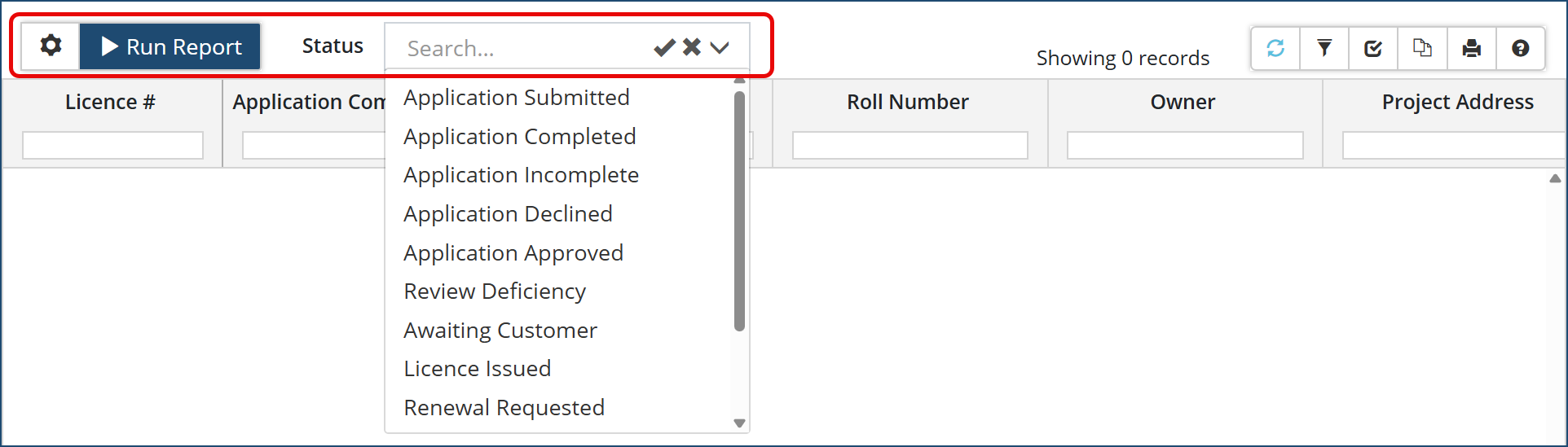 Customize Report Columns
After the report is generated, the columns can be customized as needed.
Click the 'Customize columns'  icon at the top right of the grid and enable/disable the columns as needed (For further reference on customizing grid columns, click here).
To Export a Licences Report to Excel
- Once your report is generated, click the Export Data
 icon.
icon.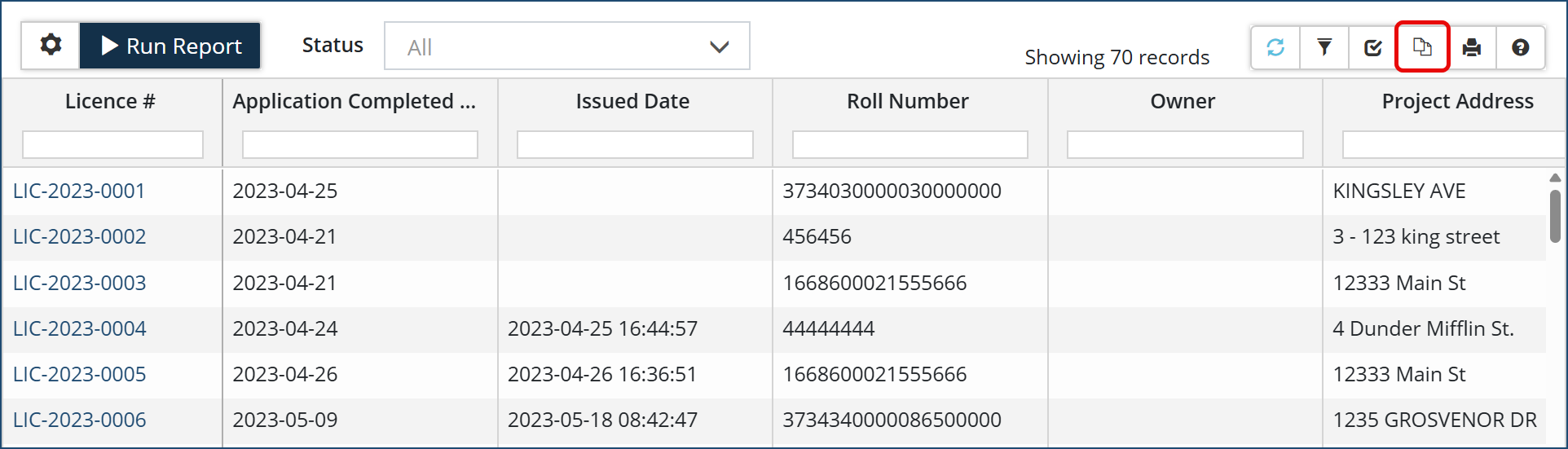
- The report will export to your computer's downloads folder. Open the file as needed.



