


The Workers section is used to manage worker information. WOs are assigned to workers who can belong to one or more department(s).

To create a worker:
-
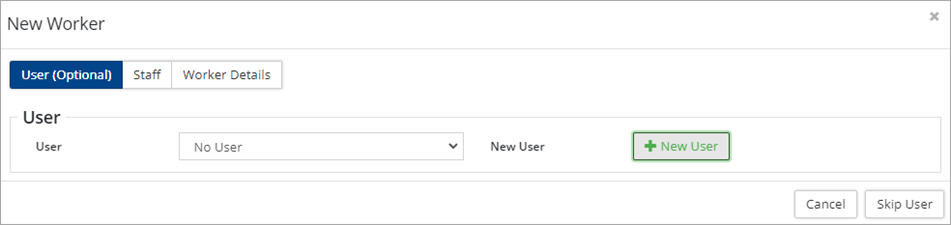
Click +Add Worker. Select:
-
User (Optional) – Click the User dropdown list if the worker is also a user of the database (i.e., the worker has a Citywide user login) and exists in the Contacts list. Workers are not required to have a Citywide account and can be added using the +New User button.
-
Staff – search for an existing staff member or click +New Staff.
-
Enter Worker Details, Wage (make sure to assign a department(s) if mandatory), and Position information. Attach files as needed.
-
Click Add.
Once a worker is added, a Worker ID is assigned.
-
Click the Worker ID in the list to open the worker and manage details as needed. Options include the ability to assign the new worker to Crew(s), Position(s) and identity Certification(s).
-
Click Save when editing worker information.


