Download Citywide Mobile App
To access the database on Citywide Mobile App:
- Download the app via the Playstore (Android platform) or App Store (iOS platform)
- Search for: Citywide Mobile
- Click to download
- Enter database name and login with the same username and password credentials as used for the web application
Users with the appropriate permissions can create/edit Service Requests and Work Orders from the Mobile App.
Maintenance Preferences for Mobile App
Navigate to Home > Maintenance > Preferences

User Preferences - Mobile Profile Work Order Filter
To access the relevant work orders on the Mobile app, customize mobile profile work order filter. These preference settings are specific to each User.
1. Click on Customize and select the Department and Work Order Type(s), as well as the Worker(s) assigned, and the WO statuses that you wish to view on your mobile device.
2. Save your selection.
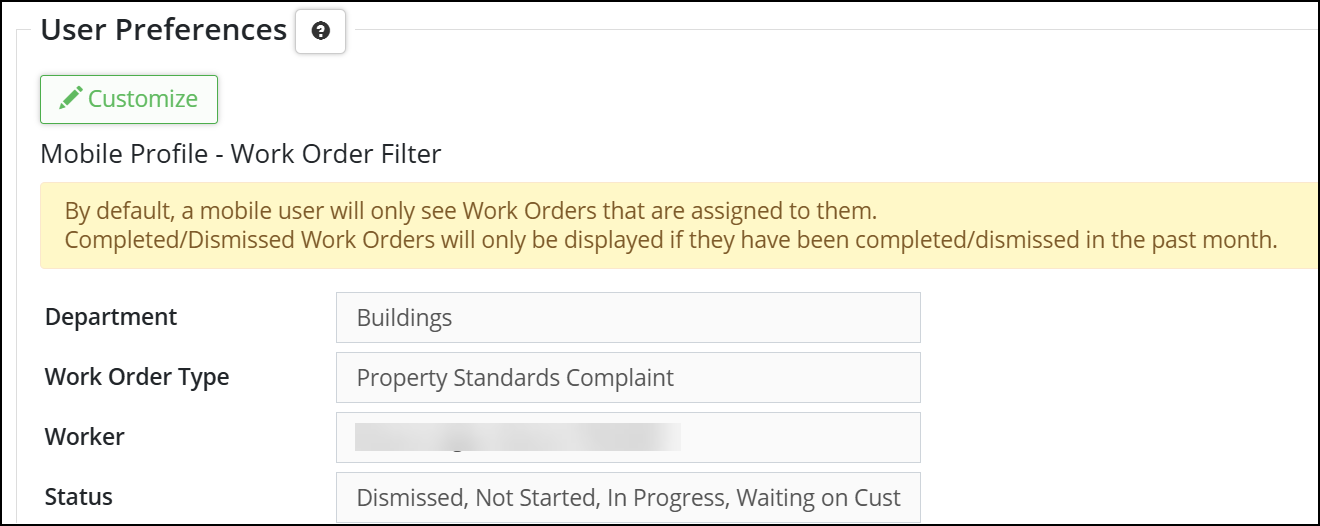
By default, a mobile user will only see Work Orders that are assigned to them. Completed/Dismissed Work Orders will only be displayed if they have been completed/dismissed in the past month.
Citywide Mobile App Home Screen
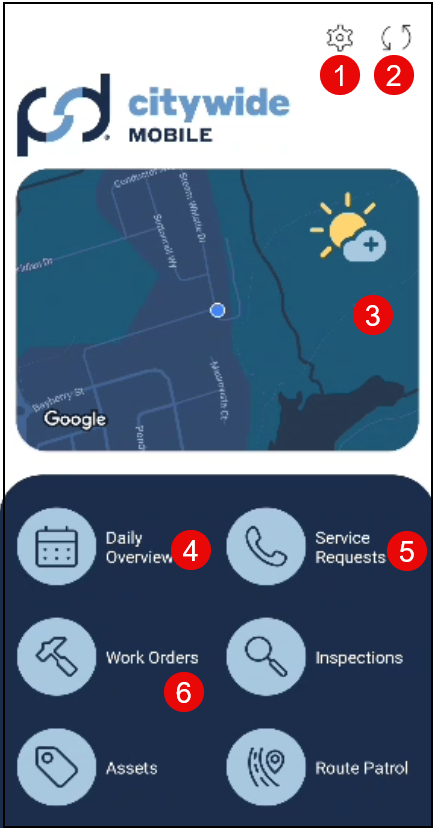
- On the Home screen, the Gear button allows users to set Preferences and Filter to be applied to all areas within the App. The General section provides information regarding the database, login and version information as well as FAQ.
- The Citywide Mobile App operates in both an Online functionality and Offline functionality mode. Using the Sync button will allow the data saved locally (eg. when a user is offline) on the mobile app to be updated in the web server when connected to reliable internet connection.
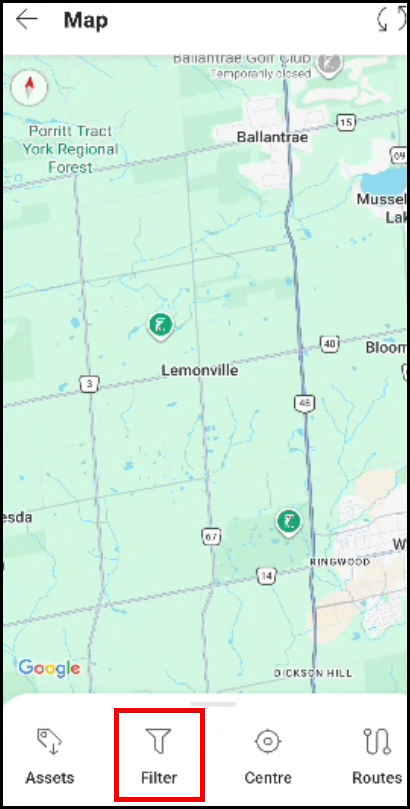
- Click on the map feature and select the Filter options for Work Orders and Service Requests, which allows users to view the data. Any filters applied will remain and the Filter icon will be highlighted to indicate applied filters are in place. Daily Overview, Service Requests and Work Orders icons on the Citywide Mobile App home screen allows users to view and, in addition, edit Service Requests and Work Orders.
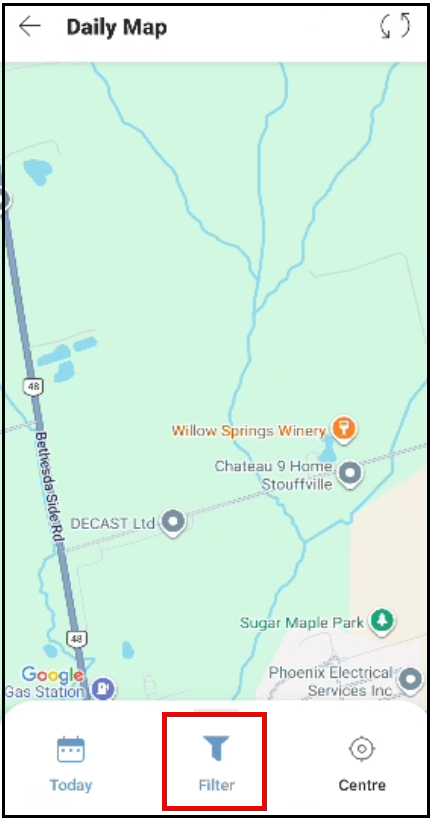
- Daily Overview shows the Work Orders assigned for the current day (Today) as well as the prior day (Yesterday) and the following day (Tomorrow). Clicking the Daily Map feature and select the Filter option for Work Orders, which allows users to view the data. Any filters applied will remain and the Filter icon will be highlighted to indicate applied filters are in place.
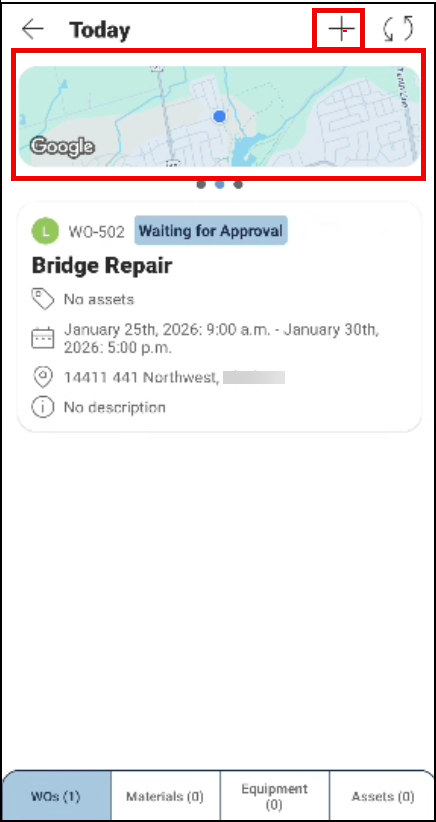
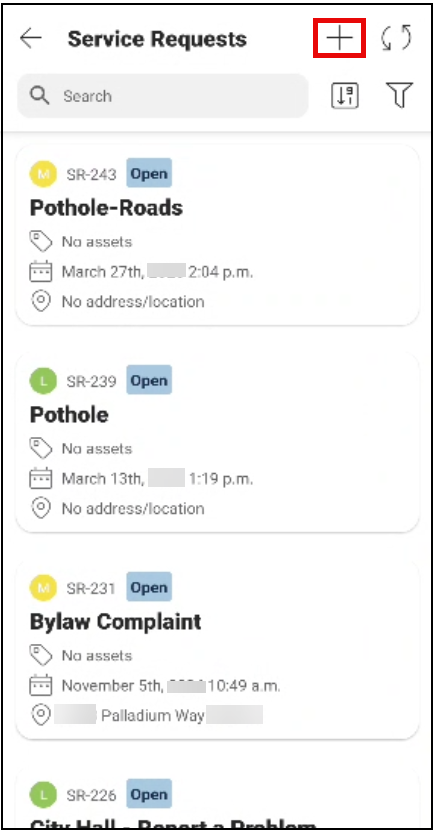
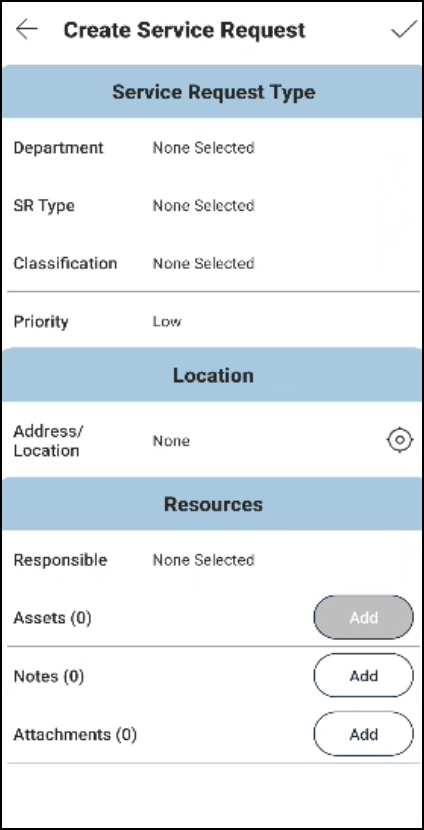
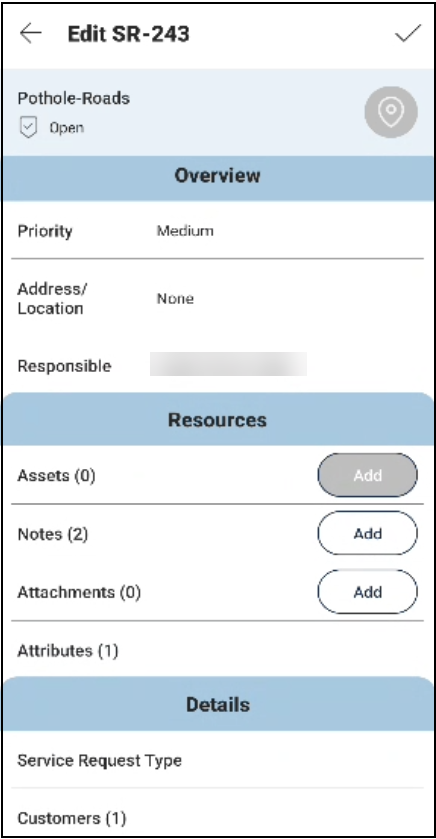
- Service Requests displays the Service Requests according to the user’s mobile profile permissions. Click the + button to create a Service Request. Citywide Mobile App users can also click each Service Request to view and edit. The Overview section within the Edit screen displays Priority, Address/Location and Responsible. The Resources section allows users to add Assets, Notes, Attachments and Attributes. The Details section displays Service Request Type and Customer/Contact information.
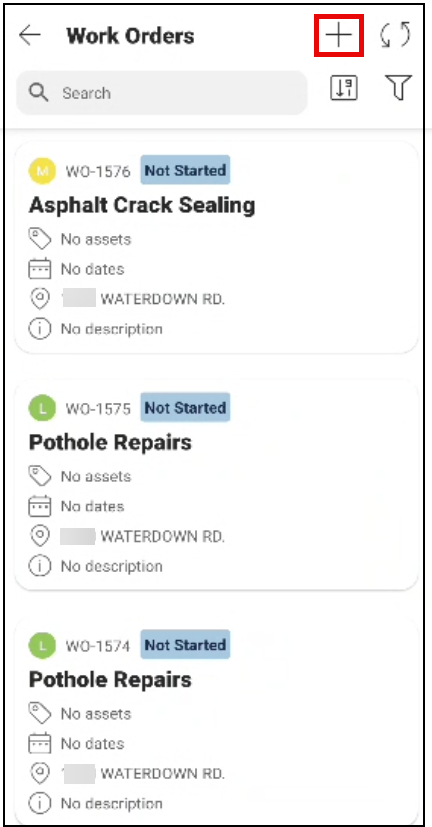
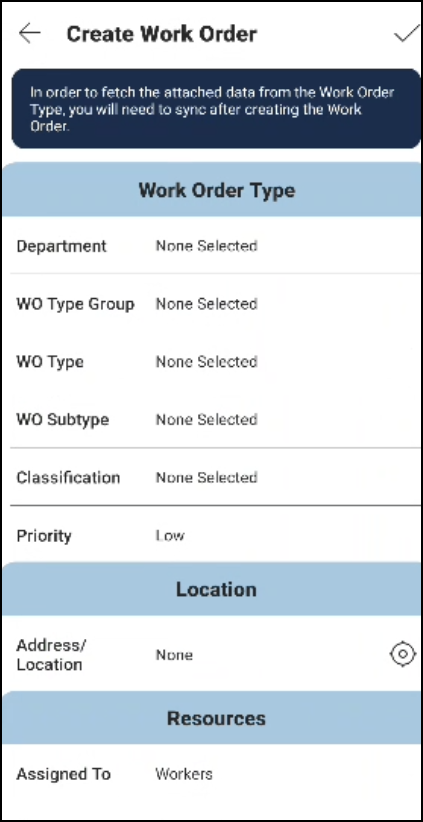
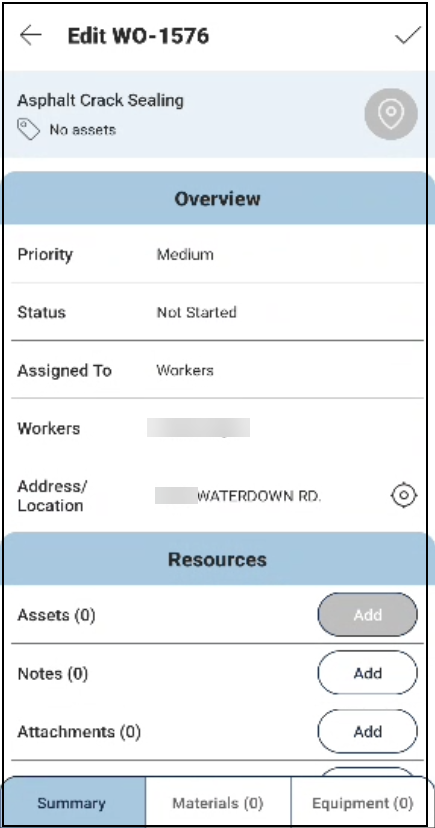
- Work Orders displays the Work Orders according to the user’s mobile profile permissions. Click the + button to create a Work Order. Citywide Mobile App users can also click each Work Orders to view and edit. The Overview section within the Edit screen displays Priority, Status, Assigned To and Workers. The Resources section allows users to view Deficiencies, complete Processes, add Assets, Notes, Attachments and Attributes. The Details section displays Work Order Type, Dates (including Created date, Scheduled Start Date, etc.) and Customer/Contact information.