Permissions and security in CWBC are primarily controlled through Roles.
Multiple roles may be defined and security for objects and Segments may be defined for each role.
Each user may only be assigned one role.
Go to System Administration > Permissions > Roles
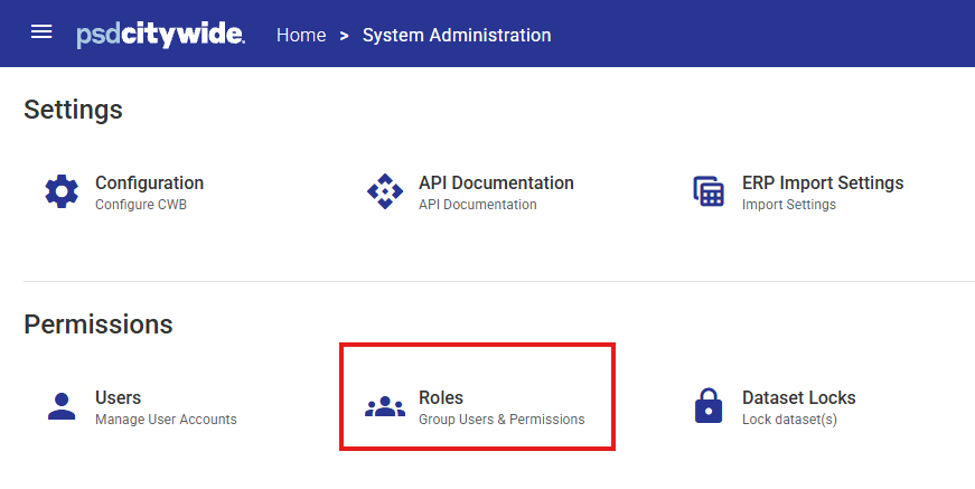
Click Add  to create a new Role.
Complete the dialogue box (only a role name is required).
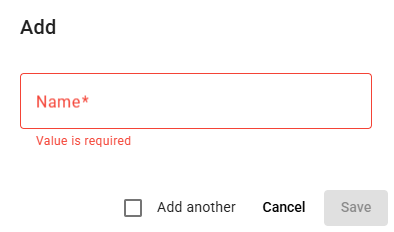
Click Save to save your new role.
Set Permissions for a Role
Once a Role has been created, click the Role Name hyperlink to update the permissions associated with the Role.

Security Hierarchy
To understand Role Permissions, it can be structured into three level. As you add more levels to the Role the access is getting more restricted. This table introduces the levels and each one will be covered in detail below.
| Level | Description | Note |
|---|---|---|
| User>Major Role | Admin/External*/None | Admin Major Role grants full access to the system. A Role is required when using None/External |
| Role>Module Operation Access Permission | Granting access to modules i.e. Operating Plan, Reports, Rollovers | Can use Global Access Settings |
| Role>Dataset Permissions | Restrict the Budget Versions (Datasets) a User can View or Edit. | Must define access for each Dataset that you want access to |
| Role>Access Limitation Permissions | Control the Segments that end user can Edit | Define the Segements I can edit. All remaining segments are View only |
*External role is only for API/external connection and will be ignored in this article.
1. Major Role
The first level of the CWBC security hierarchy is setting a Major Role.
This is the first pass at setting up the Permission configuration
• Admin – Create a System Administrator no further configuration will be needed.
• External – This is reserved for API credentials.
• (None) & Role – Do not select (Admin or External) and a required Role. This is creating an internal user, and the Role will define their access.

2. Module and Operation Access Permissions
The second level of the CWBC security hierarchy is deciding on an end users Module and Operation Access Permissions.
To allow access to a module or system operation, the related toggle must be enabled by sliding it to the right.
| Enabled | When selected, access to the module or operation is enabled for users assigned to the role |
The toggle colour will change to yellow when enabled.
Any functional areas that the Role cannot access will remain greyed out (once logged in) until enabled by the Administrator.
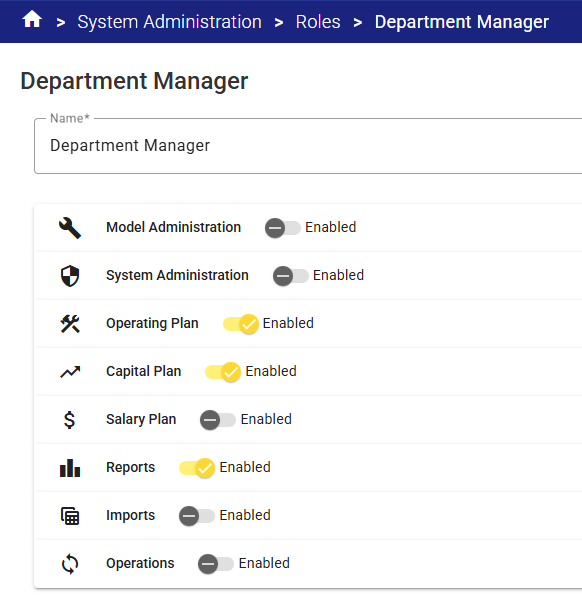
| Model Administration | Change your chart of accounts and configuration of many screens. This should be limited to System Administrators changes here, some Power user may be contributing to Attributes or Tree. |
| System Administration | Manage system wide setting and configuration. This is where I can setup new Users and define Permissions. This will should be limited to System Administrators or IT Administrators. |
| Operating Plan | Allowing access to the Operating Budget through the Datasets. |
| Capital Plan | Allowing access to the Capital Budget through the Datasets. |
| Salary Plan | Allowing access to the Salary Plan through the Components. |
| Reports | Enable the ability to run the canned reports in each module Operating, Salary and Capital. |
| Imports | Access to run excel imports to change Budget data and run configured EPR Imports on an Ad-hoc basis. This will should be limited to System Administrators or IT Administrators. |
| Operations | Tools that can manipulate values within Dataset. Access to Rollovers and Budget Spreads. This will should be limited to System Administrators. |
Role permissions can further be refined for each functional area as described below.
General Control Permissions
After enabling Module and Operation Access Permissions the General Control Permissions are granting an end user access to open a component/setting within the module/functional area.
These permissions must be set for each module/functional area.
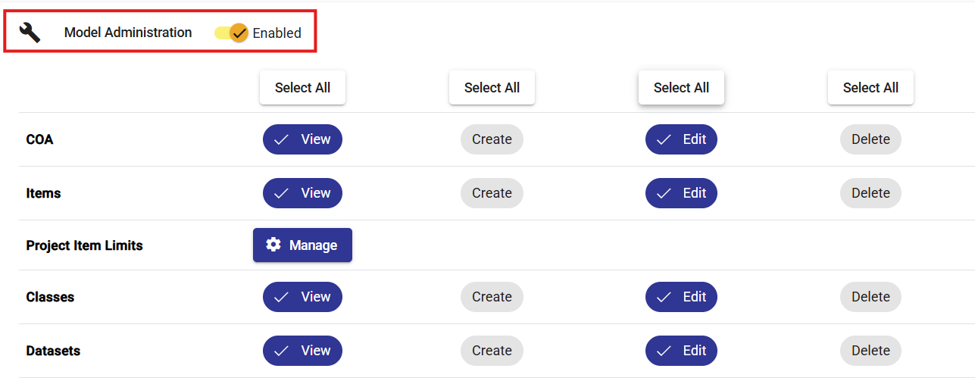
General Control Permission Levels include:
| Enabled | When selected, access to the module is enabled for users assigned to the role |
| View | The object may be viewed, but not modified in any way |
| Create | Any operation except deletion may be performed |
| Edit | The object may be modified, but not deleted, nor can a new object be created |
| Delete | The object may be deleted |
3. Dataset Permissions
The third level of the CWBC security hierarchy is limiting access to budget versions using Dataset Permissions.
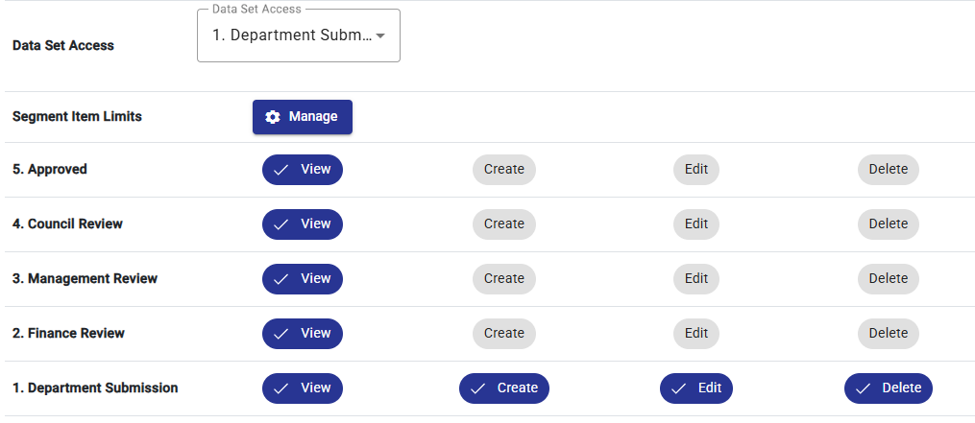
Dataset Access tools can be used to set access to Datasets (i.e. commonly Department Users might have all access to the 1. Department Submission Dataset but view only access to all other Datasets.)
Access to a Dataset can be enabled by ticking the checkbox for the applicable Dataset in the drop-down list.
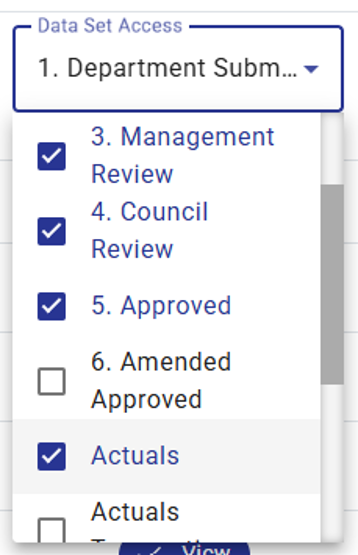
Enabled Datasets will appear in a list below and access for each enabled Dataset can be further refined.
4.Access Limitation Permissions
The fourth level of the CWBC security hierarchy is controlling aces to Segments using Access Limitation Permissions.
Access Limitation Permissions further restrict user access to specific Segment Items within each module.
These permissions define the segments that a user is permitted to Edit, and all remaining Segments will be treated as View.
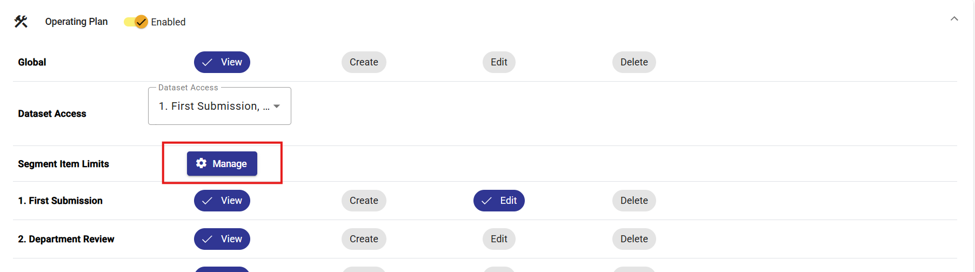
Permissions can be further refined to by enabling Segment Item limits using the Manage tool.

All COA Class Key Segment Items and any Related Items (i.e. Segments that form part of the Class Key) will be available for setting permissions.
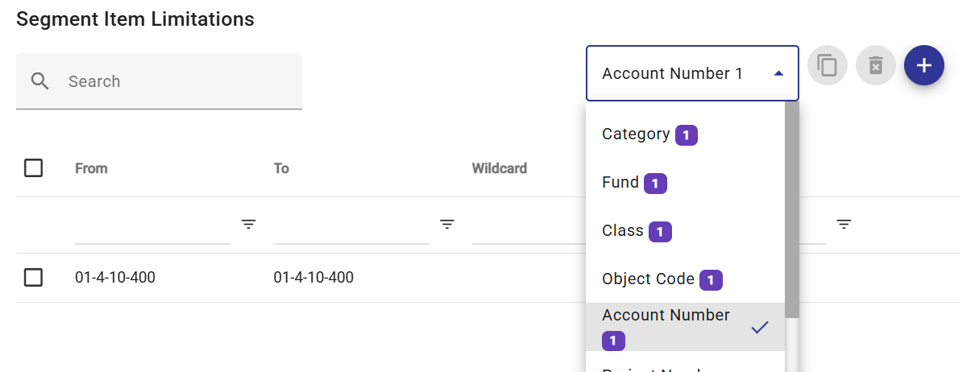
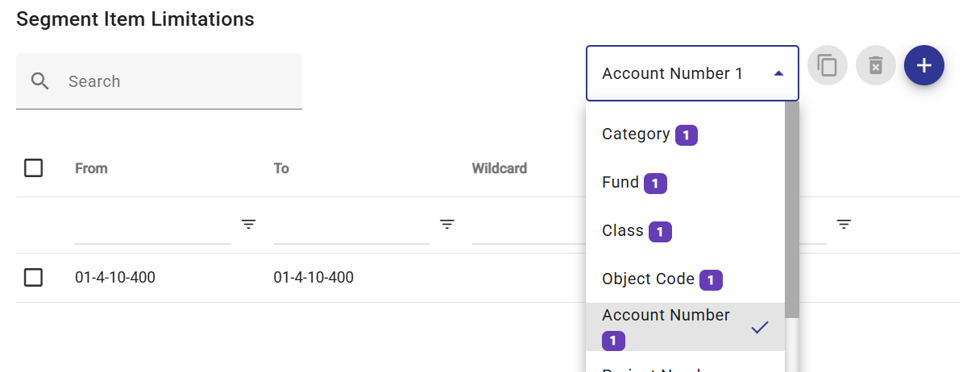
Select the Segment Item to be used for setting permissions from the drop-down list .
.
(Cost Centre was selected in the example below)
Enter the range of Segments to be enabled using the From and To range selection fields. A wildcard can also be used to define the access .
.
Click Save to save your changes.
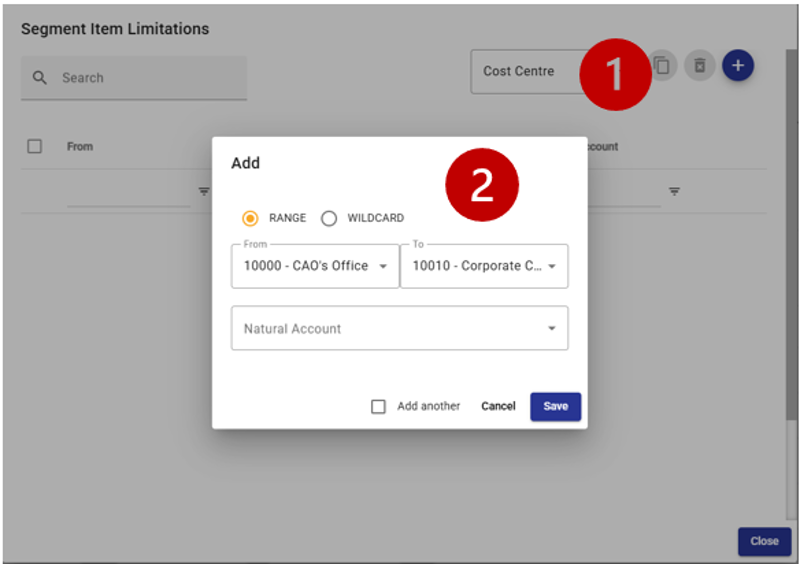
To successfully use Access Limitation Permissions you must add the following Segment Item Limitations
- For example, I want my User to be able to edit 01-4-10-400
- Start by creating a Segment Item Limitation
- Add the COA Class Key for 01-4-10-400 using wildcards or ranges.
- Ensure there is an entry for each Key Segment. These can be entered using wildcards or ranges. For the example the following were also added:
- Fund = 01
- Class = 4
- Category = 10
- Object = 400
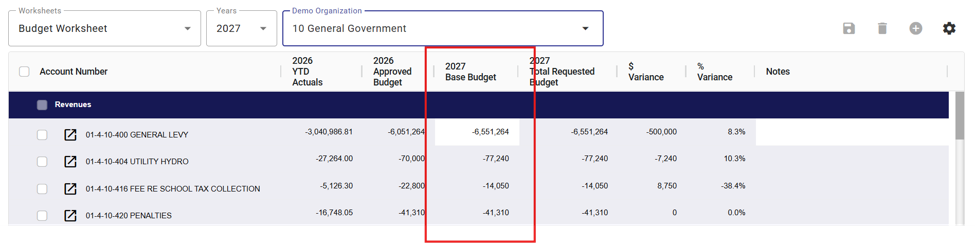
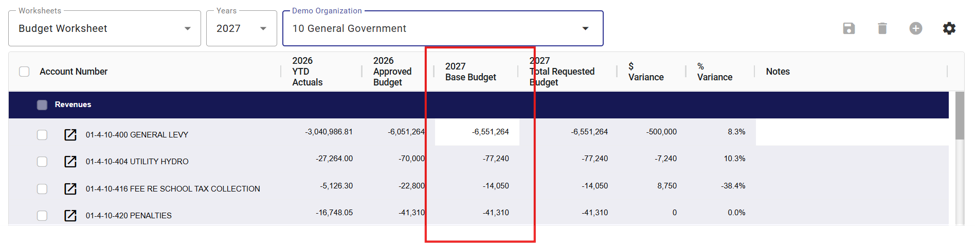
This is how the User that has this Role will interact with a Budget View. The COA Class Keys that have been included in the Segment Item Limitation can now be edited and the remaining COA Class Keys will be viewable.
Capital Plan Permissions
The principles for Capital Plan Permissions are similar all other modules. There is one important Access Permission that is under Model Administration.
Project Item Access Permissions
Salary Plan Permissions
The principles for Salary Plan Permissions are similar all other modules.
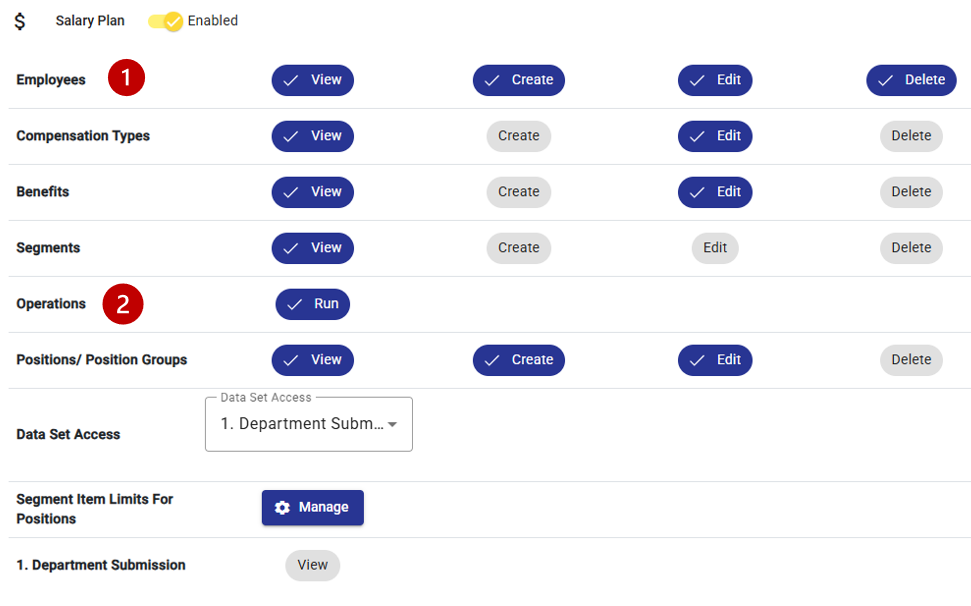
Once enabled, Permissions can be set for each component of Salary Plan: Employees, Compensation Types, Benefits, Segments, Positions/Position Groups, and Datasets (see example below  ) and for Salary Plan Operations
  (Including the Sync and Modelling operations accessed from the Salary Plan module.)
Reports / Imports / Operations Functions Permissions
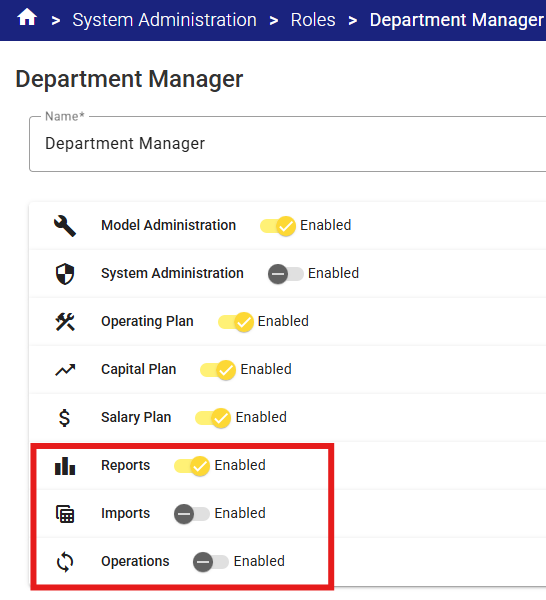
To enable Permissions for any of these functions, simply slide the toggle the slider to the right. No other permission refinements are possible.
Example of Roles
The column of this table show a type of user that needs to be created and the rows have information about which security hierarchy level are required.
| Level | System Administrator | Power User | Trusted Budget Owner | Restricted Budget Owner |
|---|---|---|---|---|
| User > Major Role = Admin | ✅ | |||
| User > Major Role = None | ✅ | ✅ | ✅ | |
| Role > Module Operation Access Permission | ✅ | ✅ | ✅ | |
| Roles > Dataset Permissions | ✅ | ✅ | ||
| Roles>Access Limitation Permissions | ✅ |
System Administrator
This user can complete every click in the system including setting Permissions for other User.
Configuration of User:

Configuration Error
Being able to set a User like this is intentional, this will allow the Security Administrator to add all the Users first and then come back an give them a Role.
Do not leave a internal User without a Role. The User will be allowed to login but they will not be allowed to click anything.
Configuration of User:

When viewing all Users you can quickly identify those that need a Role when it is labelled No Access.

Power User
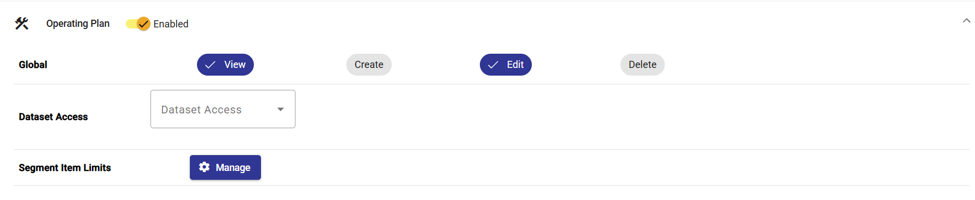
This is appropriate for someone who can see the entire budget i.e. all dataset and all segments. However we may want to limit their access to some Modules like Model Administration as this is reserved for System Administrators.
Use the Global Access Setting (View, Edit, Create, Delete) to control all the datasets. Their ability to make changes to the budget is based on the Global Access Setting (View, Edit, Create, Delete).
Configuration of User:

Configuration of Power User Role at the level Role > Module Operation Access Permission:
Trusted Budget Owner
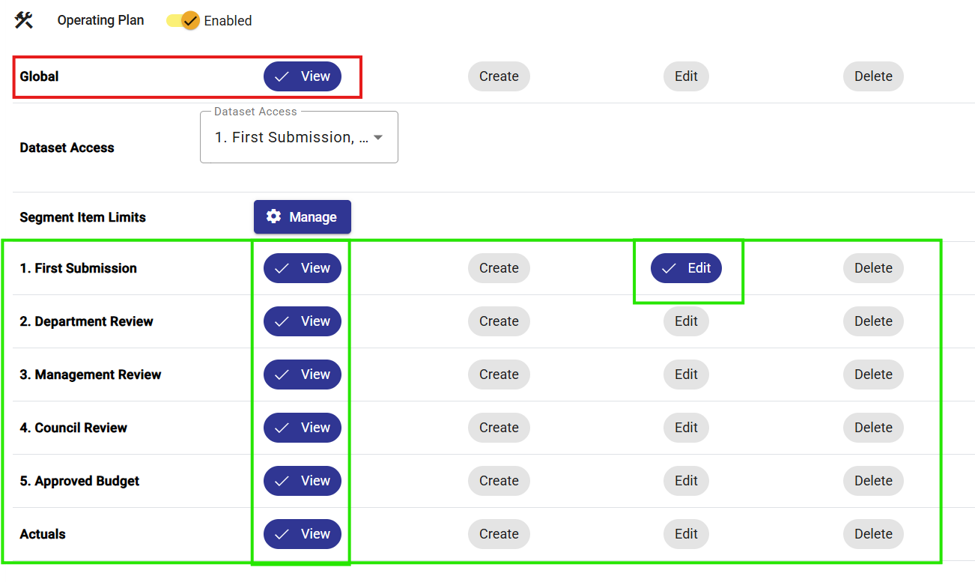
Creating a Trusted Budget Owner – similar to Power User but we are controlling their participation in changing the budget. Use the Dataset permission to grant them Edit access on earlier version of the budget. Allow them to view only the later budget drafts. Still a very broad access to the budget.
When Dataset Permission are being used the Global Access Setting are no longer applicable. For this example the following is being configured:
- Only grant Edit on 1. Department submission
- Allow View on all other Datasets
Configuration of Trusted Budget Owner Role at the level Role > Module Operation Access Permission > Dataset Permissions
Restricted Budget Owner
Creating a Restricted Budget Owner –similar to Trusted Budget Owner but now we are controlling what Segments they can budget towards. Use the Segment permission to grant them Edit access. Remaining segments will still have VIEW access.
When Dataset permission shows up the Global Access Setting are no longer applicable. For this example the following is being configured:
- Allow view on all other Dataset
- Only grant Edit on 1. Department submission
- Grant Edit access to specific segments
- All other Segments are VIEW
Configuration of Restricted Budget Owner Role at the level Role > Module Operation Access Permission > Dataset Permissions
Configuration of Restricted Budget Owner Role at the level Role > Access Limitation Permissions
Example of the Operating Plan > Dataset> View for the Restricted Budget Owner Role: