


The Salary Plan Module provides a set of tools and components that allow users to create a complete compensation and benefits budget for all staff in the organization.
Core Components
The salary budget model is built using the following core components:
-
Benefits
-
Compensation Types
-
Position Groups and Steps
-
Positions
-
Employees
Once these components and their relationships are configured, the system dynamically generates the salary budget model.
The Salary Budget Model
The model is calculated using detailed compensation and benefit data at the following levels:
-
Employees
-
Position Group Steps
The compensation and benefits data can then be rolled up by:
-
Attributes
-
Position Groups
-
Positions
-
Employees
When values such as salary amounts or benefit rates are updated, the impact is immediately recalculated and reflected in the salary budget model.
Sync with Operating Plan
The compensation and benefits budget can then be summarized and exported to the Operating Plan using the SP to OP Sync operation.
What-if Scenarios
By using multiple Datasets, users can perform what-if analysis to evaluate different scenarios, such as:
-
The impact of rate increase options during labour contract negotiations
-
The impact of potential changes in benefit costs
-
The impact of proposed legislative changes, for example, a significant change to statutory minimum wage
This allows users to assess impacts before selecting the final scenario to use in the recommended budget.
Salary Plan Permissions
Access to the Salary Plan Module is enabled through module-level Permissions, via the System Administration.
Permissions can be refined to control access to specific module components, including:
-
Segments
-
Datasets
-
Operations
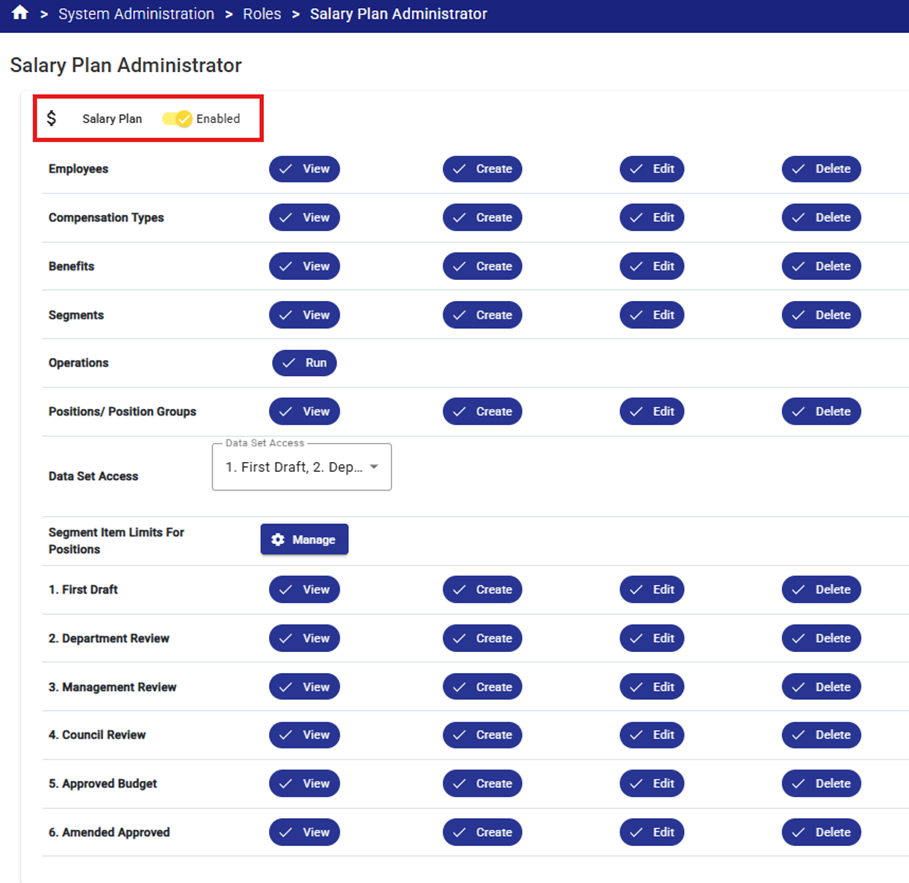
Operating Plan Class Column Control Options
Each Operating Class Column includes two Salary Plan Control options:
1. Include in Salary Plan Split Types
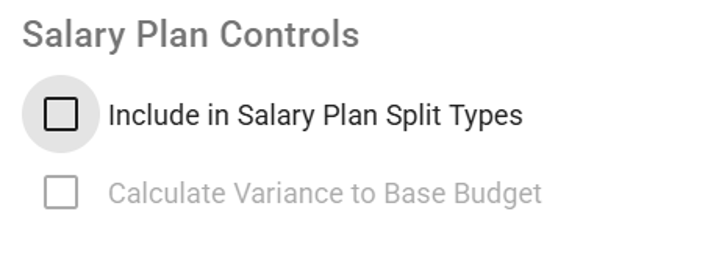
If the "Include in Salary Plan Split Types" checkbox is checked, 100% of the calculated compensation and benefit amount for an employee will be posted to that column during the SP to OP Sync operation.
A column can be designated as the default Split Type by selecting the star icon in the SP Default column. This default will show up in the Salary Plan module.
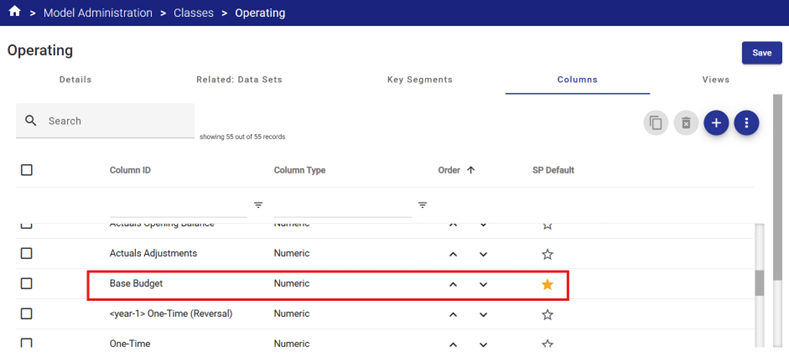
2. Calculate Variance to Base Budget
If your Operating budget has been configured for Incremental budgeting this setting is one that you will likely need to enable. Some further clues you are using Incremental budgeting:
- in 2026 Budget, there will be one or several columns that make up your 2026 Base Budget. The 2026 Base Budget value remains unchanged through the whole budget cycle
- 2026 Base Budget would typically be made up of the 2025 Approved Budget minus 2025 One-Time Costs
- Any increase of decrease to the 2026 Base Budget would need to be entered as increments (+$200 to the Base Budget) in the appropriate column like Service Level Increase, Inflation, or Budget Cuts.
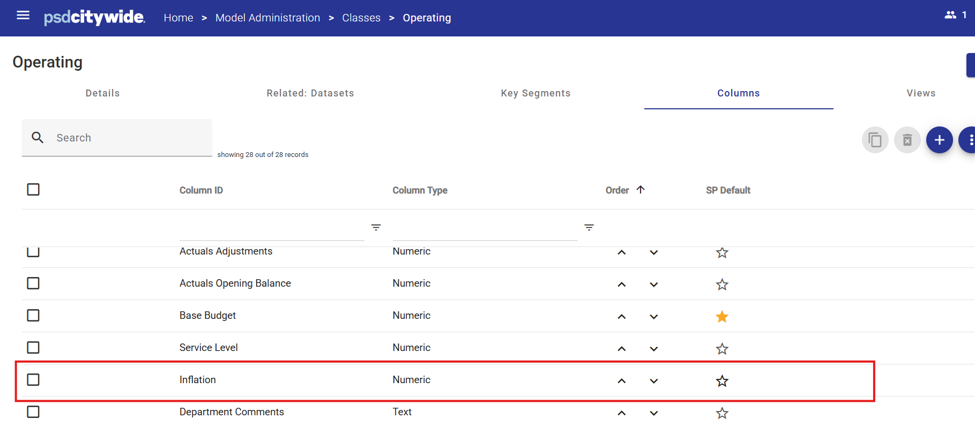
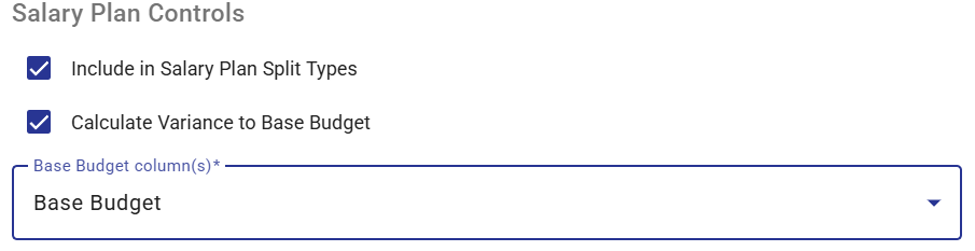
If the "Calculate Variance to Base Budget" for Salary Plan Controls checkbox is selected and a Target Base Budget(s) column is selected:
-
The calculated compensation and benefit variance will be posted to the column selected under Include in Salary Plan Split Types.
-
The Base Budget Column(s) amount will remain unchanged.
-
The Inflation column will be posted with the difference between the calculated in Salary Plan and the Base Budget(s)
-
Configuration Rules
-
In the Operating Class
-
Only one column can be designated as the "Calculate Variance to Base Budget" column at a time.
-
A column cannot be compared to itself in the Base Budget Column(s)
-


