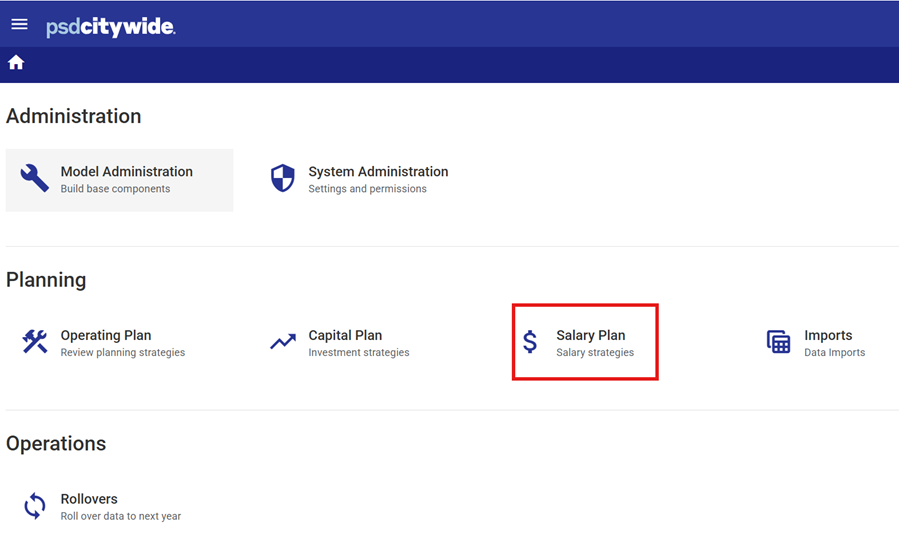
Adding New Compensation Types
- Open the Compensation Types component of Salary Plan
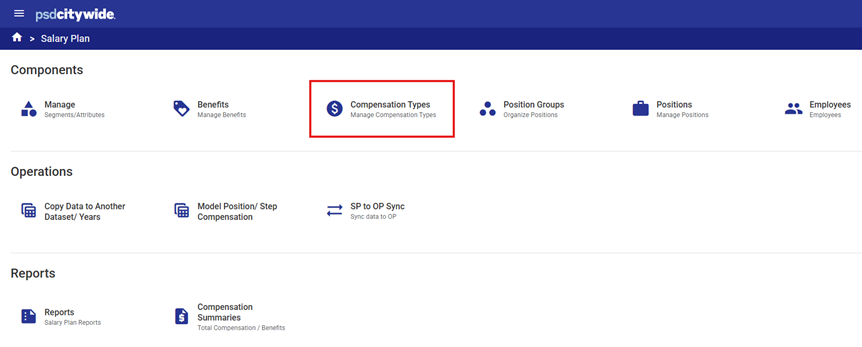
- Select the Year and Data Set.

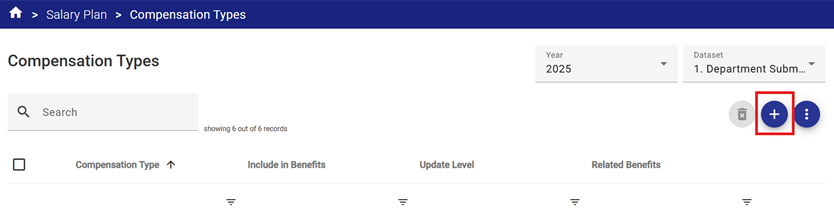
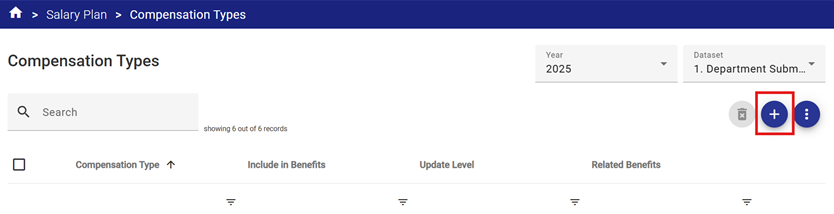
- Click the
 button to add a new Compensation Type.
The Compensation Type properties fields include:
- Compensation Type – Unique compensation type name
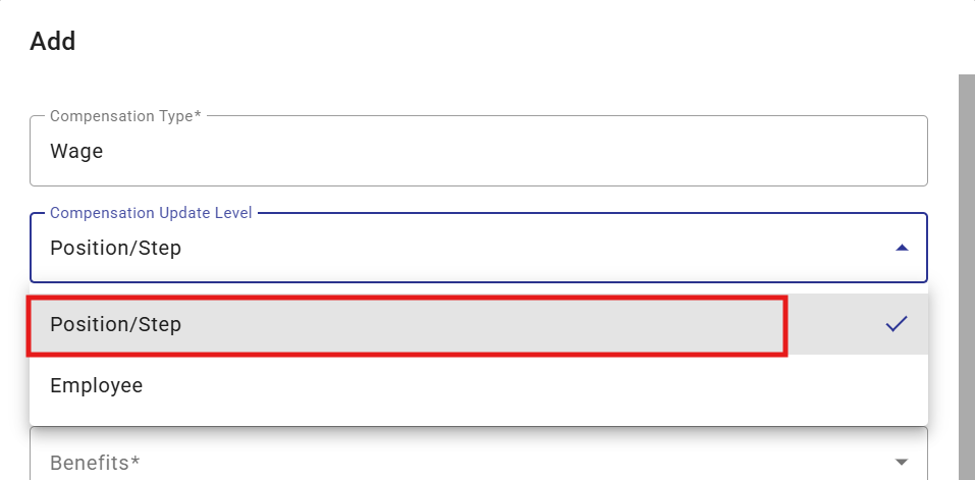
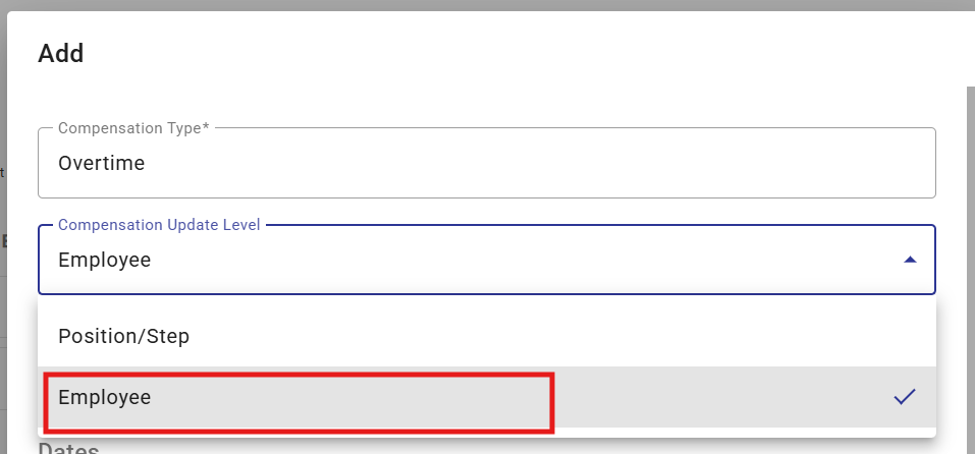
- Compensation Update Level – If the compensation type is applicable to all employees in a position/step, select Position/Step from the drop-down list. If it is employee specific (i.e. not applicable to all employees in a specific position) select Employee.
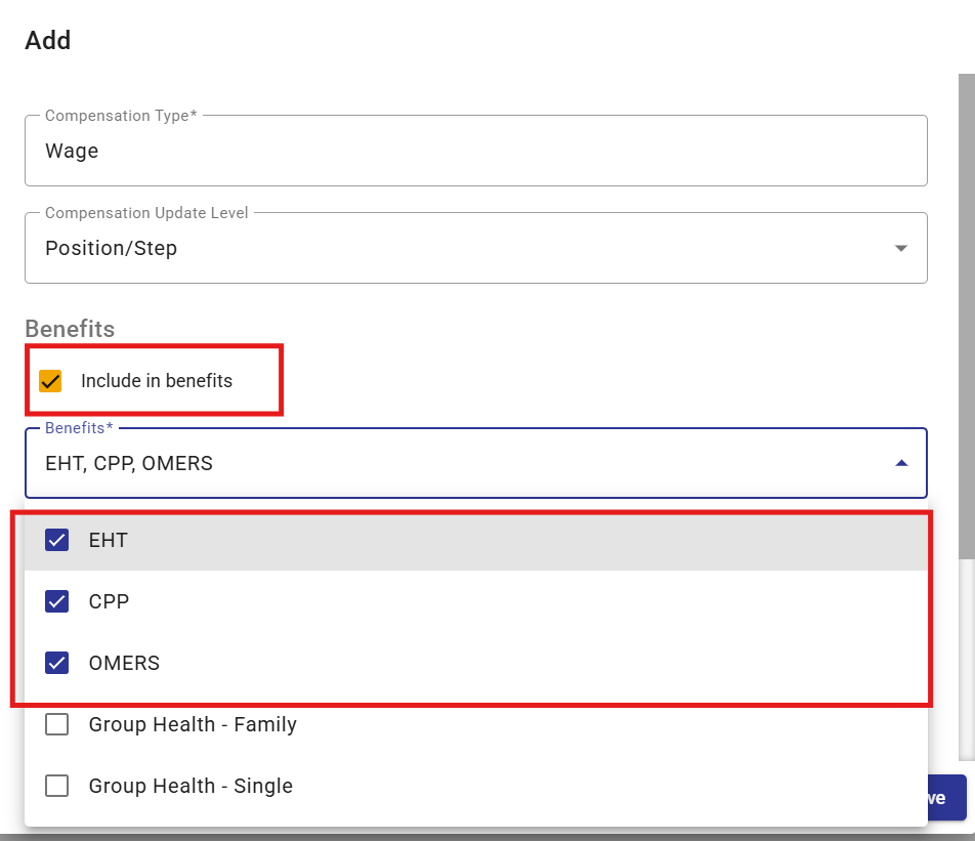
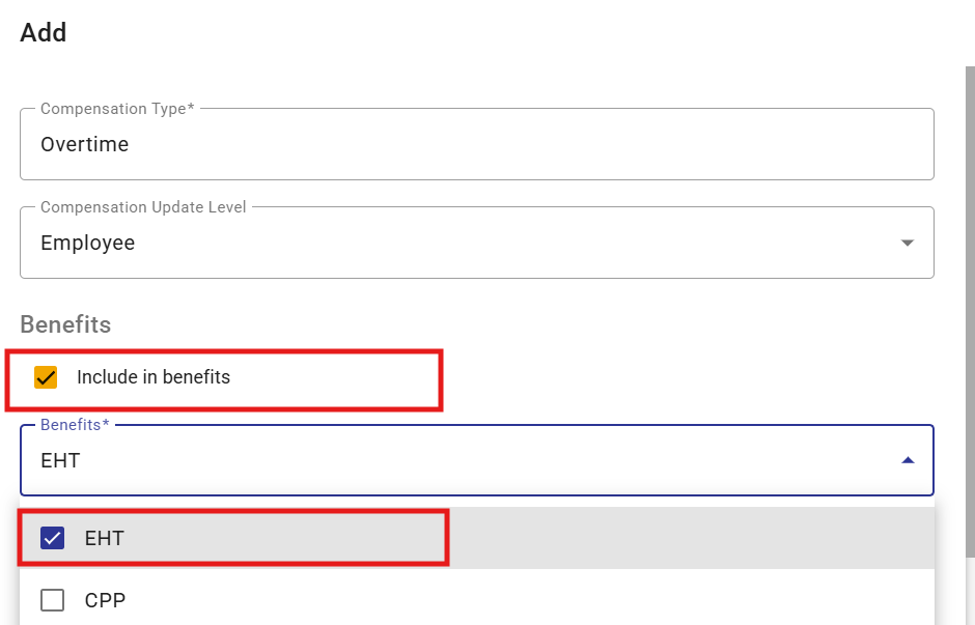
- Include in Benefits – If benefit costs accrue against this Compensation Type, select the checkbox. If the box is left blank, then no benefits will be calculated or applied to this Compensation Type.
- Benefits - This allows the inclusion/exclusion of specific Compensation Types in the calculations of a total benefit (since many statutory benefits apply to many or all types of compensation). Selecting a benefit from the drop-down list of available benefits signals the system that the Compensation Type should be included in calculation of that benefit. If a calculated benefit should not include a Compensation Type (e.g. OMERS pension benefits not applicable to Overtime pay), then do not include the benefit in the Benefits list.
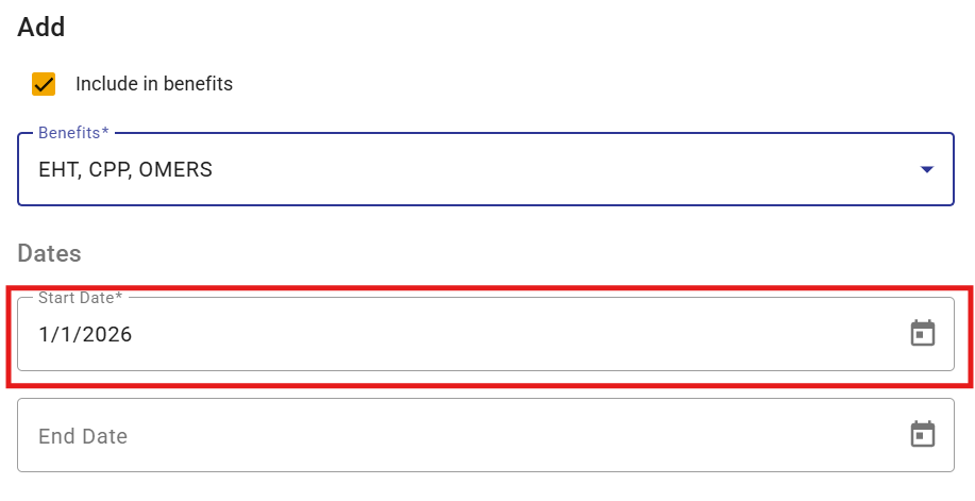
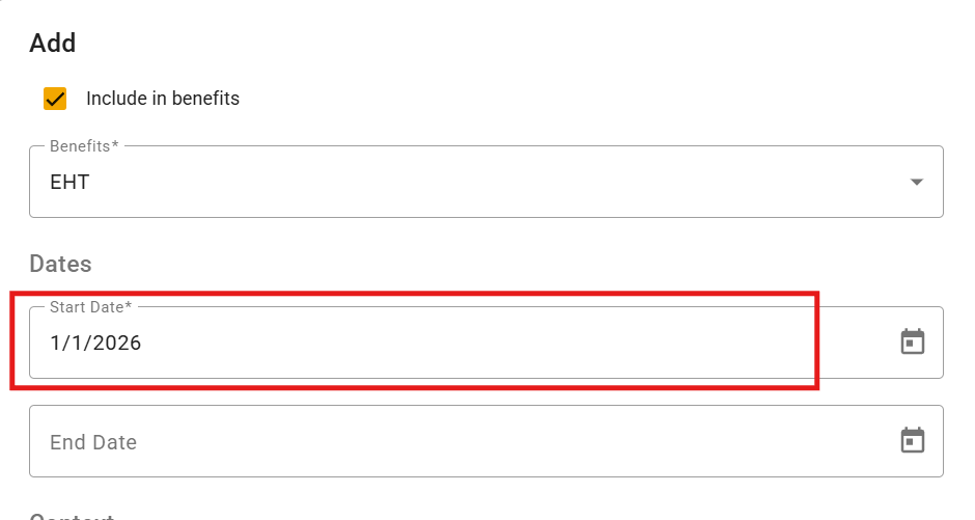
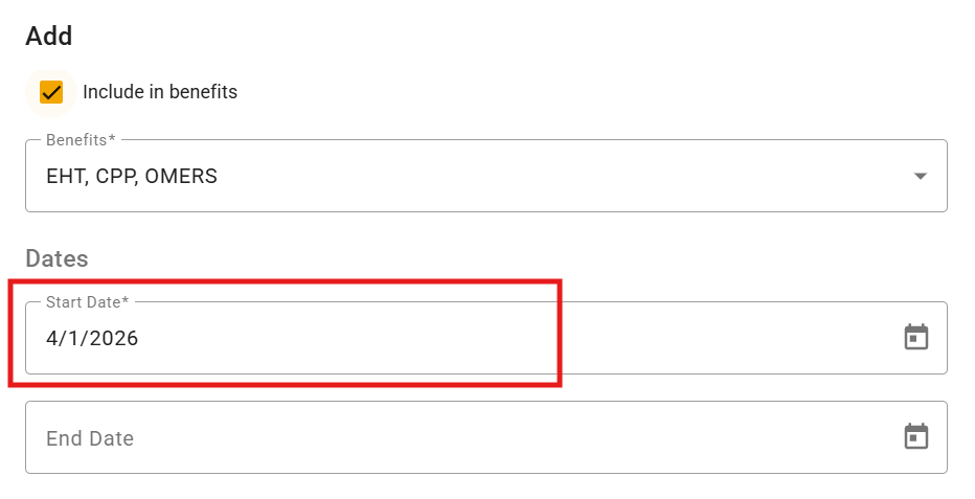
- Start Date - Set the effective date the Compensation Type can begin calculating. A start date will be required. Compensation Type are allowed to calculate for a portion of the budget year.
- End Date - Optionally set a date that this benefit should stop calculating,
- Year – The fiscal year for which the benefit applies
- Dataset ID – The data set for which the benefit applies
- Assign the Key Segment item to be used for posting compensation to Operating Plan. For example, Object Code = 501000 Salaries and Wages in the example below.
- Select the
 icon to add a new related item.
- Select the
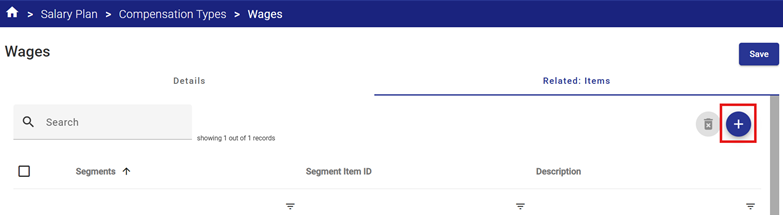
-
- Select the Segment and the Segment Item ID from the drop-down menu.
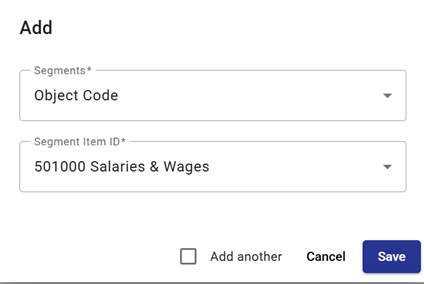
- Click Save.
Example 1 – Position Step Compensation - Wages
- Select the
 button to add a new Compensation Type.
- In the Add dialogue complete the Compensation Type details. In the example below the Wages Compensation Type is Position/Step, so select this from the drop-down list
This compensation attracts EHT, OMERs, CPP and EI benefits, so select the Include in Benefits checkbox and choose each applicable benefit type from the drop-down list.
Next review the required Start Date. By default, the Start Date will be the first day of the Year that was selected earlier. For this example, it can be left alone.
Example 2 – Employee Level Compensation – Overtime
- Click the
 button to add a new Compensation Type.
- In the add dialogue complete the Compensation Type details.
In the example below the Overtime Compensation Type is Employee, so select this from the drop-down list
This compensation type only attracts EHT, so select the Include in Benefits checkbox and choose the EHT benefit type from the drop-down list.
Next review the required Start Date. By default, the Start Date will be the first day of the Year that was selected earlier. For this example, it can be left alone.
Example 3 – Position Step Part-Year - Annual increase
If you needed to budget for a wage increase that begins part way through the budget year. For example, Wages are set for January 1 and then the collective agreement include an increase that begins on April 1.
Proceed to setup the Compensation Type the same as Wages however when getting to the Start Date change it to April 1 of the Year.
This will ensure the Annual Increase Compensation Type will only calculate from April to December, or nine months.
Position Group Compensation Types
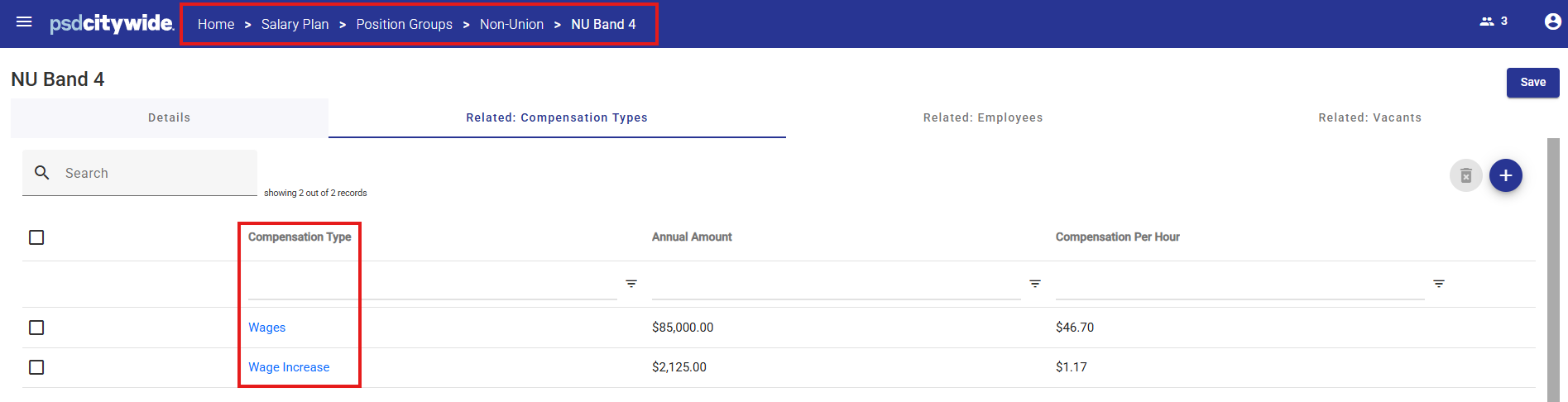
For each Position Group, the user will configure the pay grid (positions/steps/compensation) which will be shared by all Positions related to that Position Group.
Each Step must have one or more related Compensation Types defined to set the pay rates (annual or hourly) for the related positions.
Example: Position Groups > Position Group (Non-Union in the example below) > Related: Compensation Type
Adding Compensation Types to Steps
1. Click the  button to add a new Compensation Type to the selected Step.
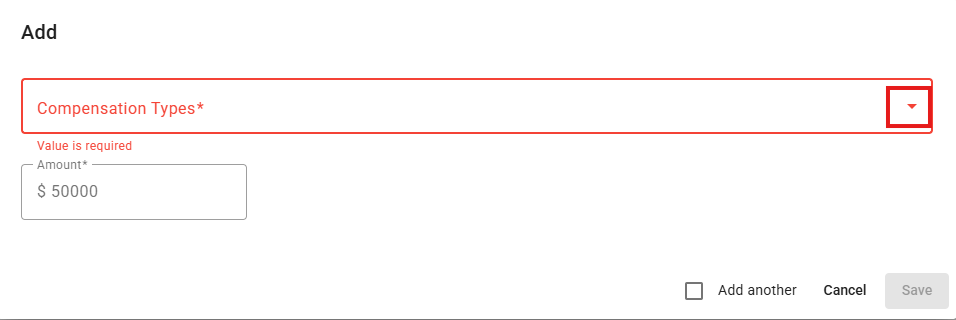
2. Select the Compensation Type to be added to the Step from the dropdown list.
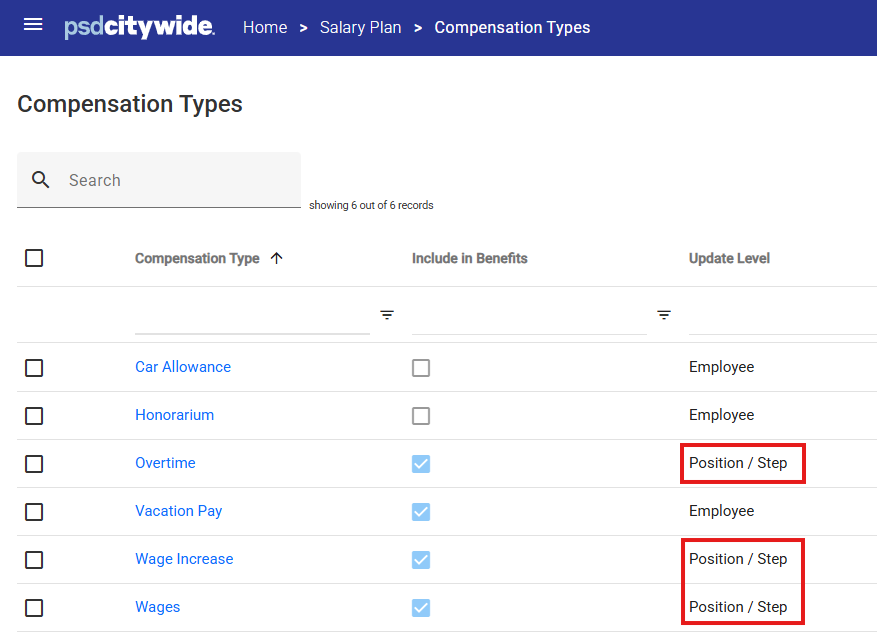
Note: Only Position / Step Compensation Types will appear in the list.
Employee specific compensation types will cannot be added to Step compensation.
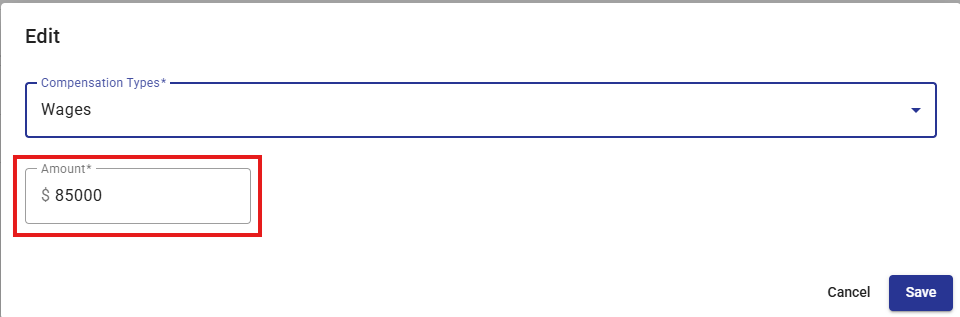
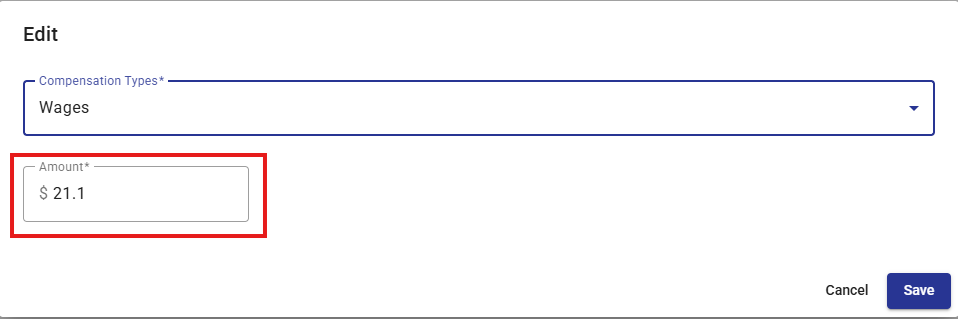
- Enter the compensation amount in the the Amount box.
- If the Position Group is Salaried, enter the new annual amount in the Amount box.
- If the Position Group is Hourly, enter the new hourly amount in the Amount box.
Editing Existing Compensation Amounts
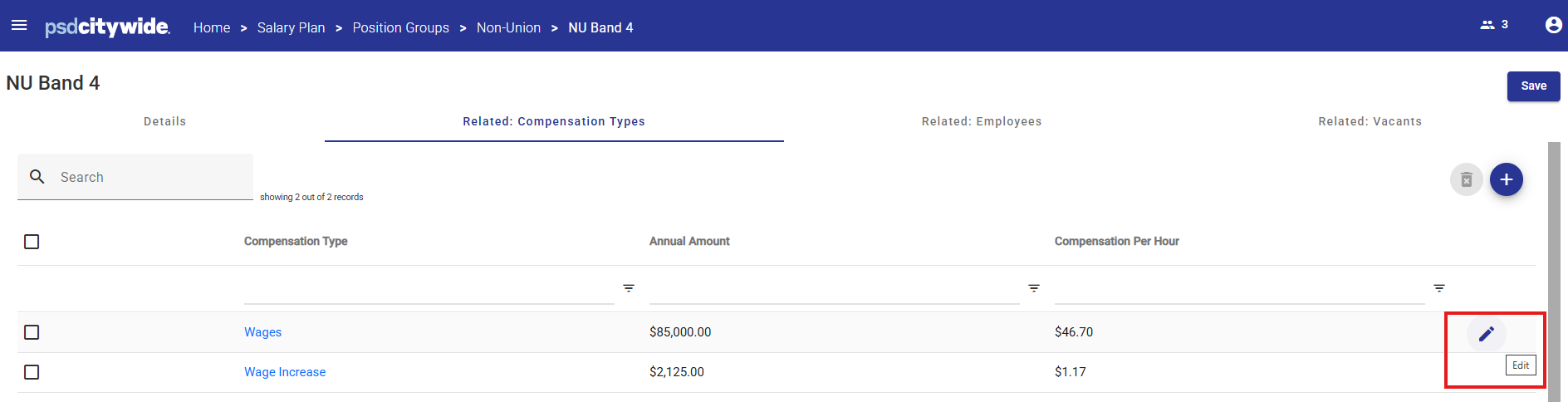
- Click the Edit
 button to the right of the row to be updated.
- If the Position Group is Salaried, enter the new annual amount in the Amount box.
- If the Position Group is Hourly, enter the new hourly amount in the Amount box.