


Position Groups simplify the management of compensation by allowing multiple positions to share the same underlying structure.
Position Group is used to group positions that share common characteristics, such as:
-
Standard working hours
-
Position types (e.g., hourly, salaried)
-
Salary structure (pay grid / pay scale)
-
Benefit eligibility
You should create an additional Position Group when a position needs to deviate from the common characteristics identified above. For example, you may need an additional Position Group for Union positions if the benefit eligibility is different for part-time and full-time staff.
Creating Position Groups
-
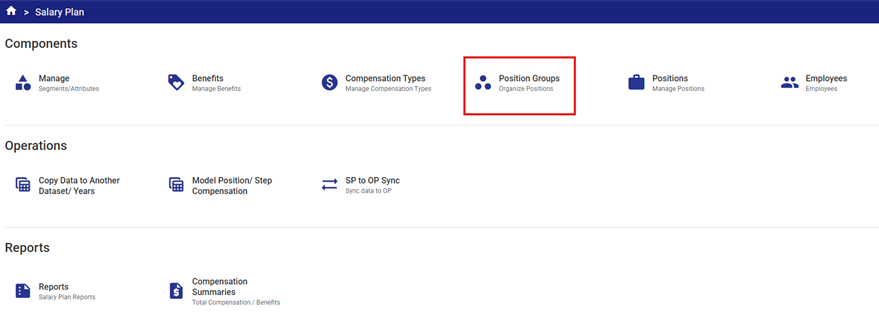
Open the Position Groups component in Salary Plan.
-
Select the Year and Data Set to be used. For initial configuration this would typically be a prior year and Approved Dataset which can be reconciled, then rolled forward.

-
Click the
 button to create a new Position Group.
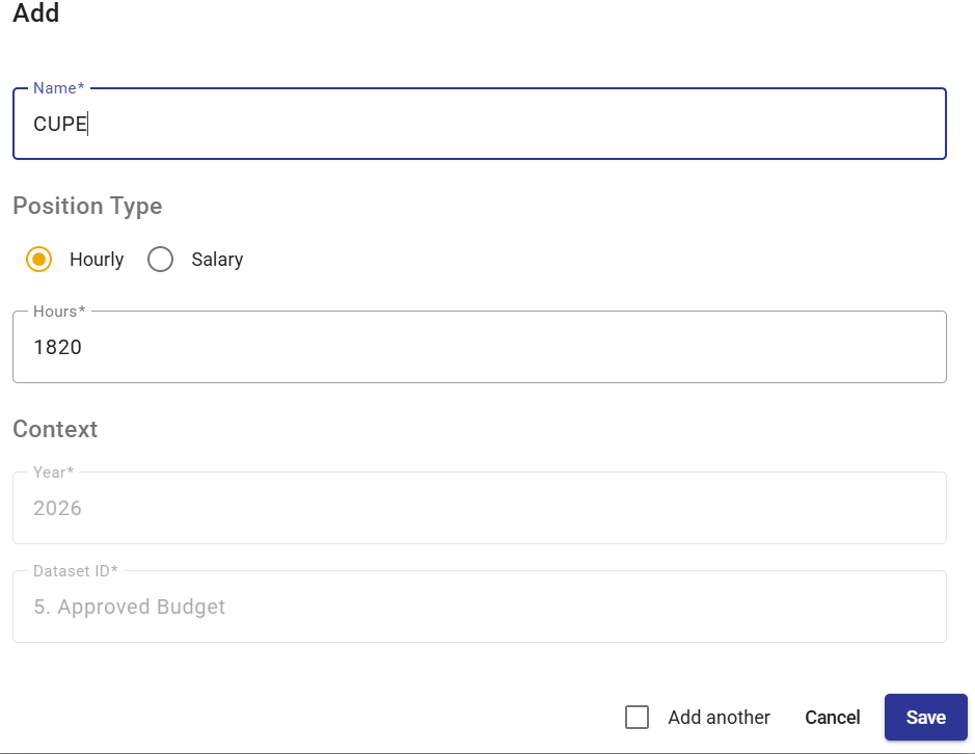
The Position Group fields include:
-
Name – a unique Position Group name
-
Position Type – Hourly or Salary (this will define how compensation amounts are input, as hourly rates or annualized amounts)
-
Standard Hours - The standard annual hours worked by an employee in this group. The standard hours are shared by all positions within a group and form the basis for FTE-based calculations.

-
When configuring the Steps applicable to each Position Group, consider the following for all positions in this group.
-
If the salary structure includes both pay bands and steps, create a Position Group Step for each pay band and step.
-
Some organizations choose to budget only the Job Rate for a pay band. In this case there would be only one Position Group Step for each pay band.
-
Creating Position Group Steps
-
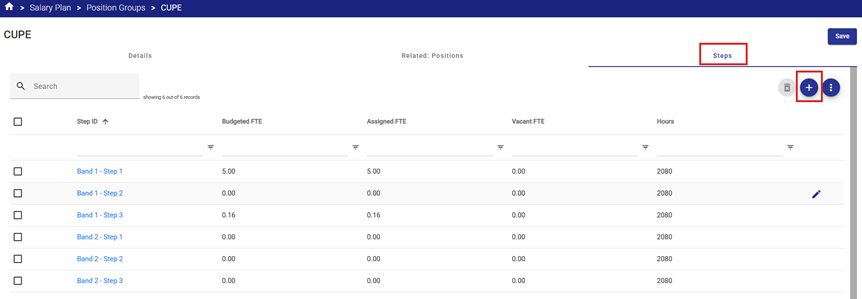
To add a Step. Navigate to the Steps tab.
-
Select the
 button to add a new Step.
-
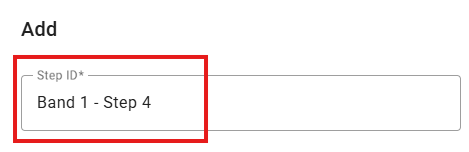
Enter a unique Step ID.
-
Within the newly created Step navigate to the Related Compensation Types tab and click the
 button to add a new Compensation Type for the selected Step
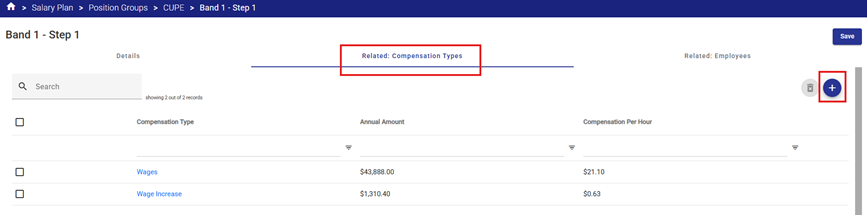
Select a Compensation Type from the drop-down list.
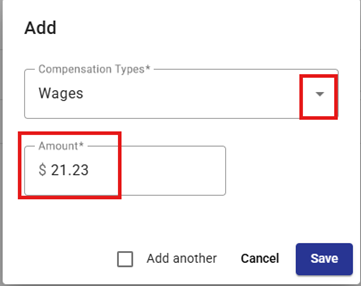
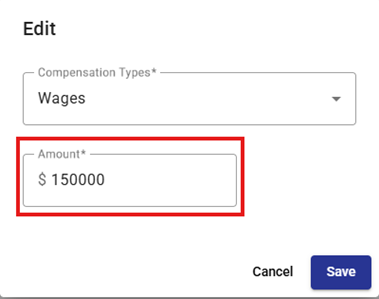
Enter the compensation amount in the Amount field.
-
If the Position Group is Hourly, enter an hourly amount (e.g. $21.23 per hour)
-
If the Position Group is Salary, enter the annualized salary amount (e.g. $150,000)
Example 1 – Hourly Position Group
Example 2 – Salary Position Group
** NOTE - Related Employees and Related Positions tabs will be system-populated once all Positions and Employees are configured.


