Where are Cost Allocations available
1. If there is a position that will not have a linked employee you can enter onPosition > Vacants.
2. If you have an employee linked to a position you can enter on Employee > Related Position Step.
Cost Allocation
Update Cost Allocations (Splits) if required.
Cost Allocations - how compensation and benefits will be distributed to the various Key Segments for reporting and for SP to OP Sync operation.
For each Position and Position Step combination on the Employee a Cost Allocation can be configured.
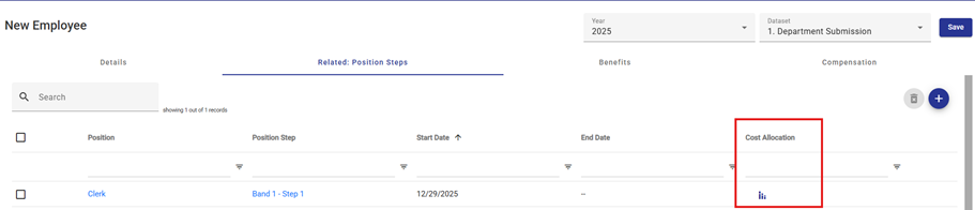
Position Step Split
For the Position and Position Step combination define how to distribute the compensation and benefits of an Employee across Segments.
Each Cost Allocation can be split into one or many Position Step Splits.
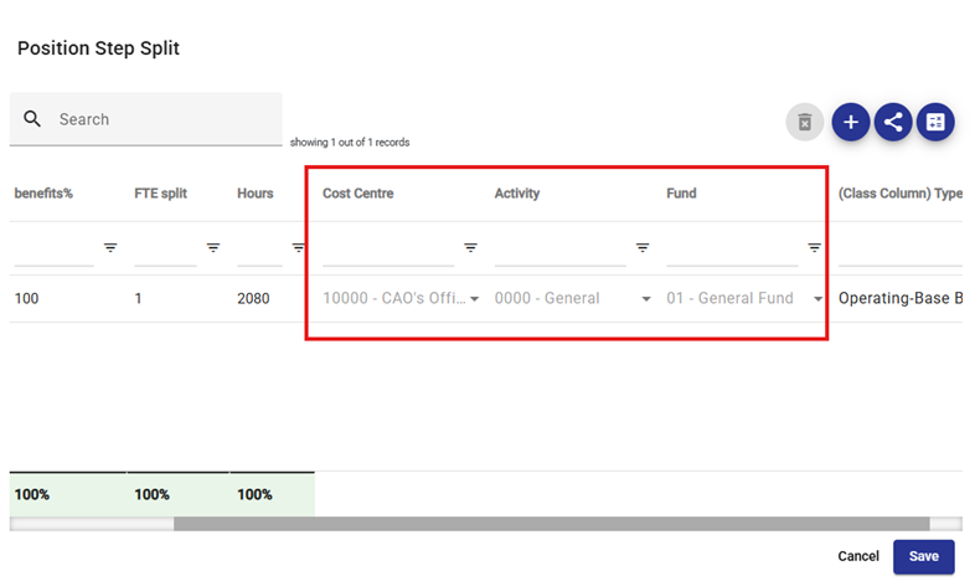
By default, the Position Step Split will be allocated to the Segments mapped to the Position in the initial Position configuration (it will be greyed out).
However, you may need to distribute the compensation and benefits of an Employee across multiple Segments to properly allocate the cost of delivering each program or service (i.e. for an employee who is a shared resource across various funds, departments, activities, business units or cost centres).
In this case, additional Position Step Split can be added to the Cost Allocation.
Add Position Step Split
Click the  button to update the Cost Allocation.
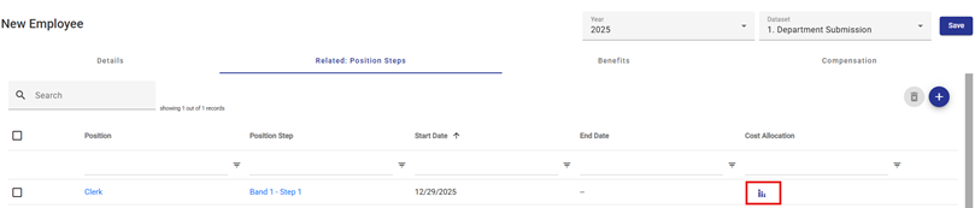
This will open a Position Step Split dialogue box.
The initial Position Step Split will be 100% allocated to the default Key Segments associated with the related Position.
Click the  button to add a new Position Step Split.
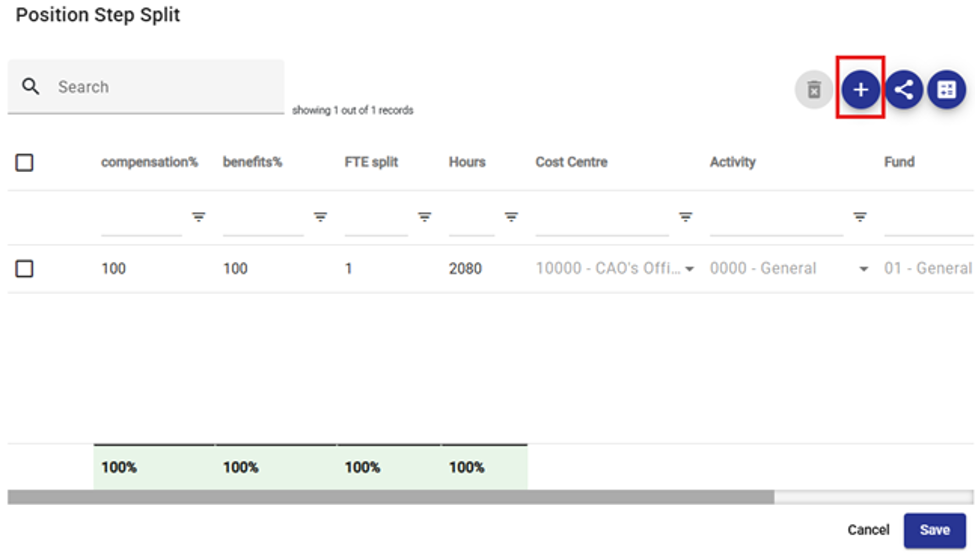
The system will automatically split the hours evenly between the two lines.
Compensation %, Hours, or FTE Split can be adjusted as required to reflect the desired allocation.
Note 1 : The system requires that all fields (all segment columns and the Class Column Type) are completed and that the allocations equal 100% . Save will not be enabled if these conditions are not met (the Save icon will be greyed out).
Note 2: The benefit allocation is intentionally configured to provide the option to enter a different percentage allocation for benefits if required
(i.e. it will not automatically update with changes to Compensation % if it has been overridden) . Certain organizations require that all benefits are allocated to the home business unit and only compensation may be split across business units.
Note 3: If an Employee has been configured with an FTE the number of hours will reflect here. The standard hours for the Position Group will be multiplied by the FTE number this total can then be allocated in the Hours column. The FTE Splits column total also need to equal to the Employee FTE.
Cost Allocation Tools
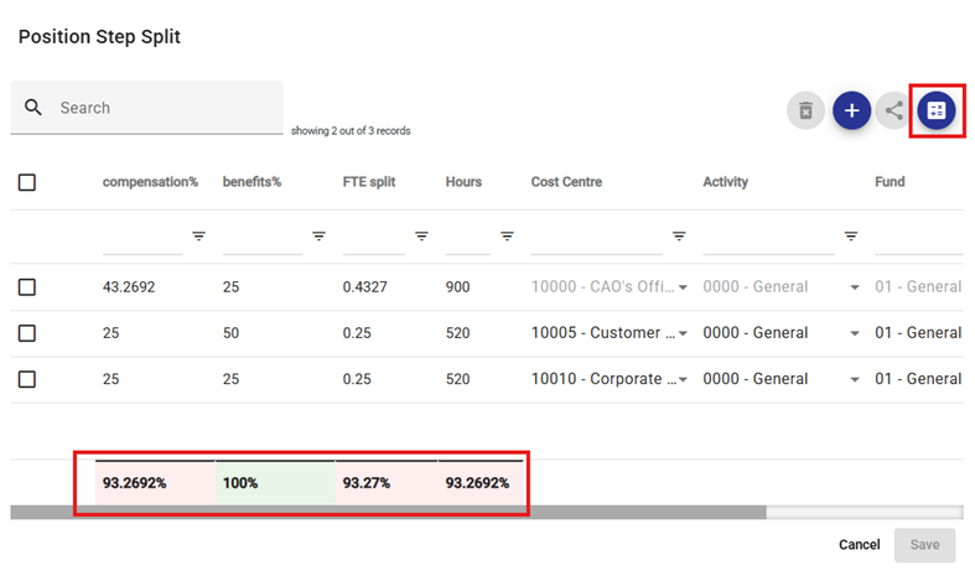
There are two additional cost allocation tools available from the toolbar: Propagate and Balance Splits.
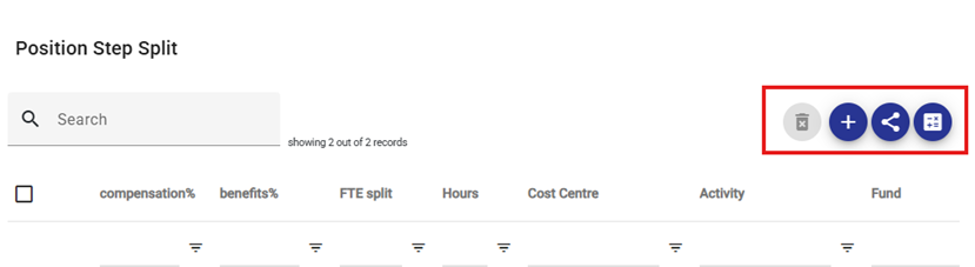
- Propagate – This tool can be used to propagate or copy a balanced multi-Position Step Split Cost Allocation to all other Position/Steps Cost Allocations for that Employee/Position. This is an efficient way to update Cost Allocation where an employee is progressing through Position Steps over multiple years.
- Balance Splits – This tool can be used to assist with balancing Position Step Split when multiple have been added to the Cost Allocation. If a user updates either the Compensation %, Hours, or FTE Splits for any of the rows leaving the Position Step Split table unbalanced, the user can select the Balance Splits icon, and the system will adjust the first line such that the table is rebalanced. They system always adjusts the top line (default for the Position/Step) when this tool is used.