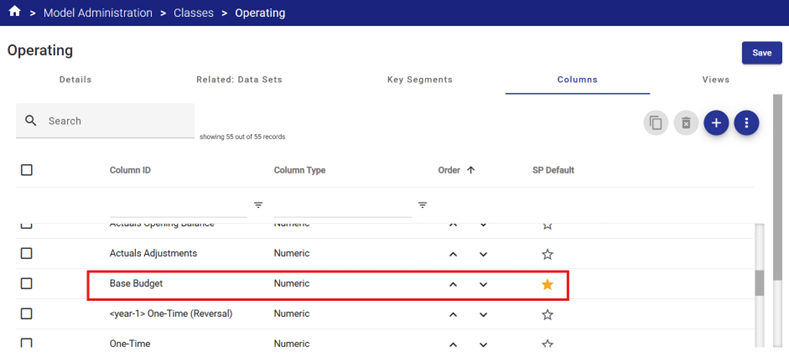
As described in Model Administration - Classes, a Class contains one or more data Columns.
Columns can be added at any time, even after data has already been entered against a Class. However once data has been entered into a specific Class Column, the Column can no longer be deleted unless all related data is also removed.
A Column with or without data can always be renamed.
The Citywide Budgeting database has a base set of Class Columns configured that should meet the current and future needs of most users.
Column Properties
| Property | Function / Options | Default Setting |
|
Column ID |
The name of the Column |
Each configured Column has an assigned name. The Column ID can be changed if required. When referenced in views and worksheets, the assigned Column ID can also be overridden with a user-defined Column label in the view design. |
|
Column Type |
Add-in (customizations only) Check Box Date Numeric (default) Attribute List (drop-down list of selected Attribute Items Text (free form, no rich text) |
Numeric, but may be updated as required for new Columns. |
|
Decimal Places |
Sets number of decimals to be displayed by numeric Columns |
Blank (zero) Maximum is 5 decimal places |
|
Base Controls |
||
|
Allow Column update at Balances level |
Allows updates at the Balance level (summary) for COA Class Key Segment Items (accounts).
When selected users can update data in a summarized format only for each account item. |
Toggled on
Can be togged off selectively for specific Columns as required.
Recommended configuration is either Balance level or Line Item level updates (though both can be selected) |
|
Allow Column update at Line-Item Level |
Allows updates at the Line Item level (detailed) for COA Class Key Segment Items (accounts).
When selected users can drill down and input detailed Line Item information for each account item. |
Toggled off
Can be togged on selectively for specific Columns as needed.
Recommended configuration is either Balance level or Line Item level updates (though both can be selected) |
|
Include in modeling operations |
A number of modeling operations are provided within a View, such a spreading the budget amount over the Jan-Dec Columns.
This option determines whether or not the Column is included in those modeling operations. You must run the model operation by starting on a column with this box checked,
See additional guidance below |
Toggled on for January – December Columns. Toggled off for all others |
|
Display Segment Item with description |
If the Column type is an Attribute List, then this flag allows the Segment Item identifier and/or description to be included or excluded as required by the user. |
Toggled off for all Columns |
|
Salary Plan Controls |
||
|
Include in Salary Plan Split Types |
Designates a Column as available for use in Salary Plan cost allocations. |
Toggled on for Base Budget Column (zero based budgeting
Toggled on for all budget Columns (incremental budgeting)
Toggled off for all others |
|
Calculate Variance to Base Budget |
Used in Salary Plan incremental budgeting cost allocations.
This allows for the base budget amount to be left unchanged and the variance between the current calculated salary and benefits amount and the identified Base Budget amount to be posted to one of the incremental budget Columns.
Example - The user:
When posting from Salary Plan to Operating Plan, the total compensation and benefits calculated by Salary Plan, minus the total in the Base Budget Column will be posted to the Inflation Column. |
Toggled off for zero based budgeting (post will go to the Column defined in Salary plan cost allocation)
Toggled on for the target Column (incremental budgeting – usually Inflation or Salary Plan Impacts)
|
|
Period / Column Rollups |
||
|
Include in Budget Reports |
The system will add together all flagged Columns when determining the Total Budget for a fiscal year in views and reporting. This includes the Budget Spread Operation. |
Toggled on for all Incremental Budgeting Columns Toggled off for all other Columns Will become the Source Columns for Budget Spreads. |
|
Include in YTD |
The system will add together all flagged Columns when determining the year to date (YTD) actuals for a fiscal year in views and reporting.
If a specific month Column is selected for YTD calculations, Citywide Budgeting will add together all Columns positioned prior to and including a specified month (based on the physical Column order displayed in the Column set up screen).
Budget Spreads will consider any Columns with this checked as a target Column. |
Toggled on for January – December Columns.
Toggled off for all other Columns.
Exception may be the Opening Balance depending on client needs (default is toggled off.) If you turn this on during Budget Spread the Opening Balance will also be used as a target Column. |
|
Include in Forecast Report |
The system will add together all flagged Columns when determining the Total Forecast for a fiscal year in views and reporting. |
Toggled on for all Forecasting Columns Toggled off for all other Columns |
|
Calendar month in prior year |
Indicates whether the Column represents a month for which the calendar year is in the year prior to the fiscal year.
This is used for non-December 31 year end configuration. |
Toggled off for all Columns by default.
For Columns representing months for a June year end (July to June) the Columns for July to December would have this attribute toggled on. |
|
Exclude from offsets |
When defining report Columns an offset to a Column may be specified.
An example of where the attribute might be checked is in the case of a Class Column representing Opening Balances, placed just prior to the first month.
When an offset of -1 is applied to the first month Column, it will skip to the last month of the prior year, rather than referencing the Opening Balances column. |
Toggled off |
|
Trees |
Indicates that a selected Column in a tree rollup.
Note that in order for a Tree to appear in the drop-down list it a Tree must have been created and the Attribute “Period Rollup” selected for that Tree.
|
Blank |
|
Tree Nodes |
Indicates that the specific node of the tree (as specified above in Trees setting) into which the Column will be rolled up. |
Blank |
Working with Class Columns:
- To change the properties of an existing Column, click the Column name in the table row representing the Class Column.
- Click the Edit button
- Update the Column properties as required.
- Save your changes.
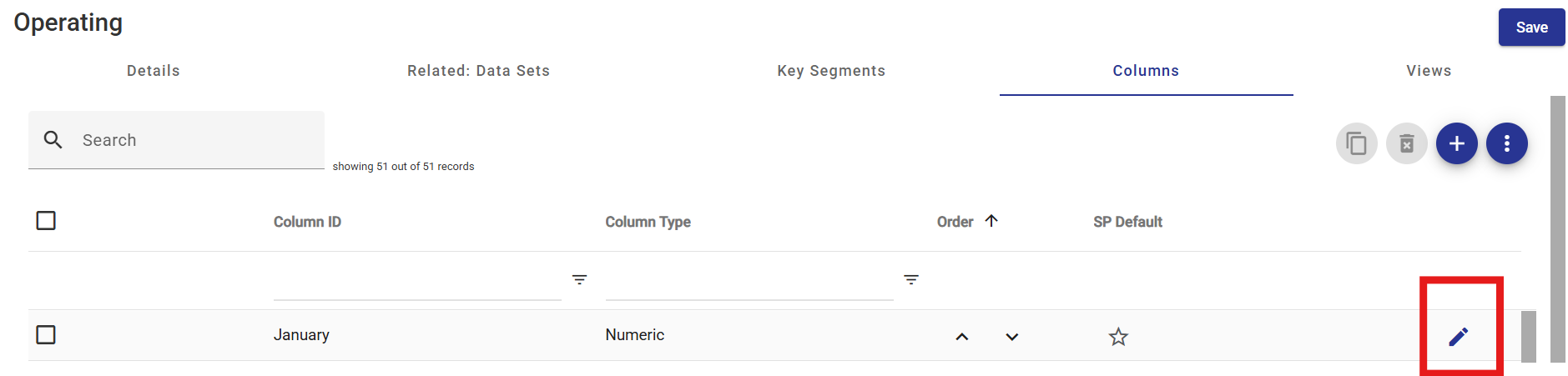
A column can be designated as the default Split Type by selecting the star icon in the SP Default column. This default will show up in the Salary Plan module.