

Working with the Summary Template

Last updated: Aug 31, 2026
Summary Template
The layout and content of the Project Summary Report are configured using the Summary Template.
The Summary Template contains fields that define the properties and descriptive information captured for each project.
Field Types:
- Tree - displays a user-selected Tree Node (e.g., Department, Division)
- Segment & Attribute - displays a user-selected Attribute Item (e.g., Related Key Segment, Project Type, Priority, Project Manager)
- Text - a user-defined rich text field that can be used to display detailed project descriptions, justifications, impacts, and other project details.
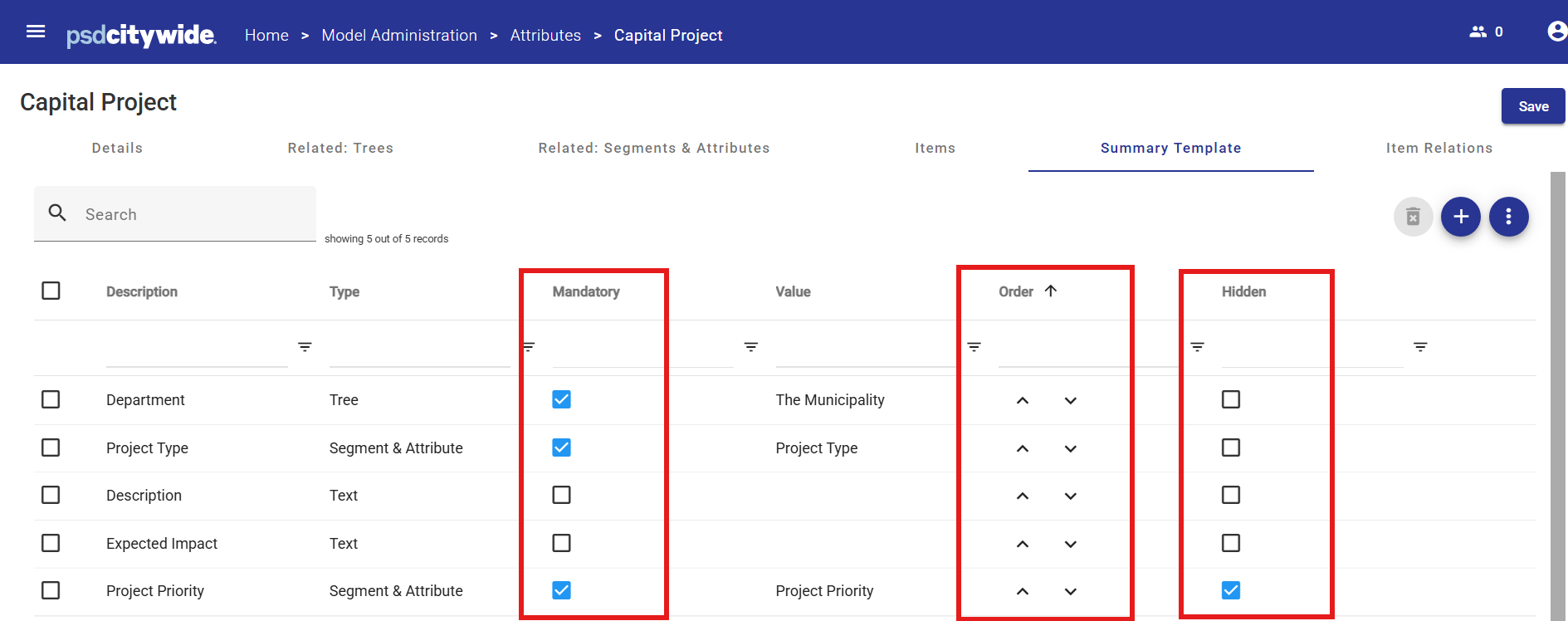
Field Configuration Options
Administrators can control how fields behave and are displayed in reports:
- Mandatory – the field must be completed before saving a new or existing Project.
- Field Order – Defines the field display order in Project Summary Report
- Hidden – The field is available in the system but excluded from the Summary Report
This allows organizations to collect additional data for internal use without displaying it in formal reports.
Adding Summary Template Elements
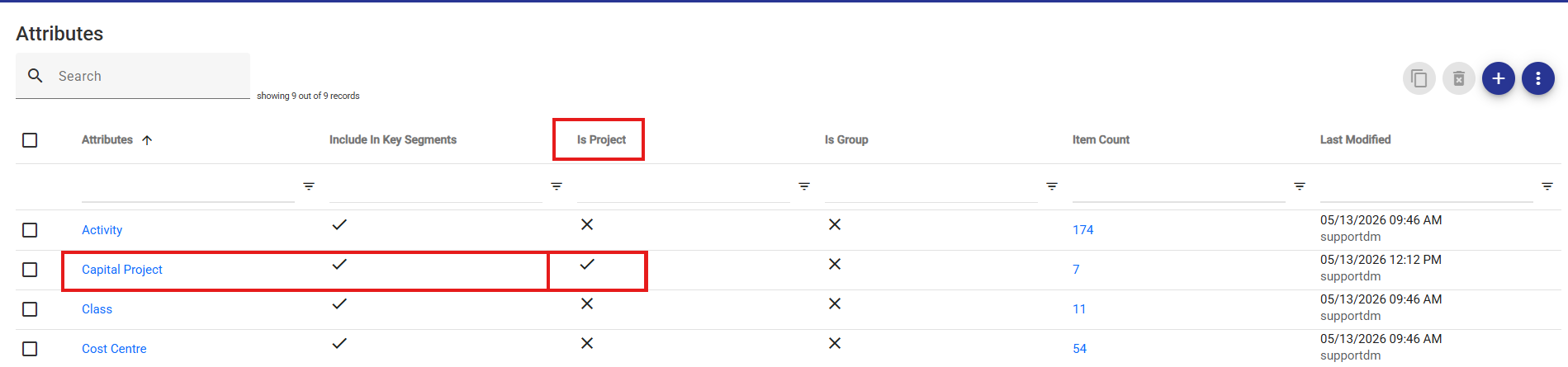
- Go to Model Administration > Attributes and find the Attribute flagged as "is Project". Click on the hyperlink in the Attribute name to open the Attribute properties.
In the example below, the project number is called "Capital Project".
- Click on the Summary Template tab to display the template properties.

- Click the Add button
 to add a new element to the Template.

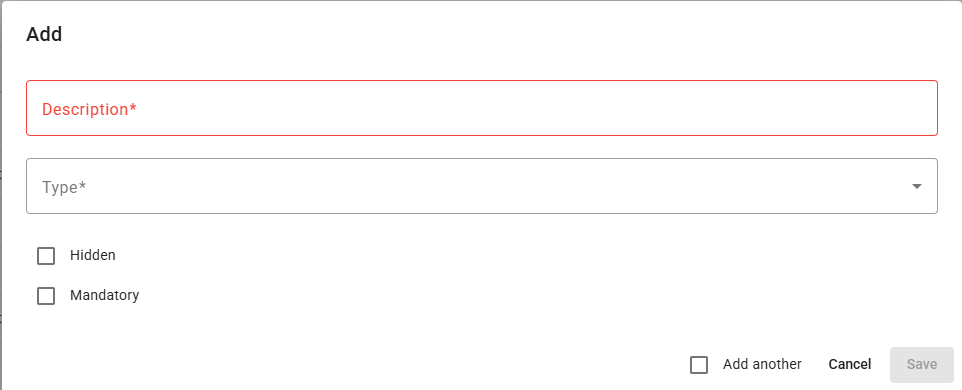
- Complete the Template field properties dialog box.
- Description - Enter the field title as it should appear in the Project Summary Report.
- Type - Select a field type from the three options: Tree, Segment & Attribute or Text
- Hidden - Select the checkbox to hide the field in printed Project Summary Reports. The field will still be available for user input in the Projects area, and the contents can be included in views and reports.
- Mandatory - Select the checkbox to mark the field as mandatory. Mandatory fields must be completed by the users on initial project. Users cannot save a new project until all Mandatory fields are completed.
- Click Save.
-
Continue adding new Template fields until all required fields have been created.
Refining the Summary Template
The Project Summary Report presents field data in the order displayed on the Summary Template screen.
Hidden fields will not be included in the Project Summary Report.
To change the field order:
- Select the field to be moved by clicking anywhere along the field row, or by selecting the field selection checkbox on the left-hand side of the row.
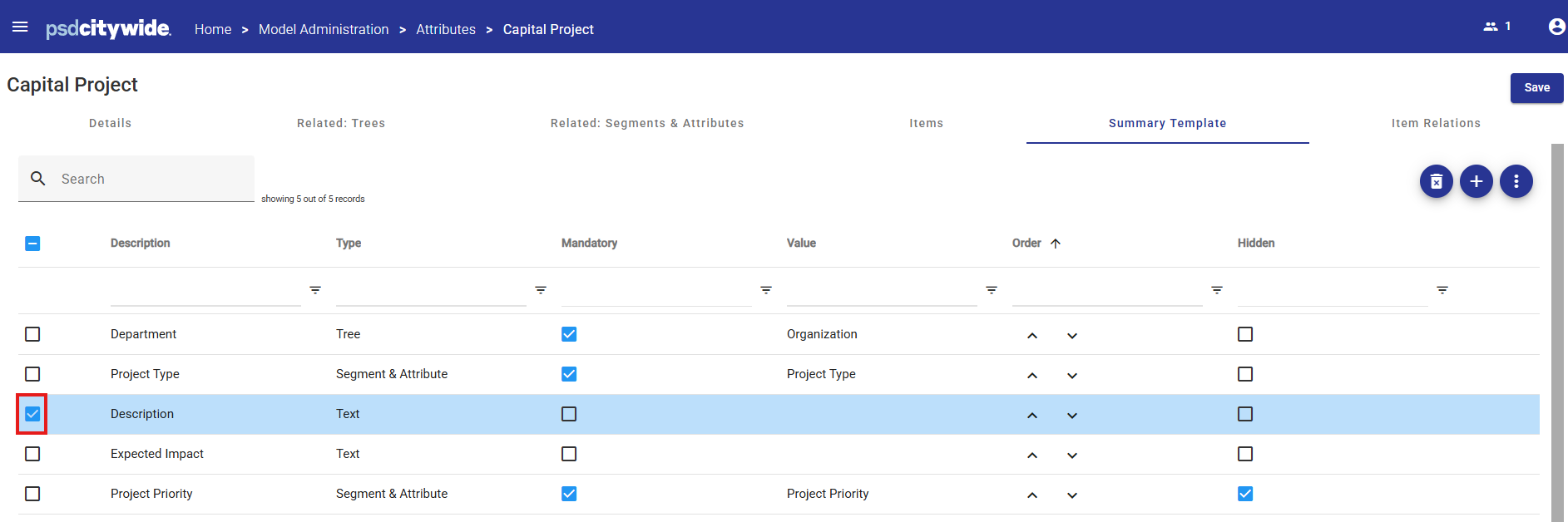
- Click the up or down arrows in the Order column to move the field to the desired row position.
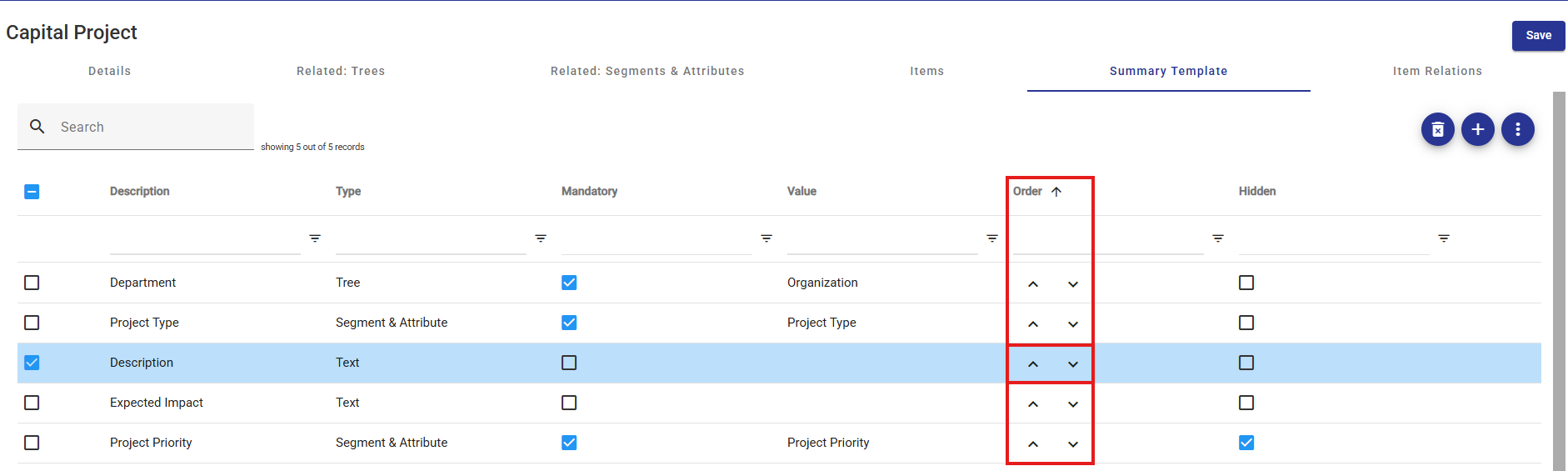
- Repeat with other field rows until the desired report configuration is displayed.
- Update the Mandatory and Hidden field checkboxes as required.
- Click Save.
Related Articles: Capital Plan - Components
Related Articles: Model Administration - Attributes


