


The Budget Spread Operation distributes annual budget amounts across the fiscal periods of a year (typically January–December) to support monthly, quarterly, and periodic forecasting and variance analysis.
This process is also commonly referred to as calendarization.
Multiple Budget Spread models can be created and saved for reuse.
Budget Spread models can also include Limitations to restrict the Operation to specific Segment Items and/or Related Items.
Example
An organization may wish to:
- Spread salary and benefit accounts evenly across all 12 periods
- Spread other revenue and expense accounts based on the pattern of the prior year’s actual results
To accomplish this:
- One Budget Spread model would be created for compensation accounts using the Evenly method
- Another Budget Spread model would be created for other revenues and expenses using the Comparative method
Each model would include Limitations specifying which accounts should be included in the spread.
When the Operation is executed, only the data matching the defined Limitations will be updated.
Getting Started
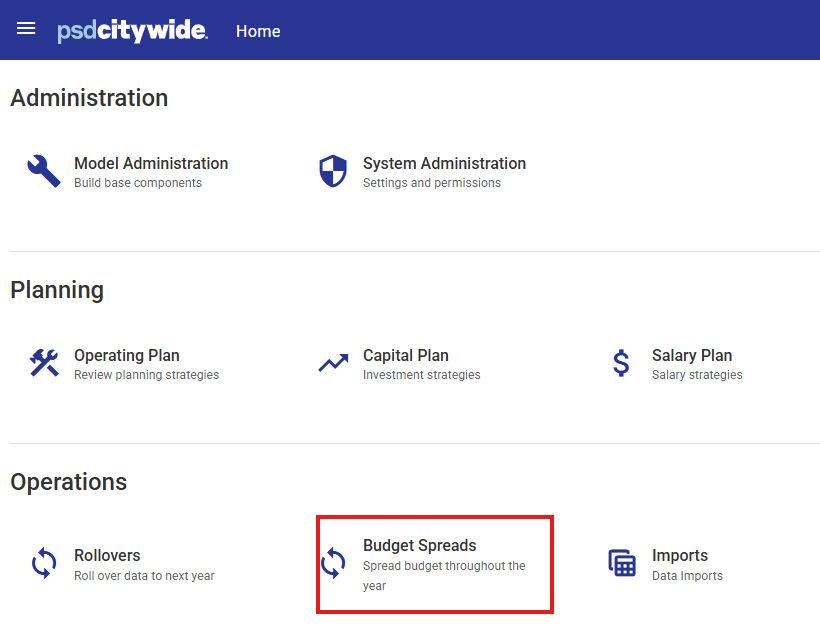
Navigate to the Citywide Budgeting home page and select the Budget Spreads icon in the Operations area.
Adding a Budget Spread Model
- Click the Add button
 to create a new Budget Spread model.
Note: Budget Spread models can be configured and saved for reuse in future years.

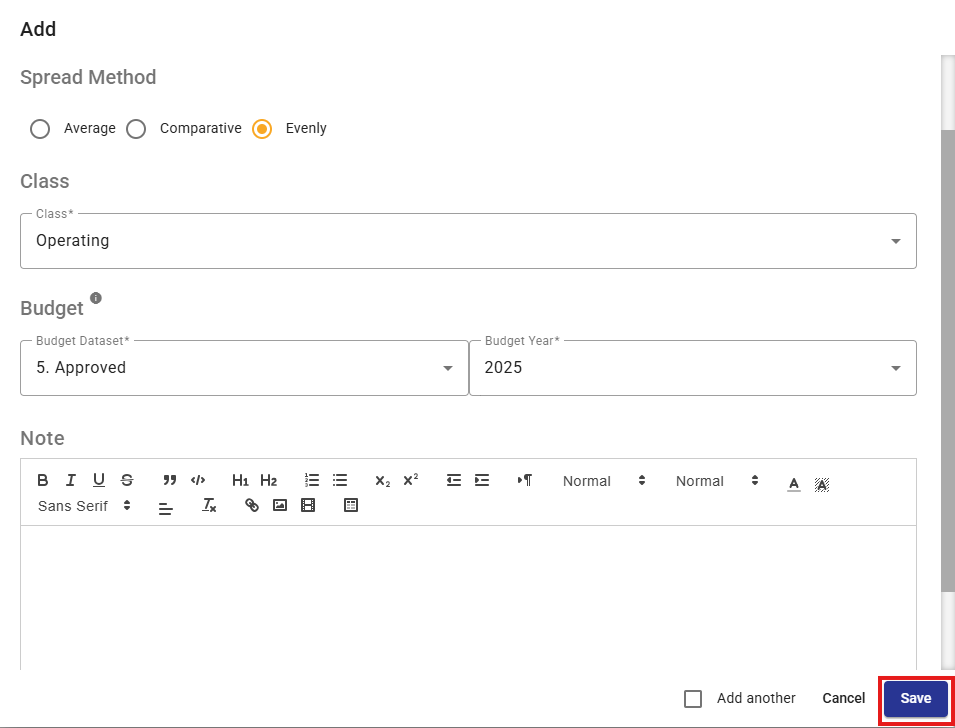
- Complete the following fields:
- Enter a unique Budget Spread ID between 4 and 40 characters.

- Select one of the following Spread Methods:
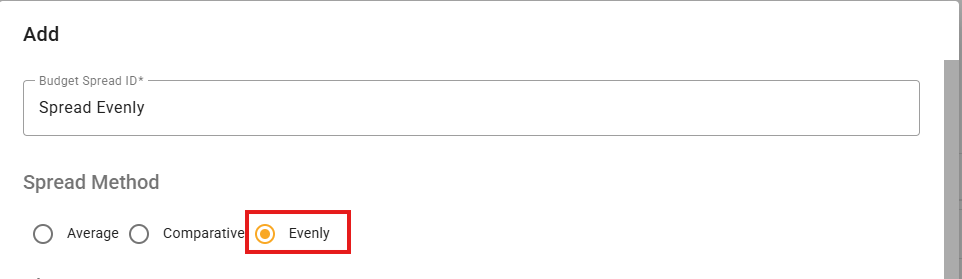
- Evenly - Distributes the total annual budget amount evenly across all 12 fiscal periods.
Example: Spread an annual budget amount of $120,000 evenly.Month 2026 Budget Spread January $10,000 February 10,000 March 10,000 April 10,000 May 10,000 June 10,000 July 10,000 August 10,000 September 10,000 October 10,000 November 10,000 December 10,000 Total 120,000
- Comparative - Distributes the total annual budget amount across all 12 fiscal periods using the same distribution pattern as actual results from a selected Dataset and Year.
Example: Spread the 2026 annual budget amount of $120,000 based on the distribution of 2025 actual results.Month 2025 Actuals % of Actuals 2026 Budget Spread January $1,455.78
1.4% 1,680 February 7,382.88 7.1% 8,520 March 7,590.85 7.3% 8,760 April 10,190.45 9.8% 11,760 May 11,334.28 10.9% 13,080 June 10,606.39 10.2% 12,240 July 16,325.52 15.7% 18,840 August 16,741.46 16.1% 19,320 September 9,774.52 9.4% 11,280 October 5,407.18 5.2% 6,240 November 3,951.40 3.8% 4,560 December 3,223.51 3.1% 3,720 Total $103,984.21 100% 120,000 -
Average - Coming Soon
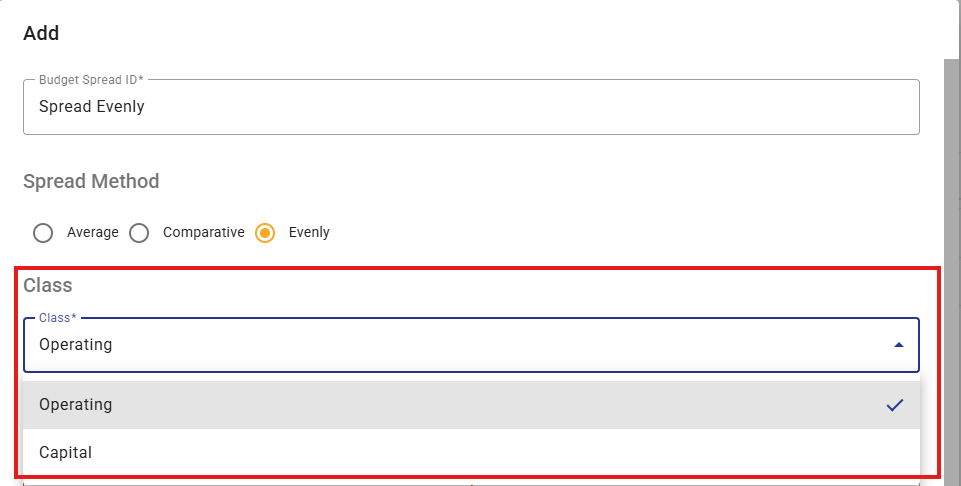
- Select the Class of data to be spread from the drop-down list
- Operating
- Capital
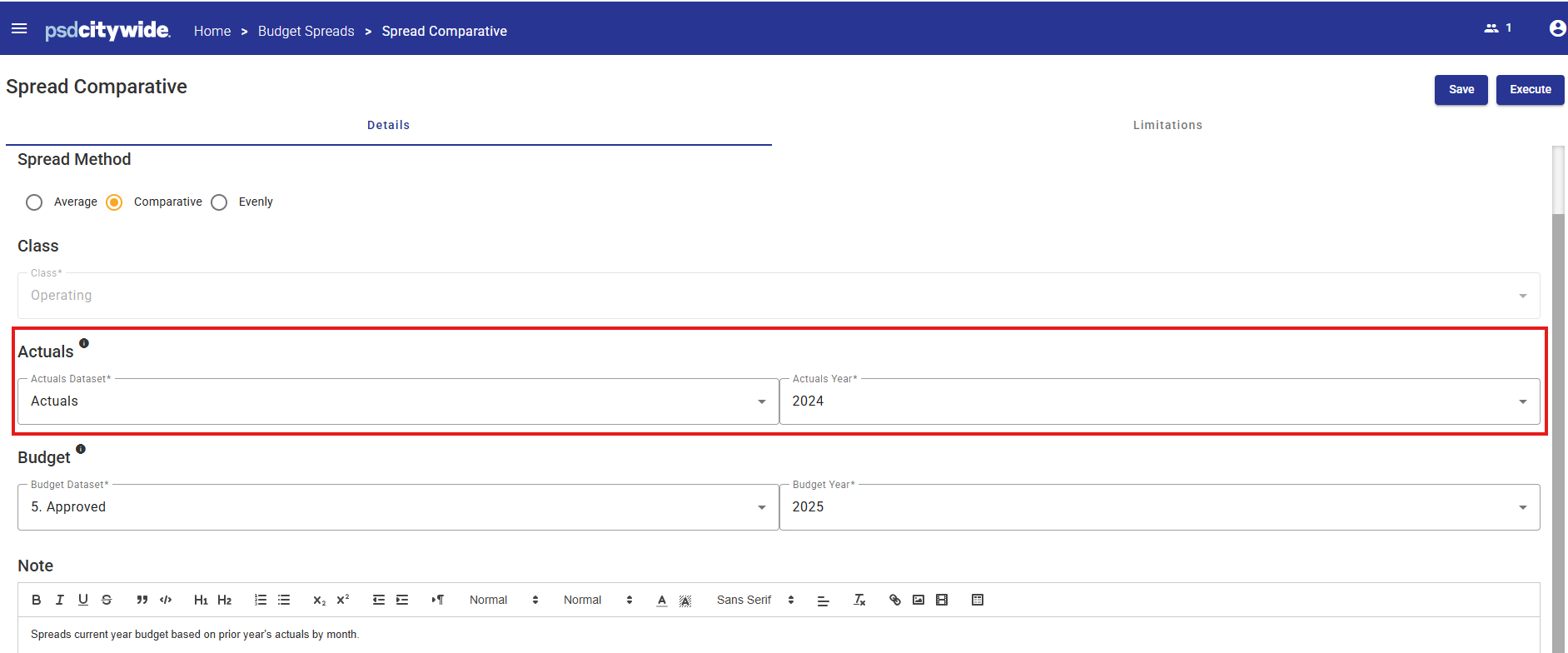
- Select the Dataset and Year
- Evenly Method - Select the Budget Dataset and Year from the drop-down lists.

- Average or Comparative Method - select the Budget Dataset(s) and Year(s) and the Actuals Dataset(s) and Year(s).
- Click Save.
Editing a Saved Budget Spread Model
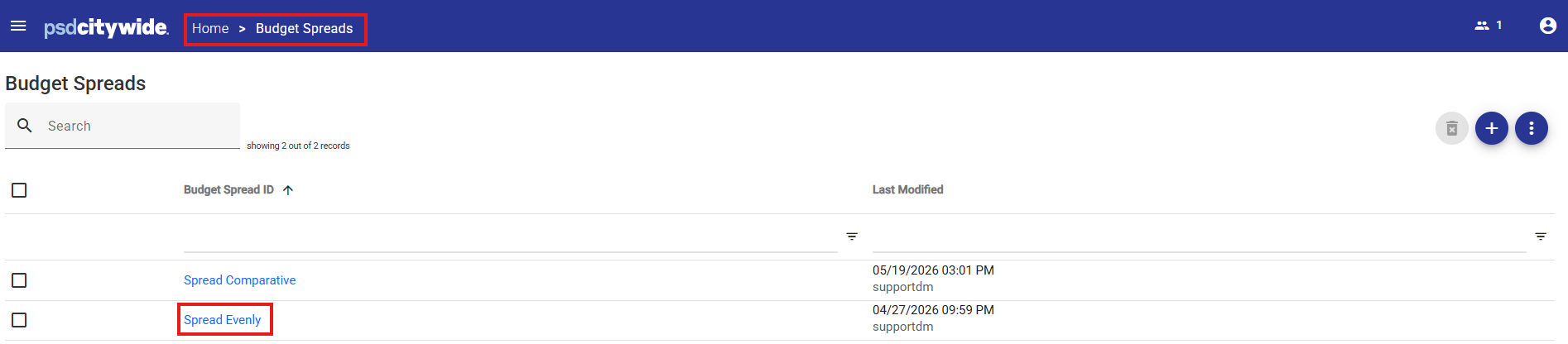
- Select a saved Budget Spread model from the list. Click on the hyperlink under the Budget Spread ID.
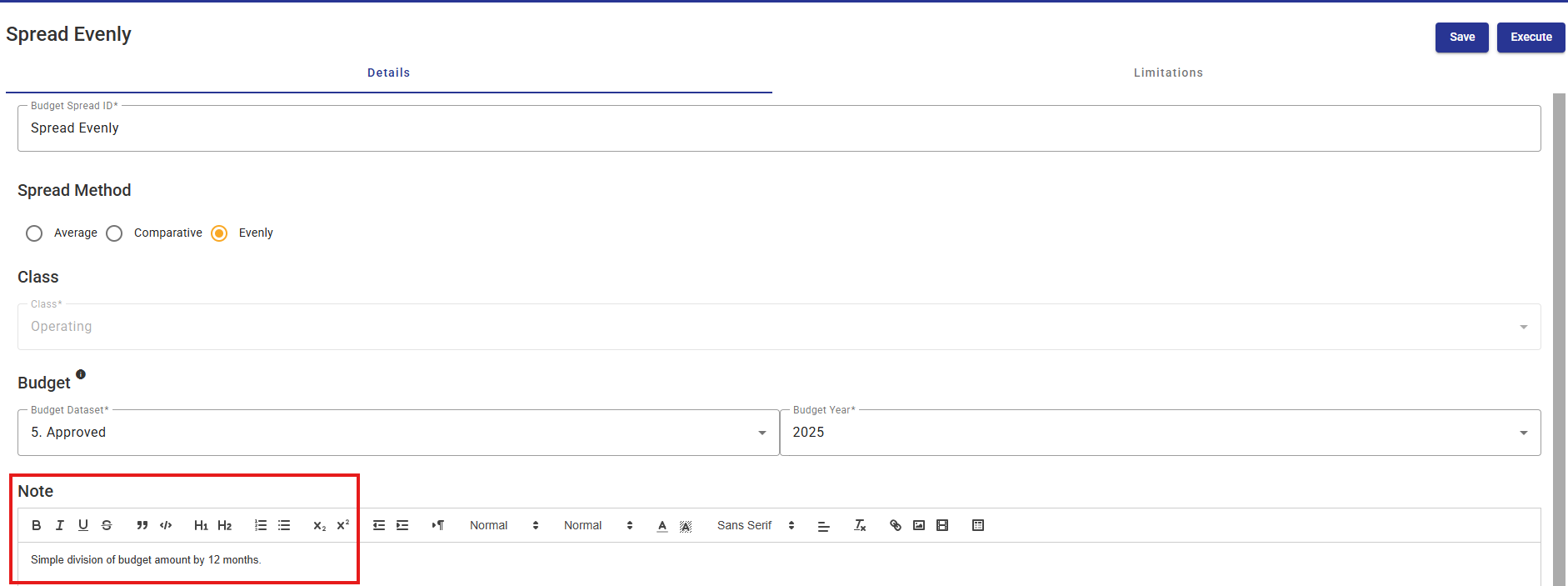
- The Details page will open.
Users can:- Update model properties
- Add notes about the model for future reference.
- Modify Limitations
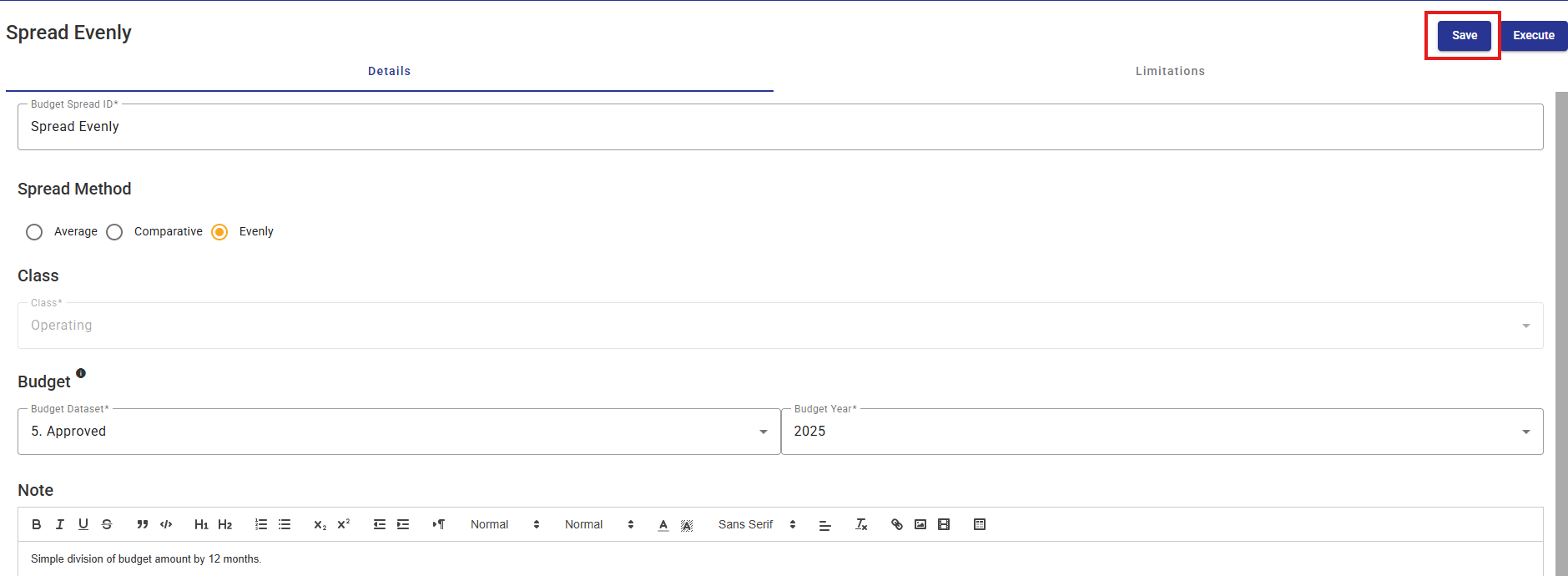
- Click Save to apply changes.
Executing a Budget Spread Model
-
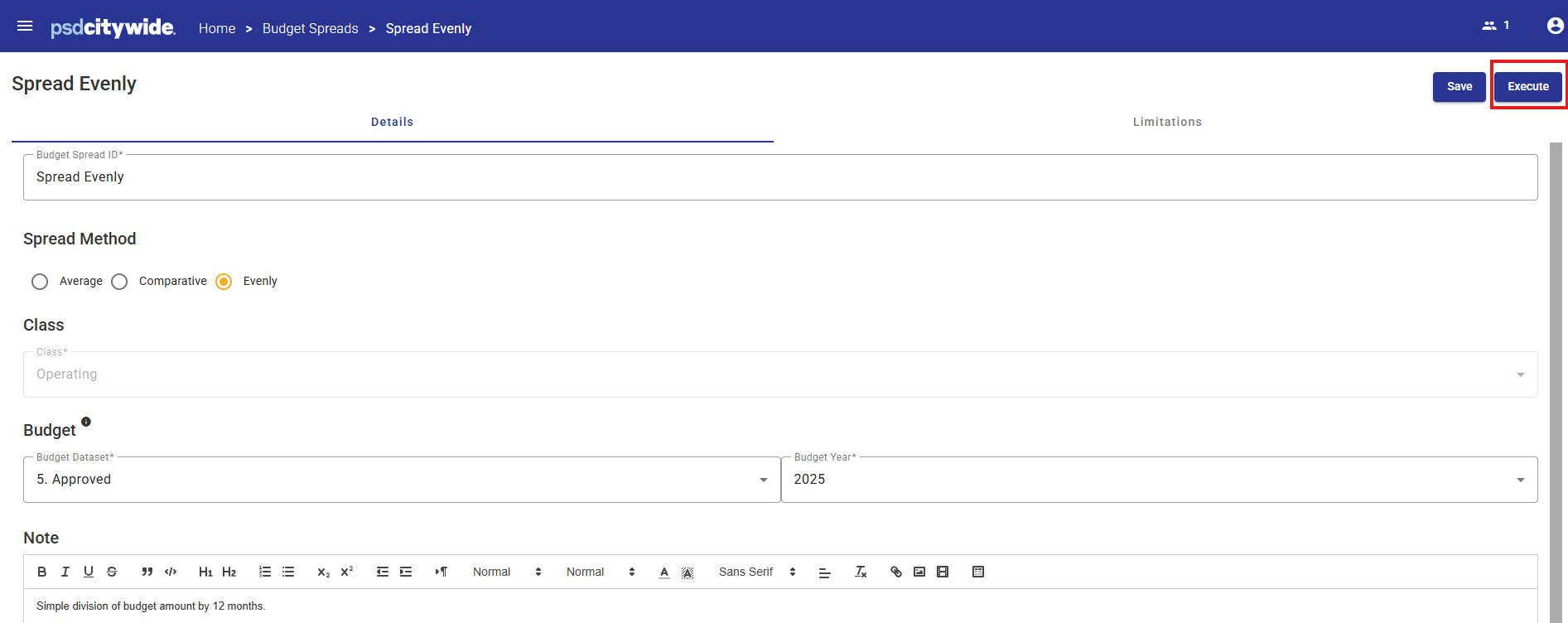
Select a saved Budget Spread model from the list.
-
Review the Details and Limitations properties to confirm the configuration is correct before proceeding.
Important: This Operation cannot be undone. -
Click Execute to run the Operation.
The Budget Spread will run in the background.
Reviewing Results of a Budget Spread
After the Operation completes:
-
Open the target Budget Dataset and Year specified in model.
-
Open a View containing the January - December period columns.
-
Review the updated period amounts.
Deleting a Budget Spread Model
To delete a saved Budget Spread model:
-
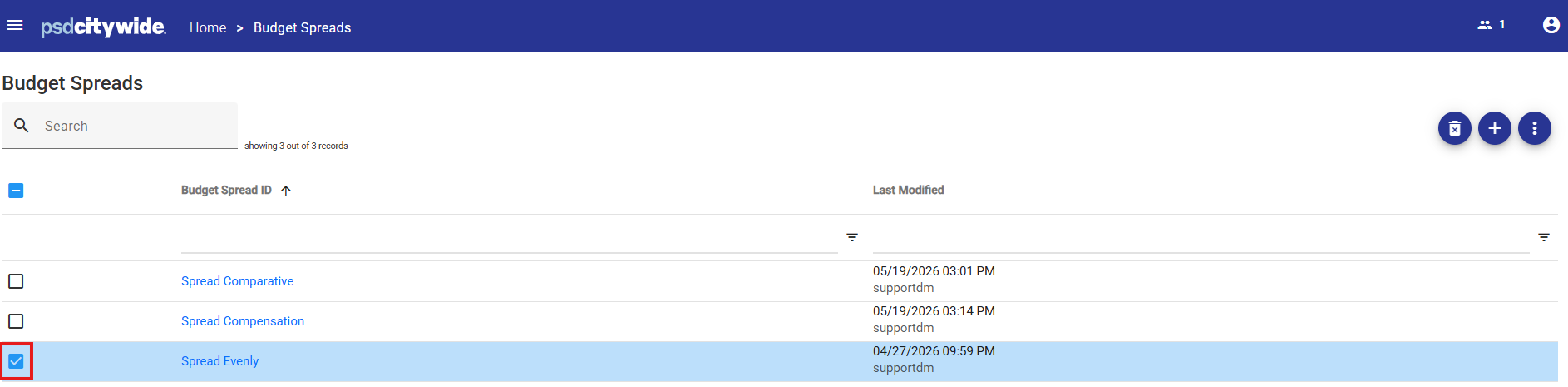
Select the row checkbox for the saved Budget Spread model to be deleted.
-
Click the Delete button from the Action Menu.
The system will prompt for confirmation to delete the selected item.
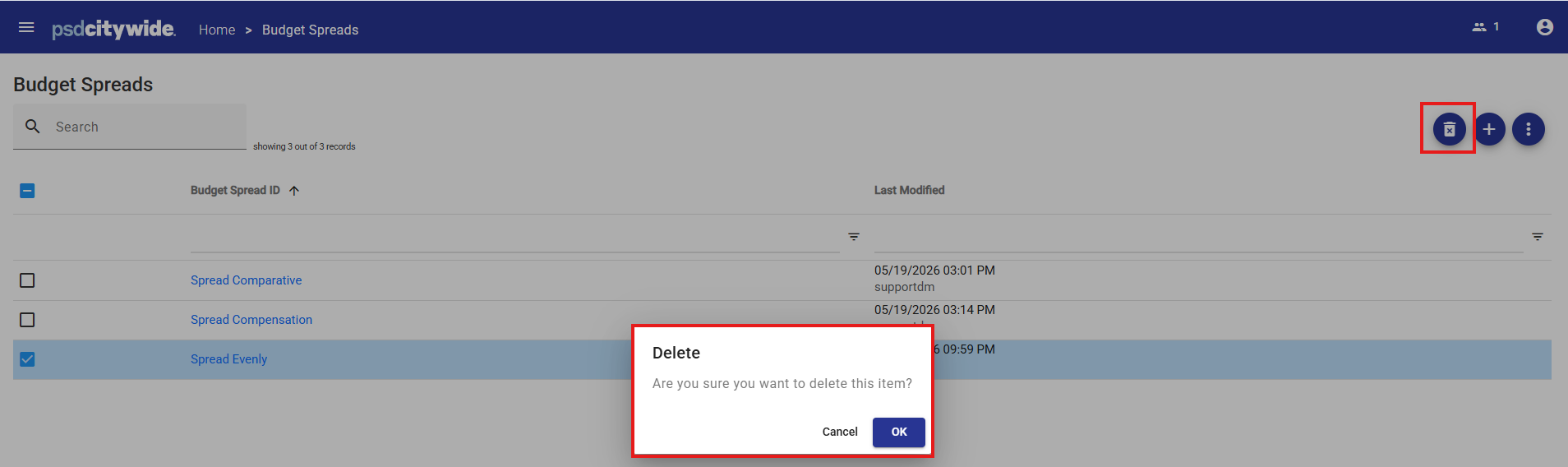
- Click OK.
- The selected Budget Spread model will be permanently removed.


