


Levels (Spaces)

Aug 20, 2026
Overview
Levels are used to organize spaces. Create the type of space hierarchy with the different tiers in this section. For an example of a space hierarchy, review our Citywide Spaces help article.
Navigate to Home > Assets > Spaces > Levels
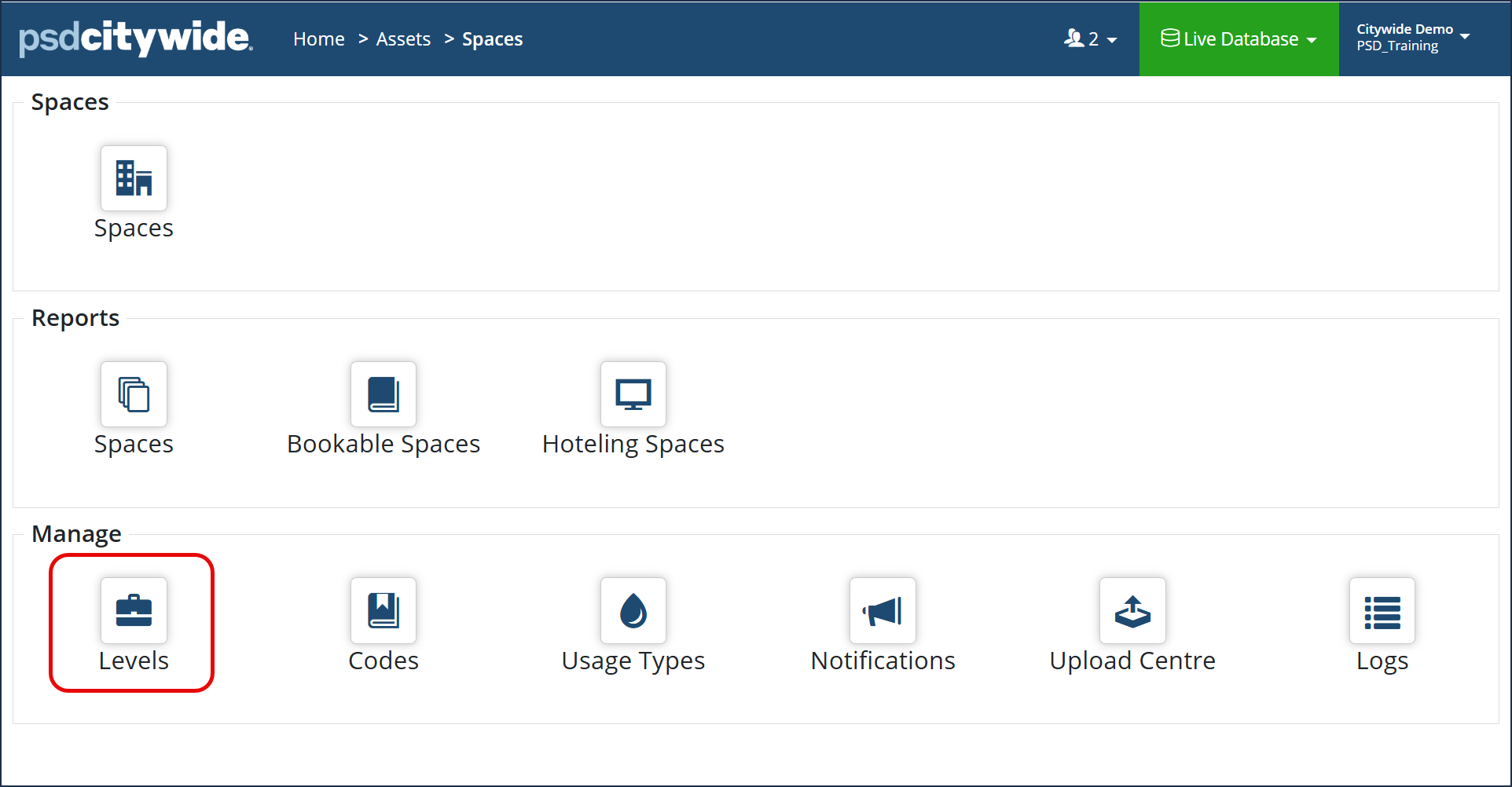
- Click Manage Hierarchies on the Levels grid.
- Click + New Hierarchy .
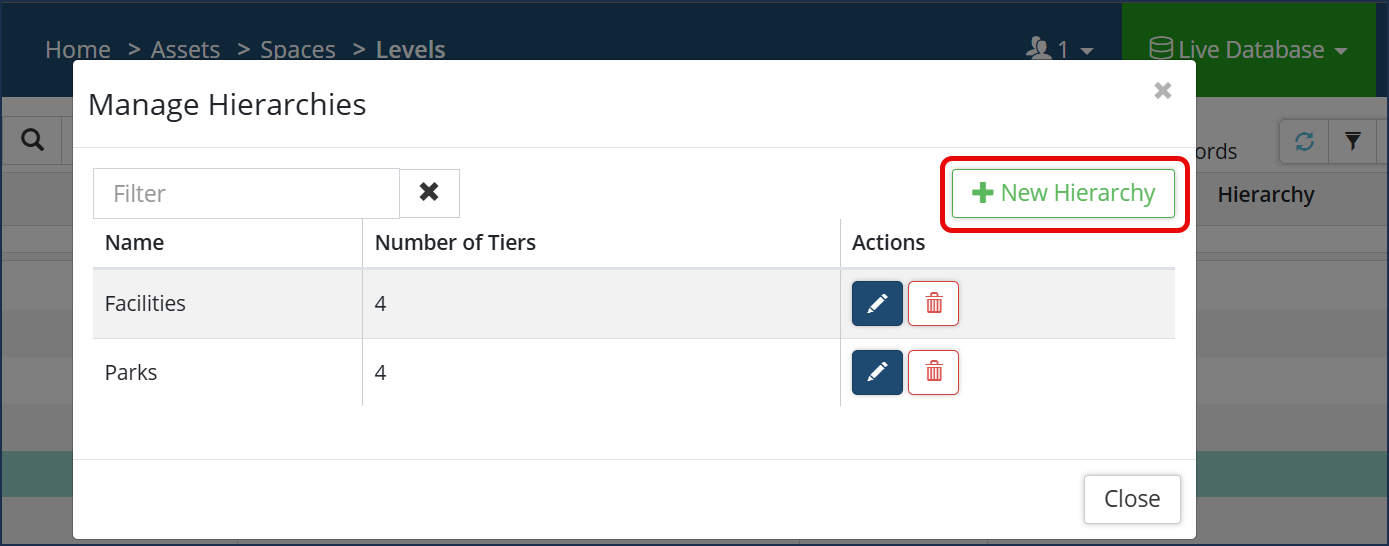
- Enter the Hierarchy Name.
- Select the Number of Tiers from the drop down (minimum is 3 tiers).
- Enter a Name, Plural Name and Prefix for Tier 1.
- Repeat steps for subsequent Tiers.
- Note: All fields are mandatory
- Click Add .
- Click Manage Hierarchies.
- Click the Edit tool
 .
. - Make the required changes to the Hierarchy or Tier(s)
- Click Save.
- Click Manage Hierarchies.
- Click the Delete tool
 . When prompted, click Remove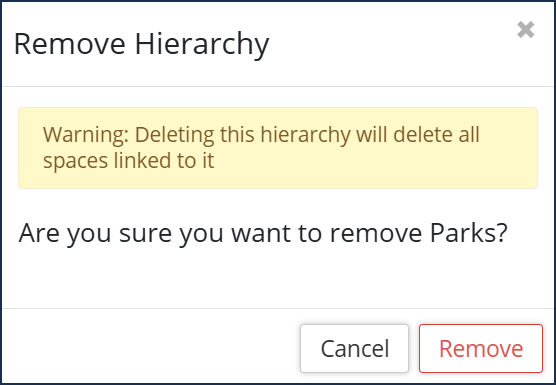
Deleting a hierarchy will delete all spaces linked to it.
- Click Save.


