


Overview
Each tier within a hierarchy has defined spaces. On the Spaces grid, it will list all spaces set up in each tier. For help on how to set up a hierarchy and tiers, click here.
Create a Space
- Navigate to Home > Assets > Spaces > Spaces
- Click + New Space .
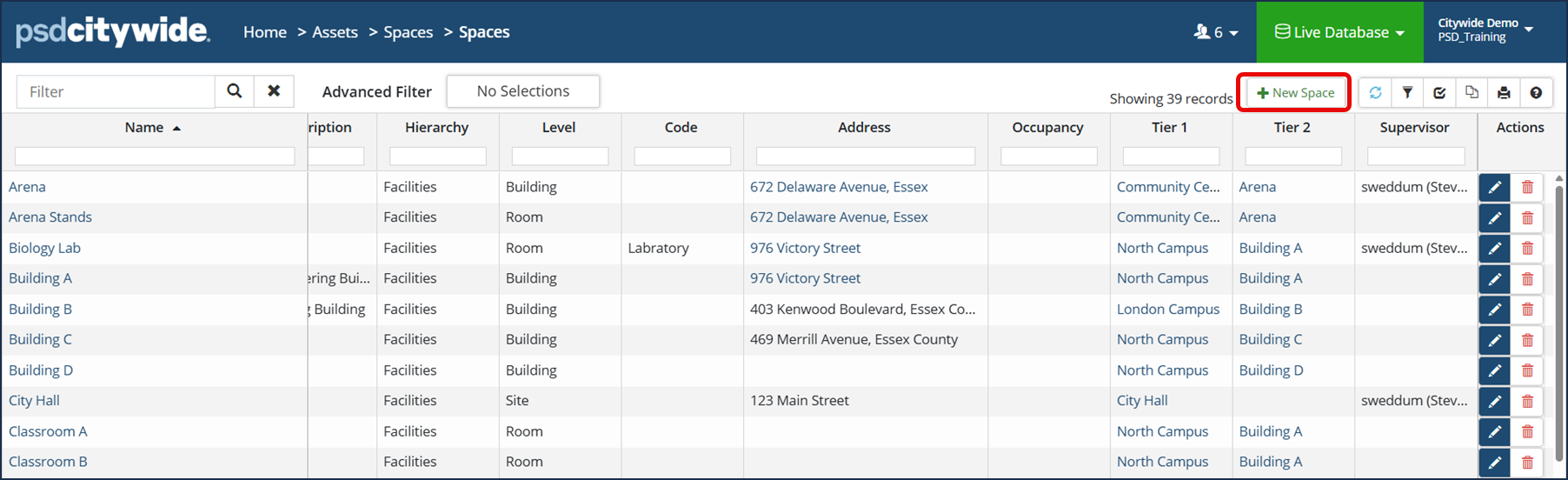
- Using the dropdowns, select the applicable Hierarchy.
- Select the applicable Level. Depending on what type of space you are creating, the applicable Tier(s) will then appear below the Level to apply to this space. In the example below, we are adding a new Room space for the North Campus in Building A on the 3rd Floor:
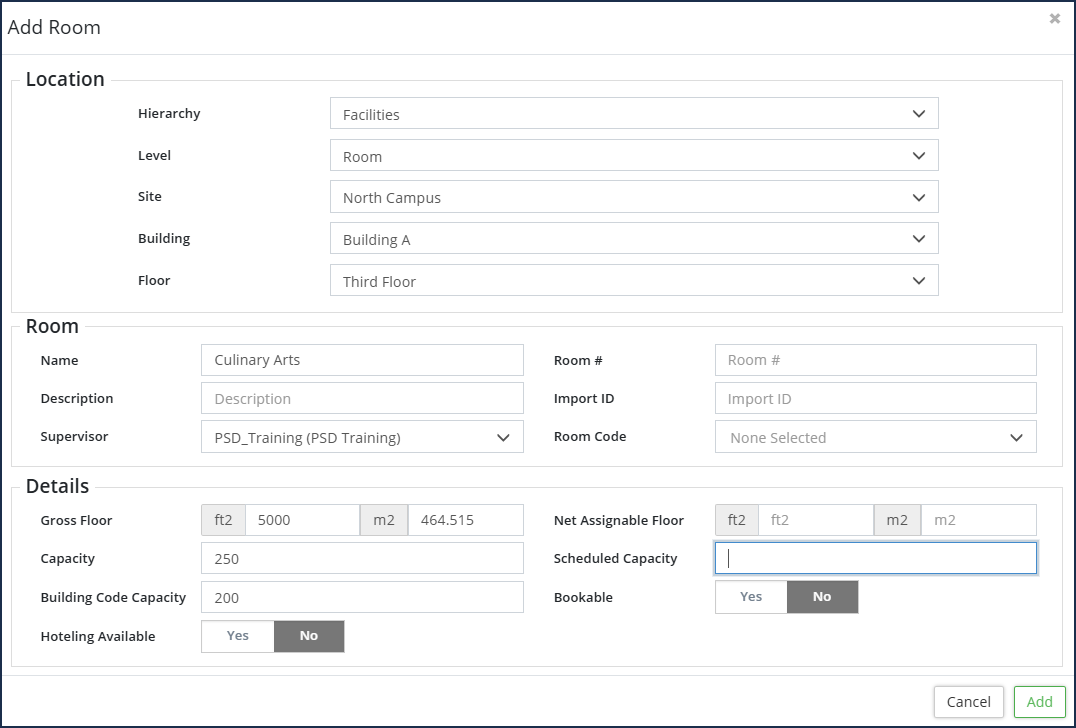
- Enter a Name, Description and Import ID (if applicable)
- Select a Supervisor from the dropdown (they must be a Citywide user)
- Enter Details (this only appears depending on the Level you select in step 4):
- If applicable, indicate Yes or No for External. (This is only for future external use.)
- If applicable, enter a Code
- If applicable, enter the additional details: Gross Floor, Capacities and if the space is Bookable and Hoteling Available
- Note: 'Details' will only appear if the added space is for the last tier in the hierarchy.
- Click Add .
View or Edit a Space
Individual spaces and their details are accessible by clicking the name ❶ in the Spaces grid. If applicable, Spaces data can also accessed via the asset in the Asset Inventory. 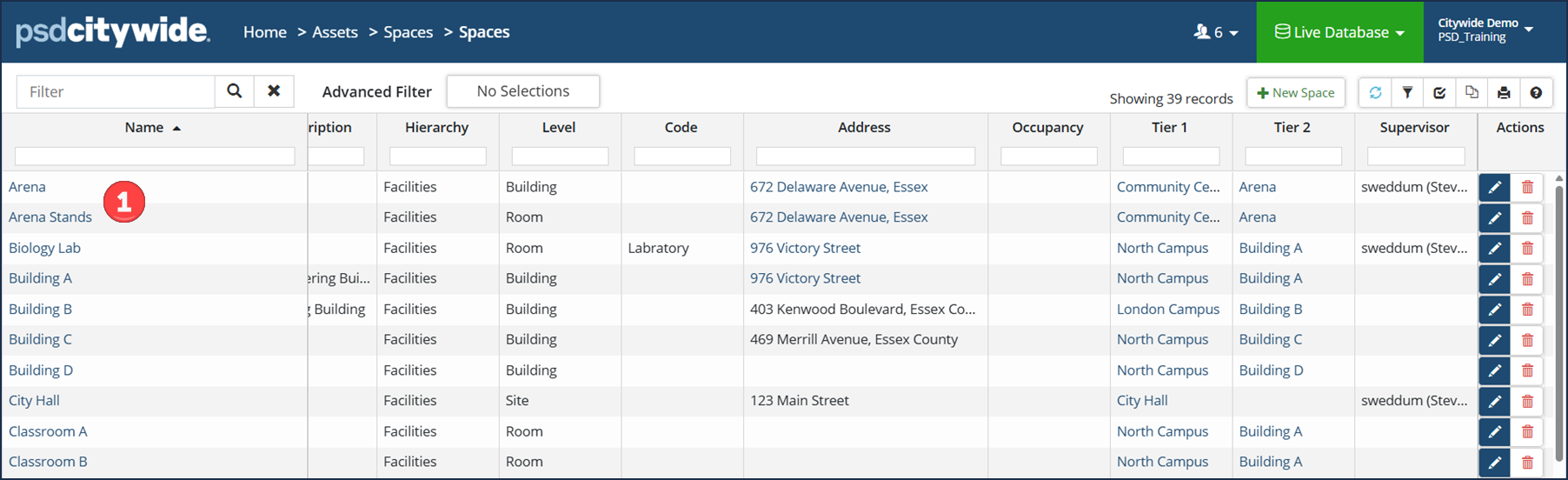
Once your desired space is open, details can be edited and all the information that is associated with the space—attributes, notes, documents, assets, work orders, etc.—are accessible from the side panel.
Changes made throughout the space must be saved by clicking the Save icon  at the top.
Summary
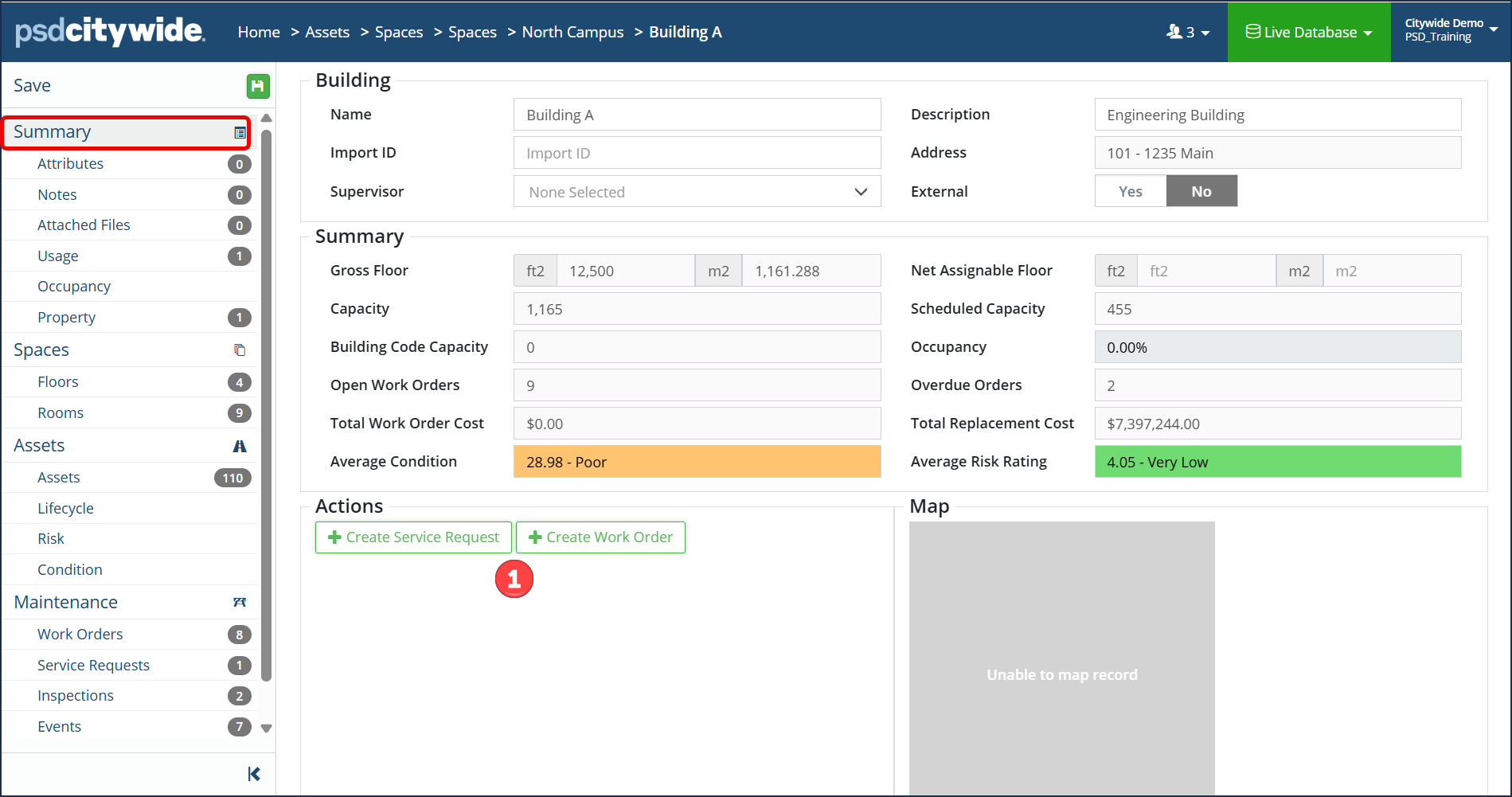 The Summary screen displays summarized details concerning the space. Certain fields are view only as they are summarized details including the other spaces in the hierarchy.
- Make any applicable edits to the Name, Description, Import ID or Supervisor on this page.
- Total Work Order Cost - this includes the total cost for all work orders associated to the space or assets attached to the space.
- Total Replacement Cost - the total replacement cost for all assets attached to the space.
- Average Condition - the average projected condition for all assets attached to the space.
- Average Risk Rating - the average risk rating for all assets attached to the space.
- Actions ❶: (If the Maintenance module is enabled) A new Service Request or Work Order can be created directly from this page.
Attributes
Attach or edit attribute(s) to the space. Attributes are custom fields used to capture additional information characteristic of the space. A user with the applicable permission levels can also add or remove attributes from this screen. (Note: Attribute(s) must be added into the Citywide database and defined for the Spaces module first before you can attach them. Click here on how to add Attribute(s) in Citywide:

- Select an attribute from the dropdown. To select multiple attributes, hold Ctrl on the keyboard while clicking each individual attribute.
- Then, click the Select Attribute icon
 .
.
- If your user permissions allow, click the Add Attribute icon
 to add a new Attribute for the Space. Attributes can be setup such as Text, Number, Dropdown, Currency, Link, Date, Toggle, etc. so fill in the value(s) accordingly. Click here for a review of Attributes.
 - Enter a name and attribute type, then click Add.
- If your user permissions allow, click the Add Attribute icon
- Fill in and/or make any necessary edits to displayed attributes attached to the space or click X to remove the attribute.
- Click Save at the top to apply the change(s).
Notes
Notes specific to a space can be captured on the Notes page. Users with the appropriate permissions can also remove notes.
To add a Note:
- Click + New Note ❶.
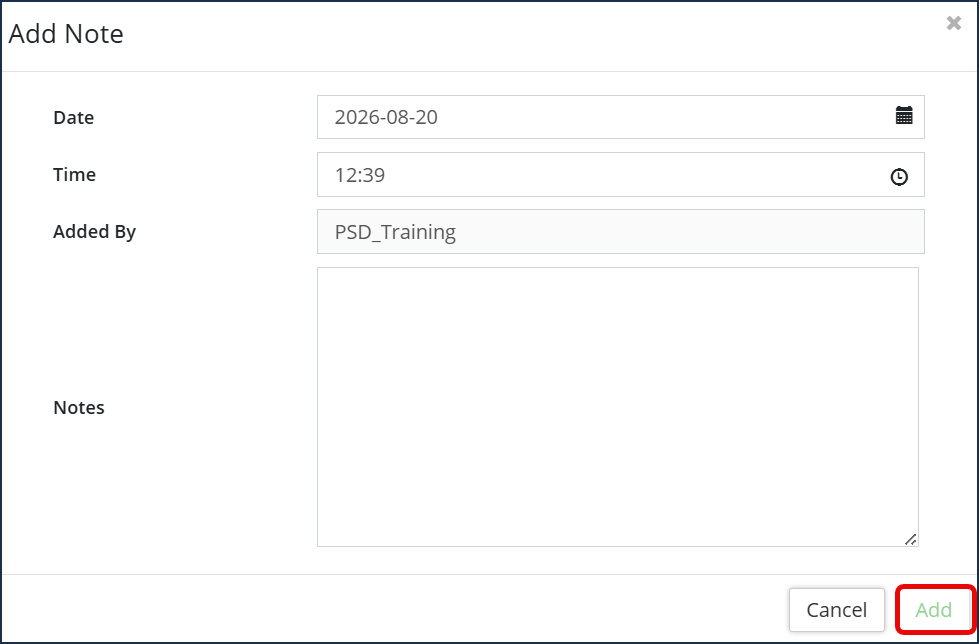
- The Date, Time and Added By fields populate automatically, but the date can be changed if needed by clicking on the calendar icon. The Added By field, which shows your username, cannot be altered.
- Type or paste in your note in the text box.
- Click Add.
To edit or remove a Note:
- In the Actions column beside the note, click the Edit icon
 and enter the desired information, then click Save.
 - Or to remove a note, click the Delete icon
 , then click Remove.
Remember to click Save at the top of the page to save any changes to the space.
Attached Files
Files such as assessments, photos, quotes, etc., can be uploaded and attached to a space using the Attached Files page. A variety of file formats are supported. Users with the appropriate permission settings can also remove files.
To add a file:
- Click + New File . The Add Files dialog box appears:
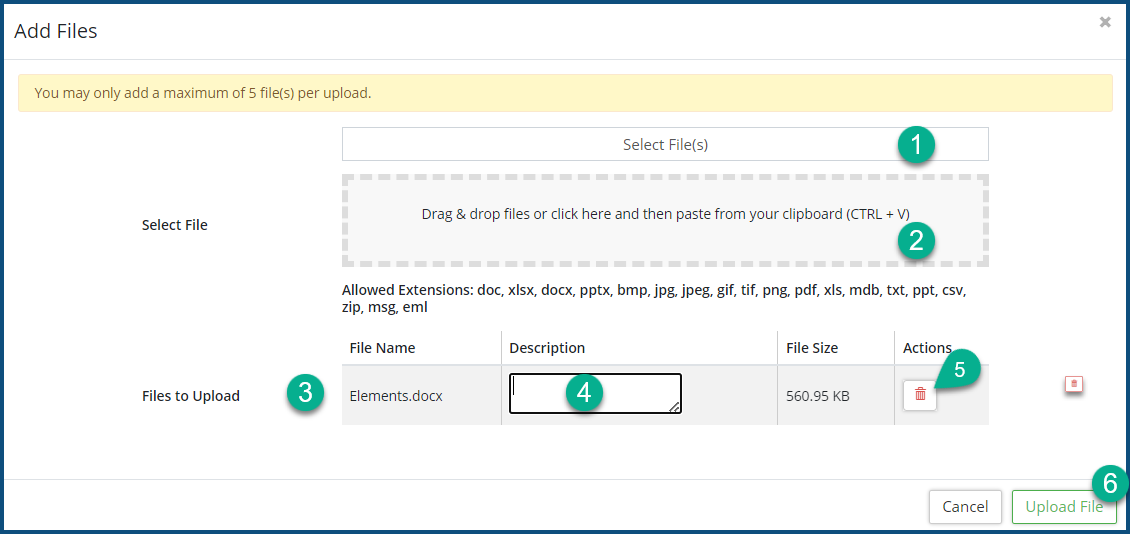
- Click Select File(s) ❶ to select files using your operating system file manager, or drag and drop you files in to perforated box ❷. The following file types are supported: doc, xlsx, docx, pptx, bmp, jpg, jpeg, gif, tif, png, pdf, xls, mdb, txt, ppt, csv, zip, msg and eml.
- The selected files will appear in the File to Upload list ❸, where you can enter a clarifying Description ❹ for each.
- Click the Delete icon
 ❺ in the Actions column to remove the prospective attachment from the upload list.
 - Click Upload File ❻. Continue to add files as needed.
To manage attachments:
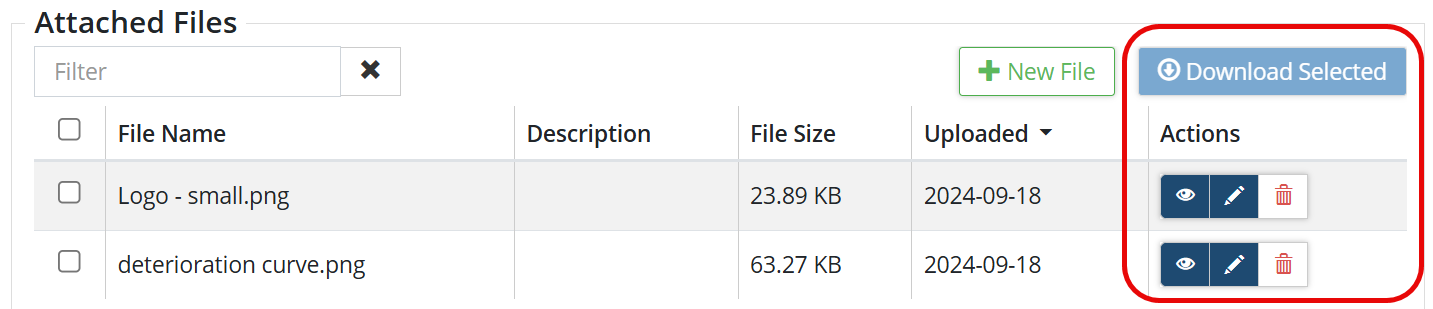
- To edit a file, click the Edit icon
 .
. - To delete a file, click Delete icon
 .
. - To download or preview one or more files to your computer, checkmark
 the desired file(s) to the left of the file name and then click Download Selected .
Remember to click Save at the top of the page to save any changes to the space.
Usage
Usage details for utilities can be saved for the space on this page. Note: Usage Types must first be defined in the Spaces manage section. Click here to view how to set up Usage Types.
- Click + New Usage ❶.
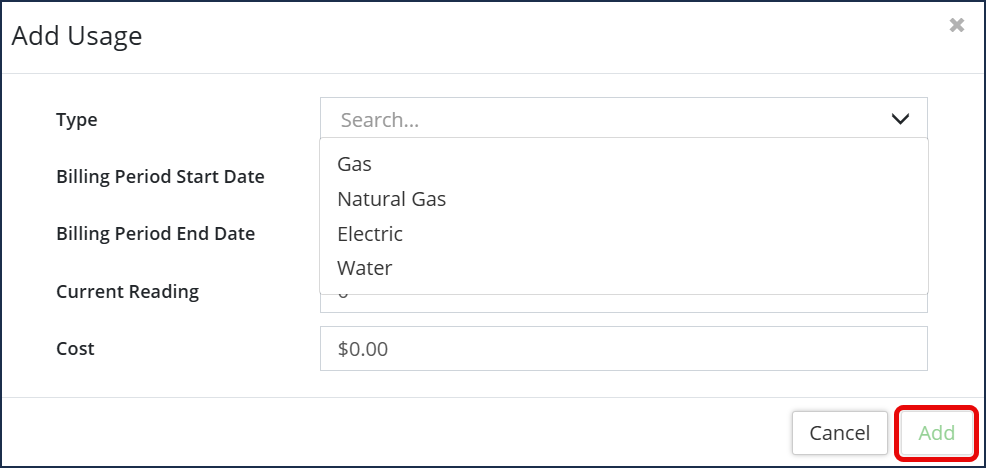
- Select from the dropdown the Usage Type.
- Enter the Billing Period Start and End Date or click the calendar icon to select from.
- Enter the Current Reading
- Enter the Cost
- Click Add.
To edit or remove a Usage:
- In the Actions column beside the note, click the Edit icon and enter the desired information, then click Save.
- Or to remove a usage type, click the Delete icon , then click Remove.
Remember to click Save at the top of the page to save any changes to the space.
Occupancy
Occupancy details is a view only page that shows summarized occupancy details of the space. This information is summarized from all the spaces in the lowest tier of the entire space.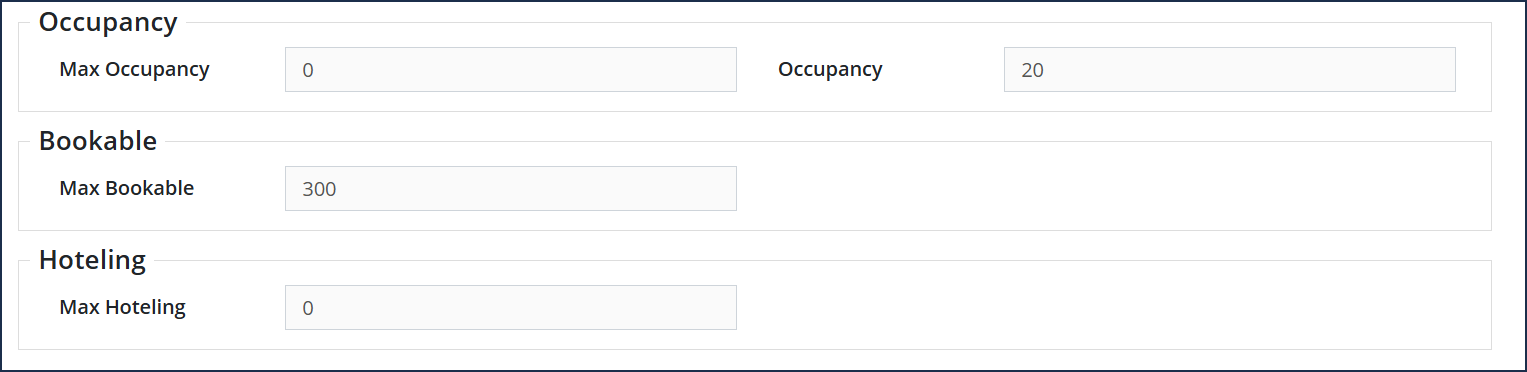
Property
Link a property to this space from the Citywide Properties. Users with the appropriate permissions can link and add Properties to Citywide.
To link a Property:
- Start typing an address ❶ then click Enter. Citywide will search for a match within the Properties list.
- Click to select the matching address.
- Otherwise, click + New Property ❷ to add a new property and details to Citywide. Click Add.
To unlink a Property:
- In the Actions section of the listed Property , click the X Unlink Property button.
Remember to click Save at the top of the page to save any changes to the space.
Spaces
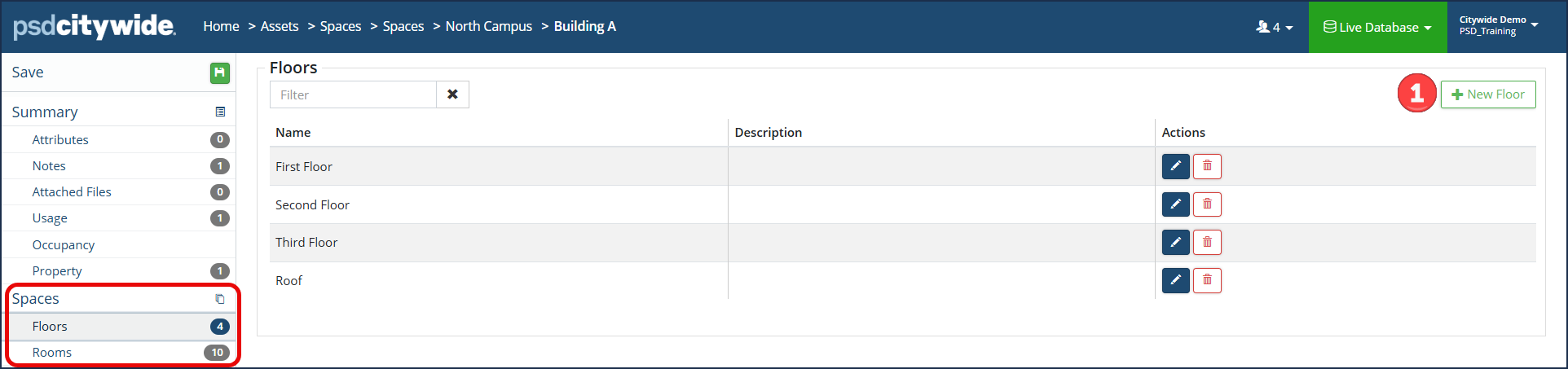
Spaces will show the various tiers associated with the space. In the example screenshots below, North Campus will show the four (4) Building tiers. The Building A space shows the Floor and Room tiers. These can be used as direct links to the applicable spaces.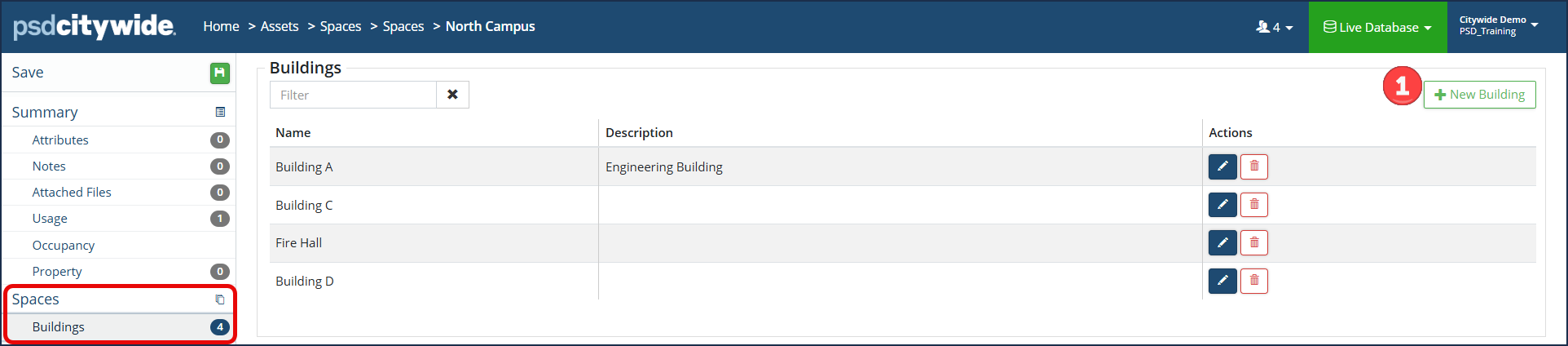
- Optional: You can add a new space within that tier by clicking + New [Tier name] ❶ button at the top right.
To edit or remove a space:
- In the Actions column beside the note, click the Edit icon and enter the desired information, then click Save.
- Or to remove a space within the tier, click the Delete icon , then click Remove.
Remember to click Save at the top of the page to save any changes to the space.
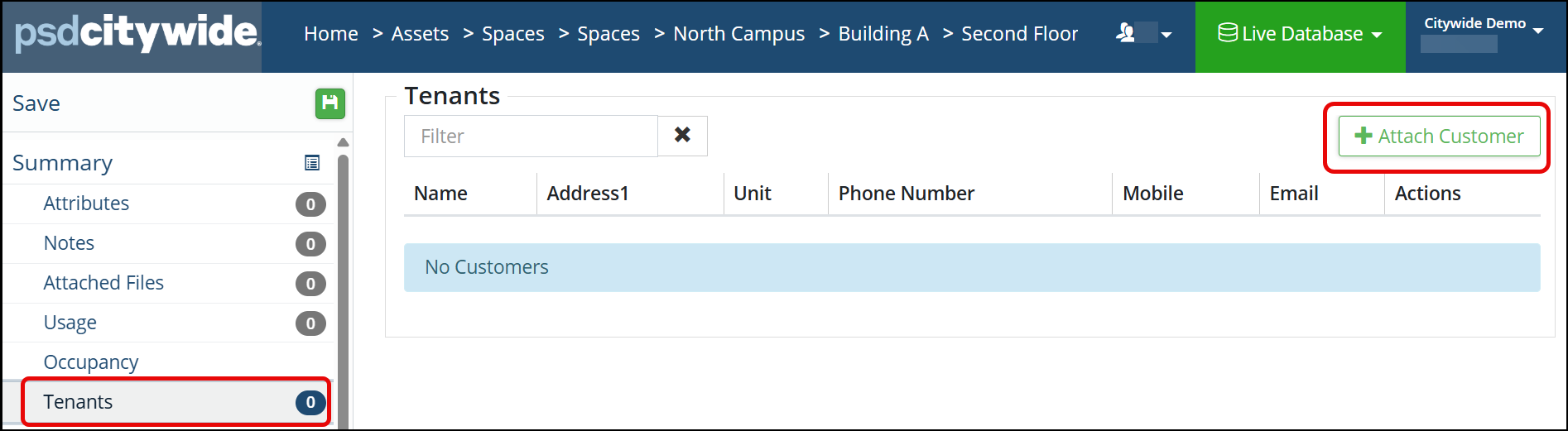
Within the Rooms tier, users can click into a room and Customers can be attached within the Tenants section. Click Attach Customer to add tenant or tenants to the space. 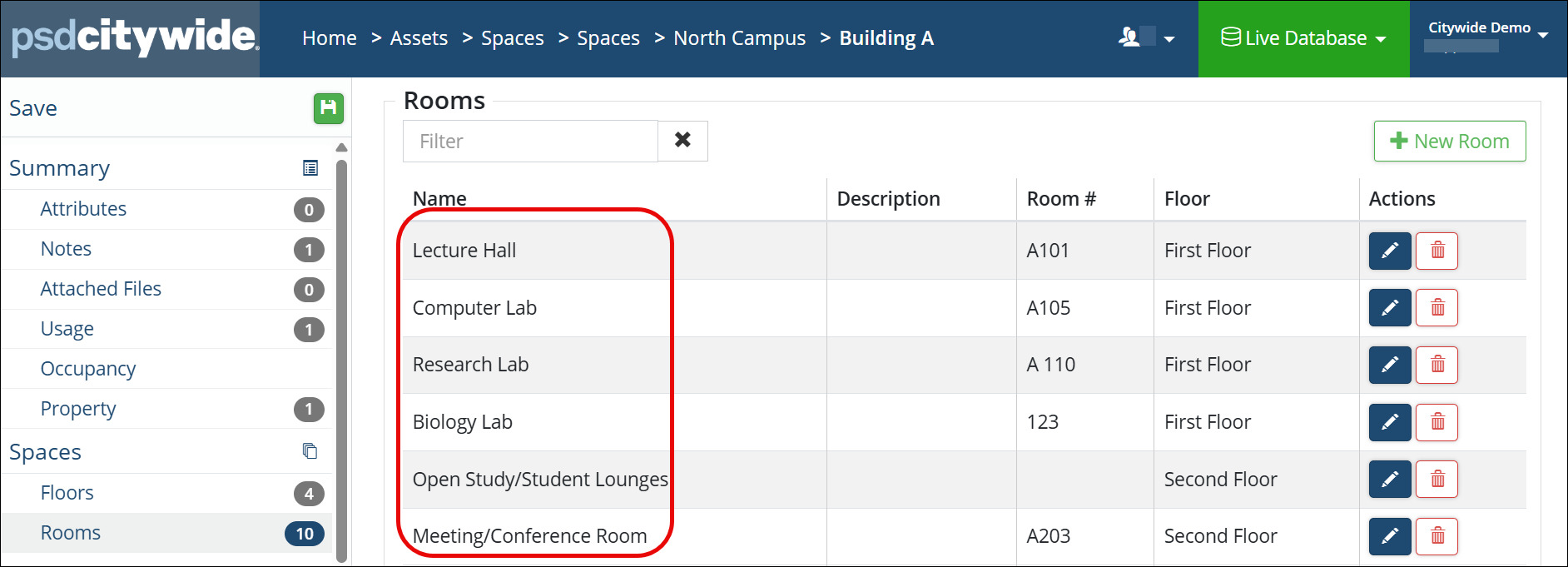
Assets
A space will have assets attached to it. For example, a building will have structure and/or substructure assets attached to it, whereas a room may have equipment assets attached as well.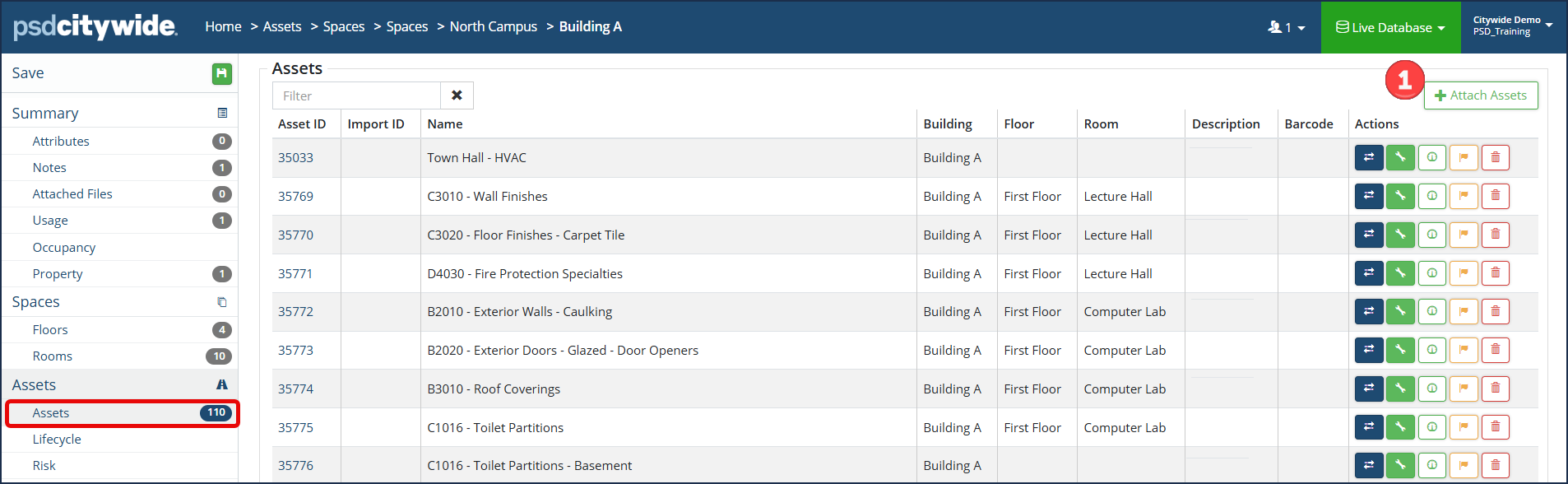
To attach Assets to a space: (Note: Assets must be in the Citywide Assets Inventory first before adding to a space. Click to learn more about Asset Inventory and how to add asset in Citywide.)
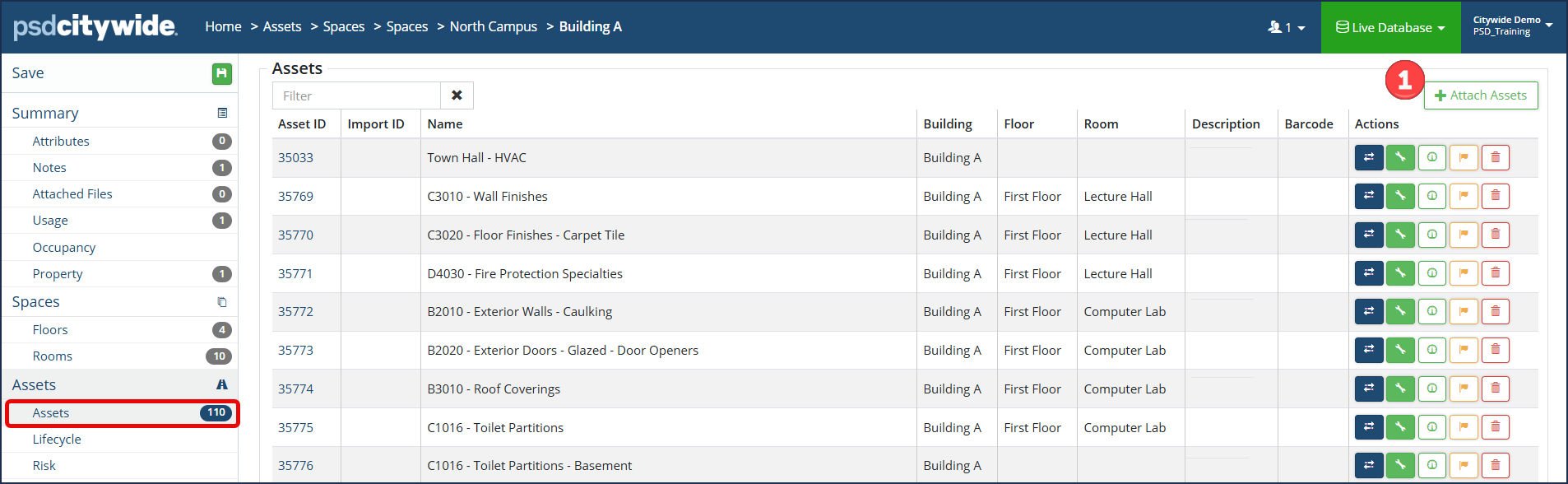
- Click + Attach Assets ❶.
- The Select Asset box will appear:
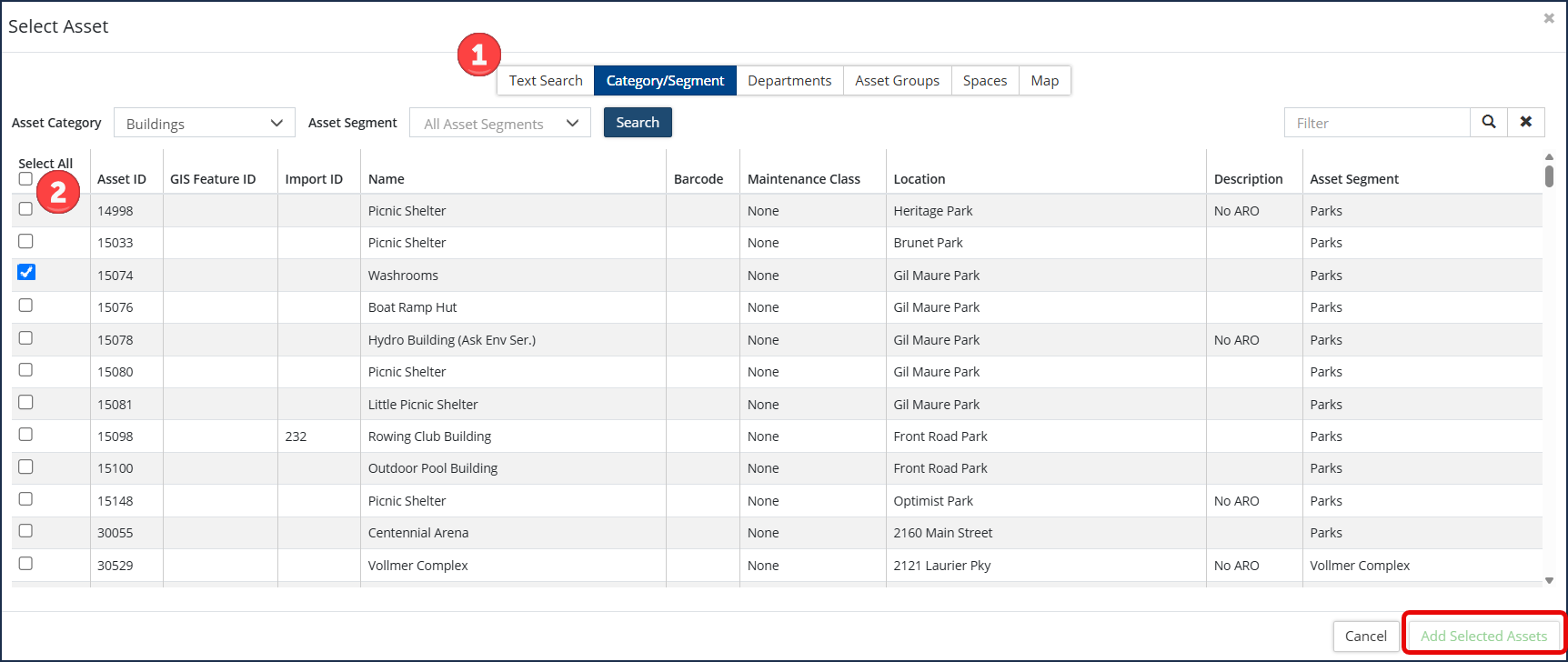
- The Select Asset box will appear:
- Using the search and filter tools to list available assets, first select the search method ❶ as desired: Text Search, Category/Segment, Departments, Asset Groups, Spaces or Map.
- Once assets are listed, select each individual asset or click Select All ❷ to attach the selected assets to the space.
- Click Add Selected Assets.
To edit or remove an Asset from the Space:
- In the Actions column:
- Click the Move icon
 to move the asset to another space in the hierarchy.
 - (If Maintenance is enabled) Click the Out of Service/Downtime icon
 to take the asset out of service.
 - Click the Usage icon
 to add Usage (utilities) readings.
 - Click the Failure Codes
 icon, to add and view failures.
 - Click the Remove icon
 to remove an asset.
 - Optional: Click the Asset ID number to view asset details.
- Click the Move icon
Remember to click Save at the top of the page to save any changes to the space.
Lifecycle
The Lifecycle events listed on the space are from the assets and their assigned Asset Profile. Lifecycle events are defined in the Asset profile; any assets with an active Lifecycle strategy defined in their Asset Profile will appear for all the assets attached to the space. To view further information on Asset Profiles and how to configure the lifecycle details, click here.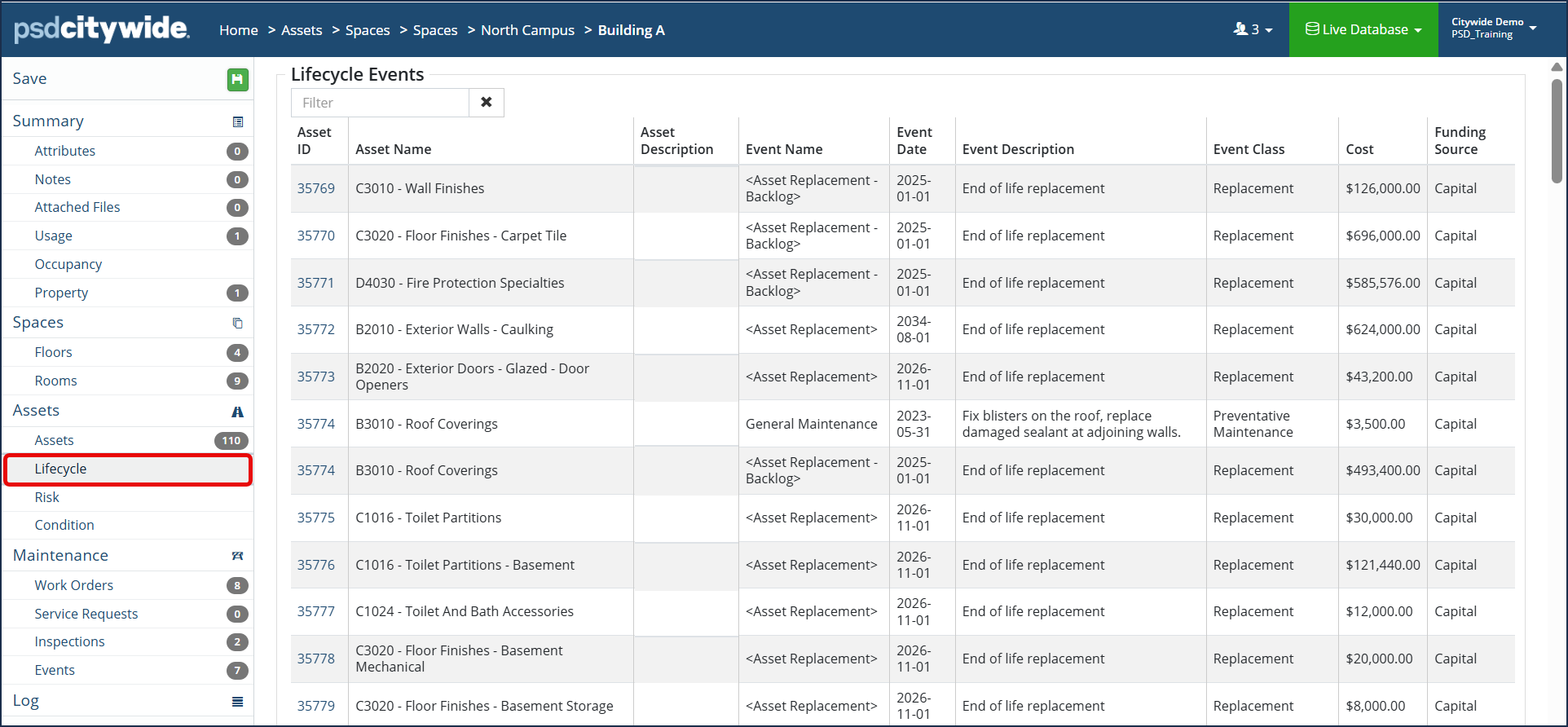
- Use filters to narrow down and search data in the grid as needed.
- Optional: Click the Asset ID number to view asset details.
Risk
The Risk Rating, Probability and Consequence of Failure scores are listed for each asset attached to the space. These scores are calculated based on the risk metrics defined in their assigned Asset Profile. To view further information on Asset Profiles and how to configure the lifecycle risk, click here.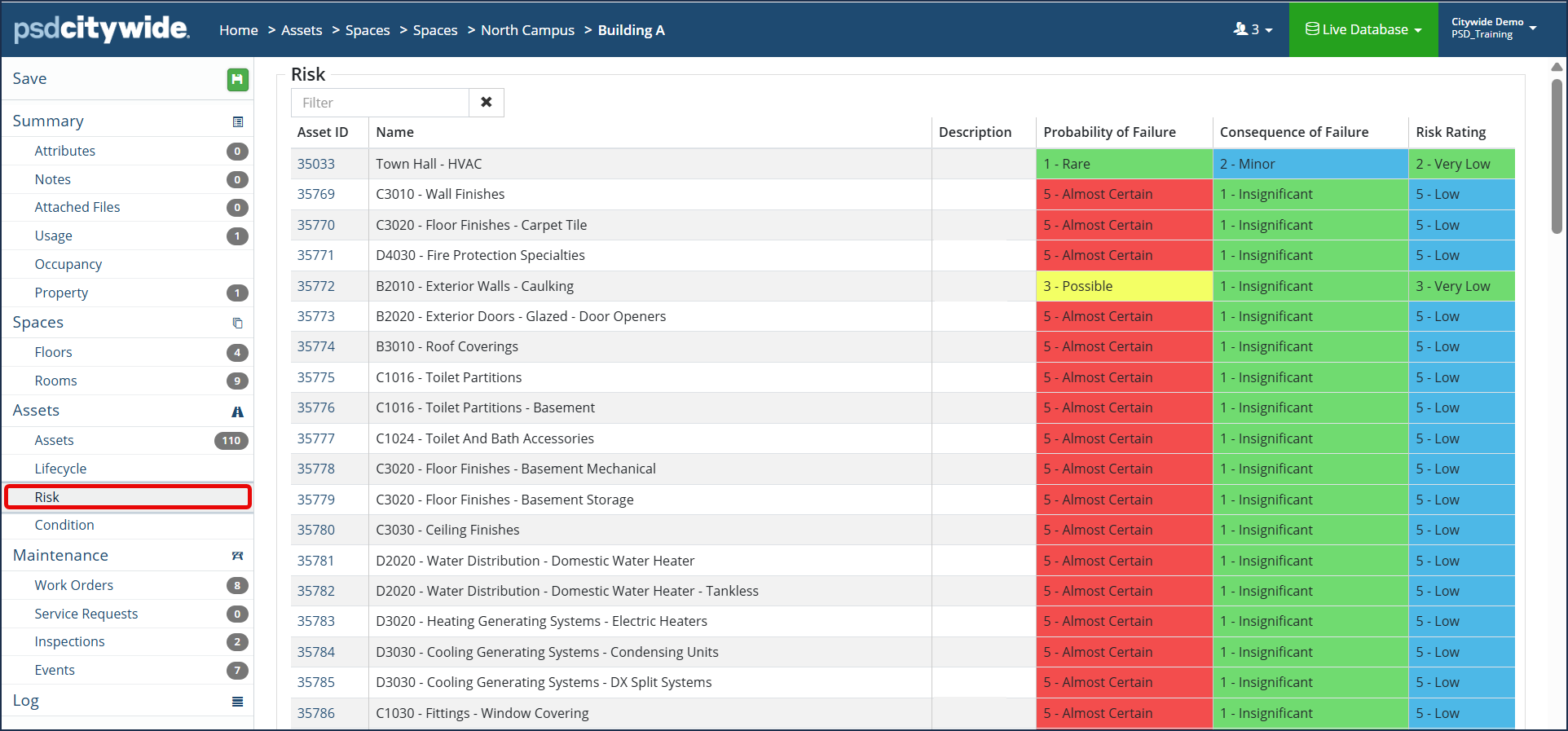
- Use filters to narrow down and search data in the grid as needed.
- Optional: Click the Asset ID number to view asset details.
Condition
Condition of the asset(s) attached to the space appears in this section. The age of the asset (based on the in-service date), service life remaining, age-based condition (default), actual assessed condition and the assessed condition date is listed for each asset. Asset condition information may help to evaluate assets and prioritize capital projects as needed.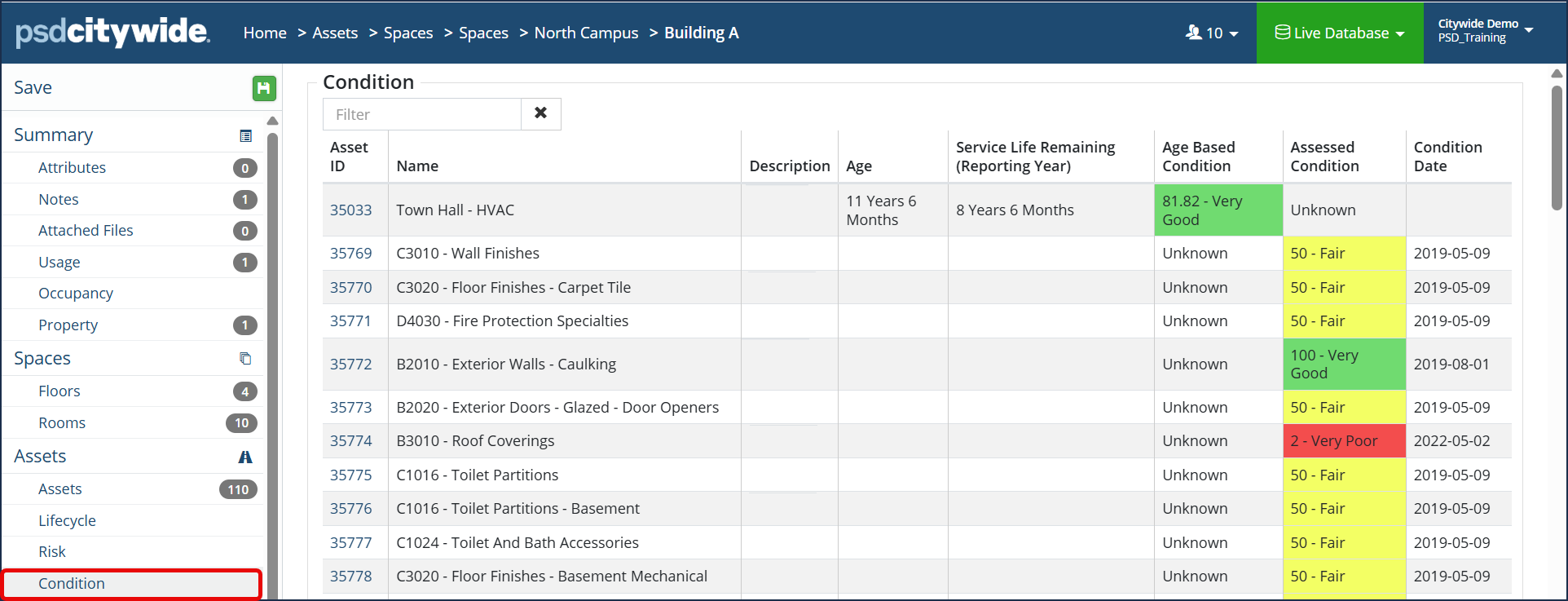
- Use filters to narrow down and search data in the grid as needed.
- Optional: Click the Asset ID number to view asset details.
Maintenance > Work Orders
This will display a list of all work orders associated to the space. This information is pulled from any assets attached to the work order that is assigned to the space.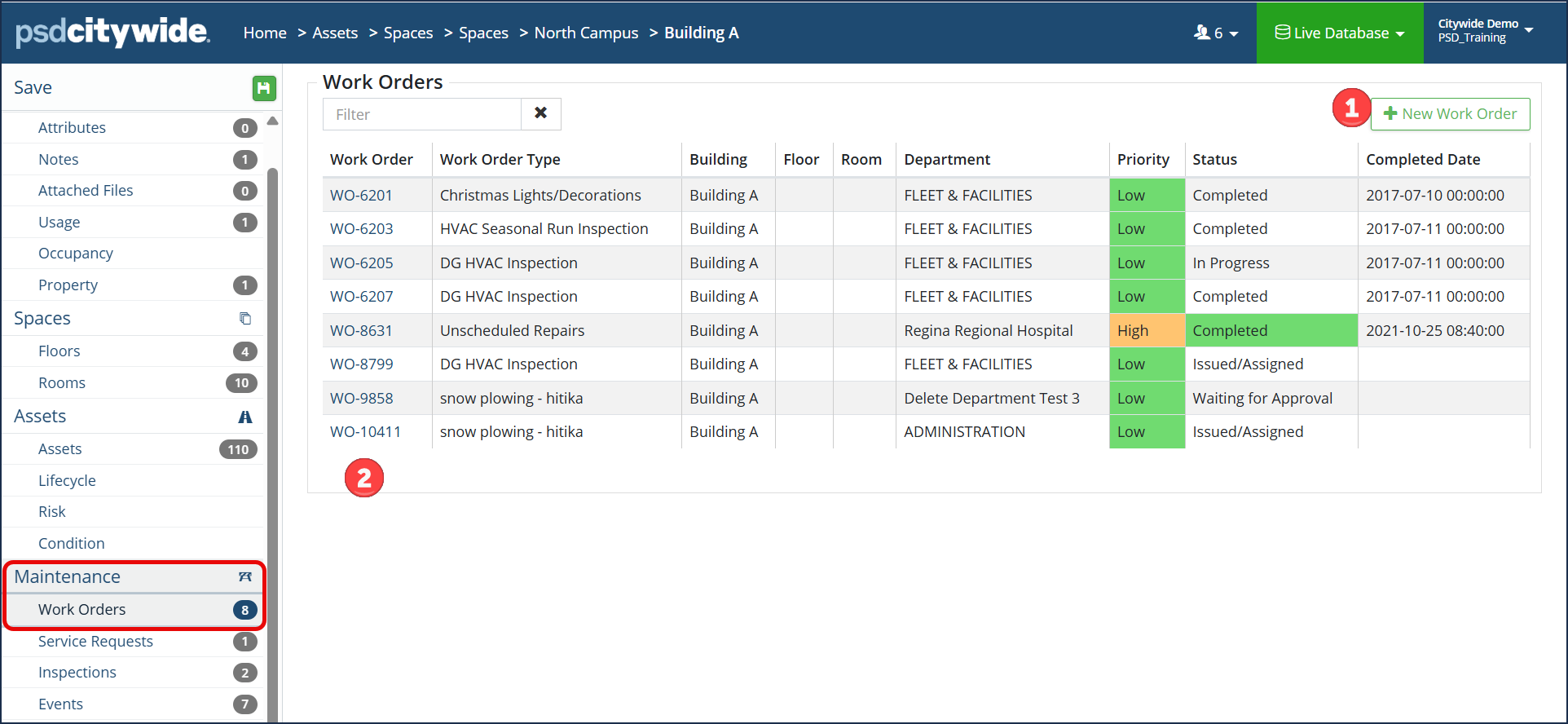
- To add a new work order on this space, click + New Work Order ❶.
- To view the work order details, click the Citywide Work order link ❷. This will redirect you to the Maintenance Work order details.
Service Requests
This will display a list of all service requests associated to the space. This information is pulled from any assets attached to the service request that is assigned to the space.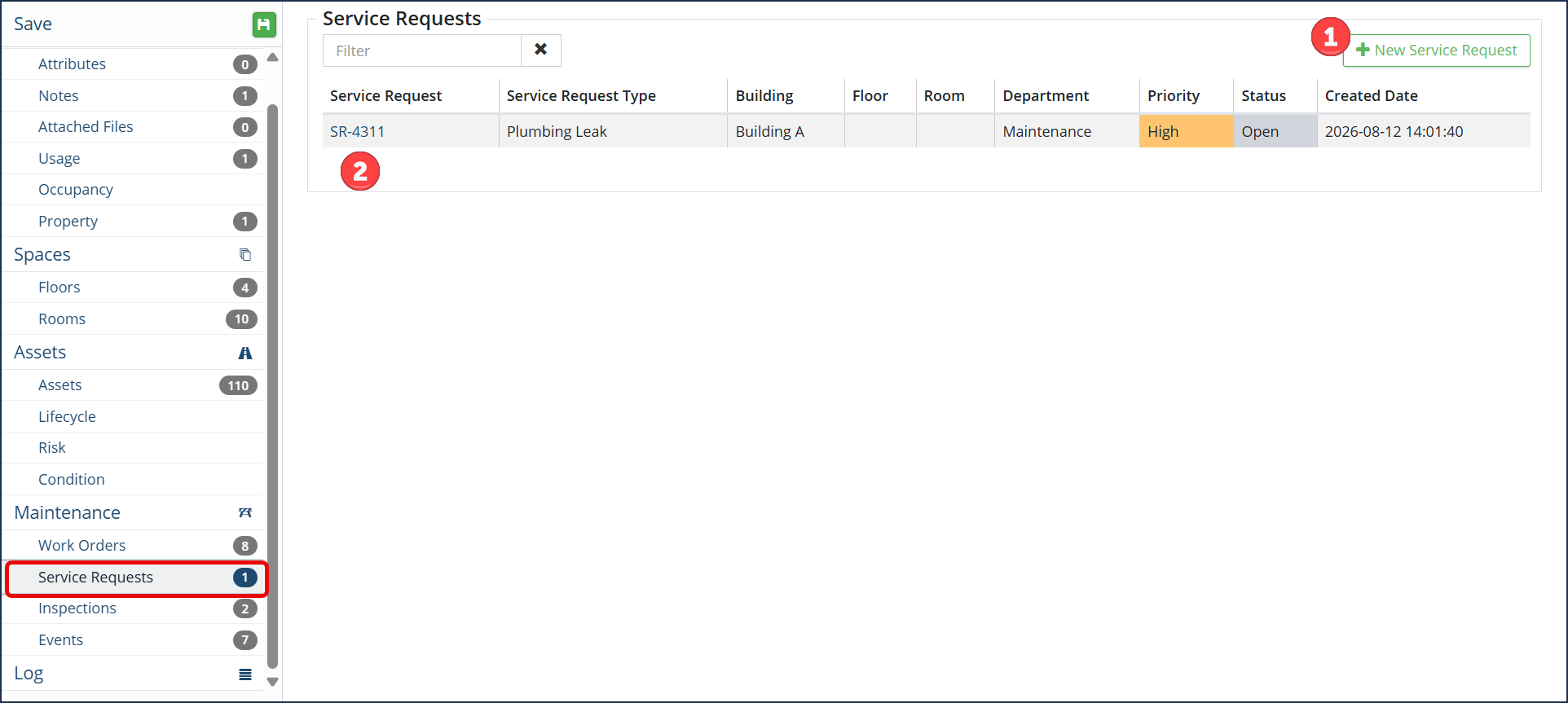
- To add a service request on this space, click + New Service Request ❶.
- To view the service request details, click the Citywide Work order link ❷. This will redirect you to the Maintenance Service Request details.
Inspections
This will display a list of all Inspection work orders associated to the space. This information is pulled from any assets attached to the inspection work order that is assigned to the space.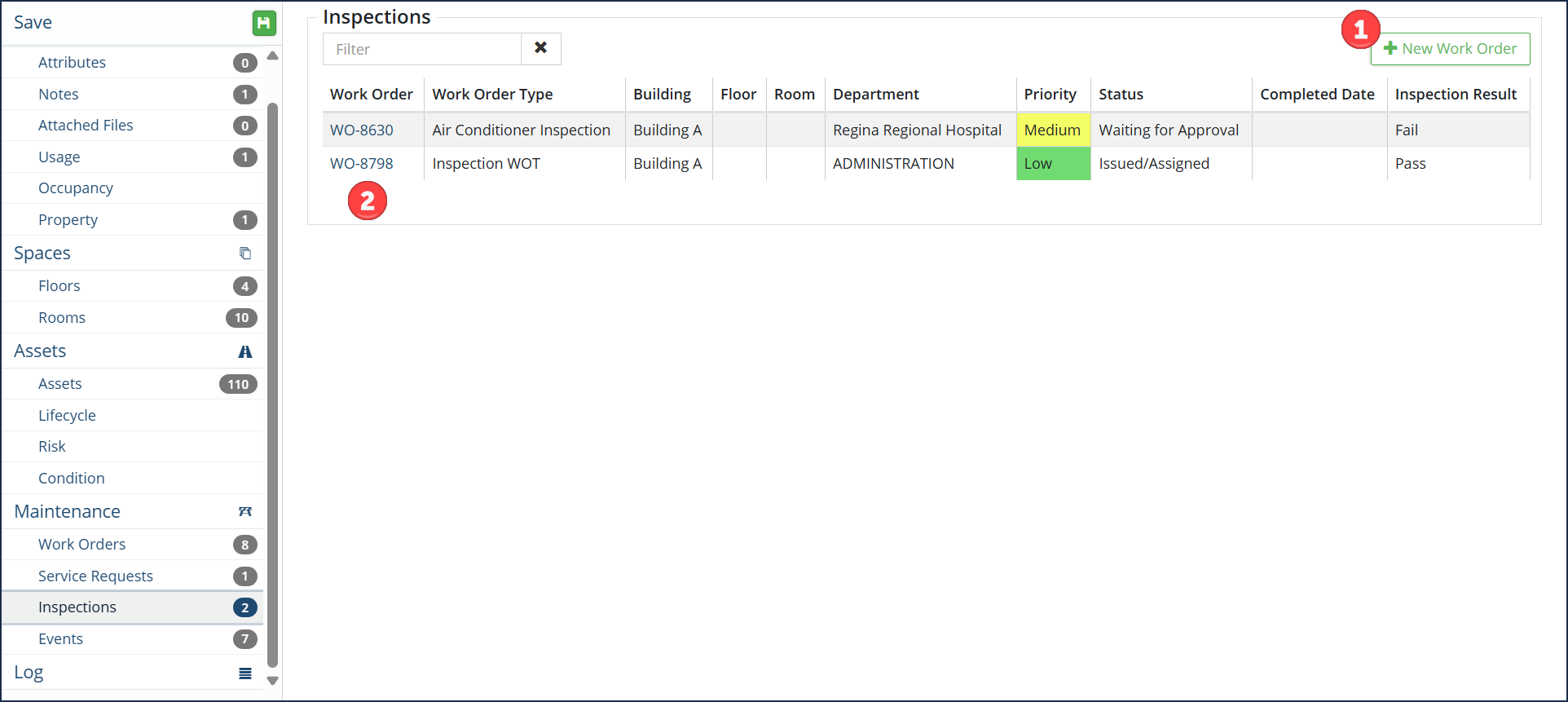
- To add a new work order on this space, click + New Work Order ❶.
- To view the work order details, click the Citywide Work order link ❷. This will redirect you to the Maintenance Work order details.
Events
This will display a list of all preventative or scheduled maintenance events and their associated work order to the space. This information is pulled from any assets attached to the work order or maintenance event that is assigned to the space.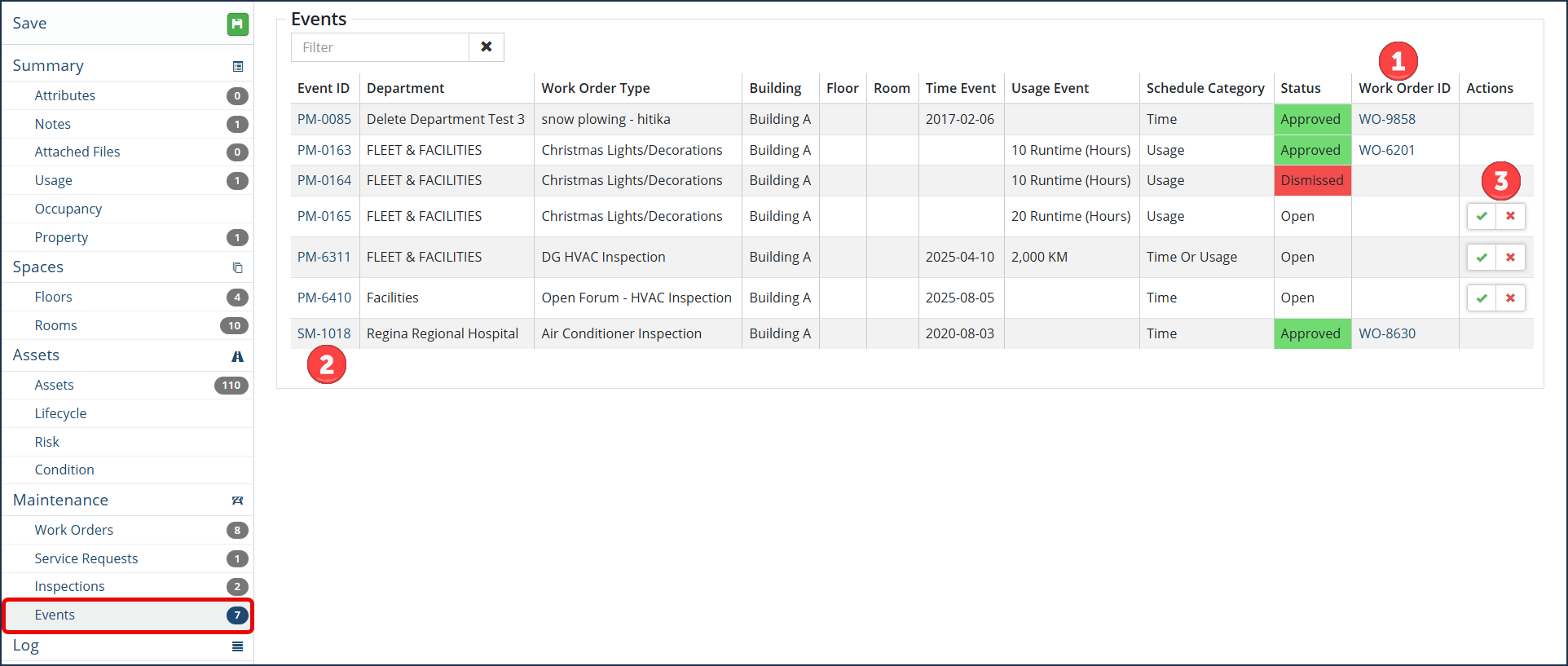
- To view the work order details, click the Citywide Work order link ❶.
- To view the preventative or scheduled maintenance event details, click the Citywide Event ID link ❷.
- In the Actions ❸ column:
- Click the checkmark ✔ to Approve this event.
- Or click the X to Dismiss this event.
Log
The log displays all activity in the system that relates to the individual space. Its events appear in reverse chronological order, displaying the user who initiated the event, as well as specific description of the event.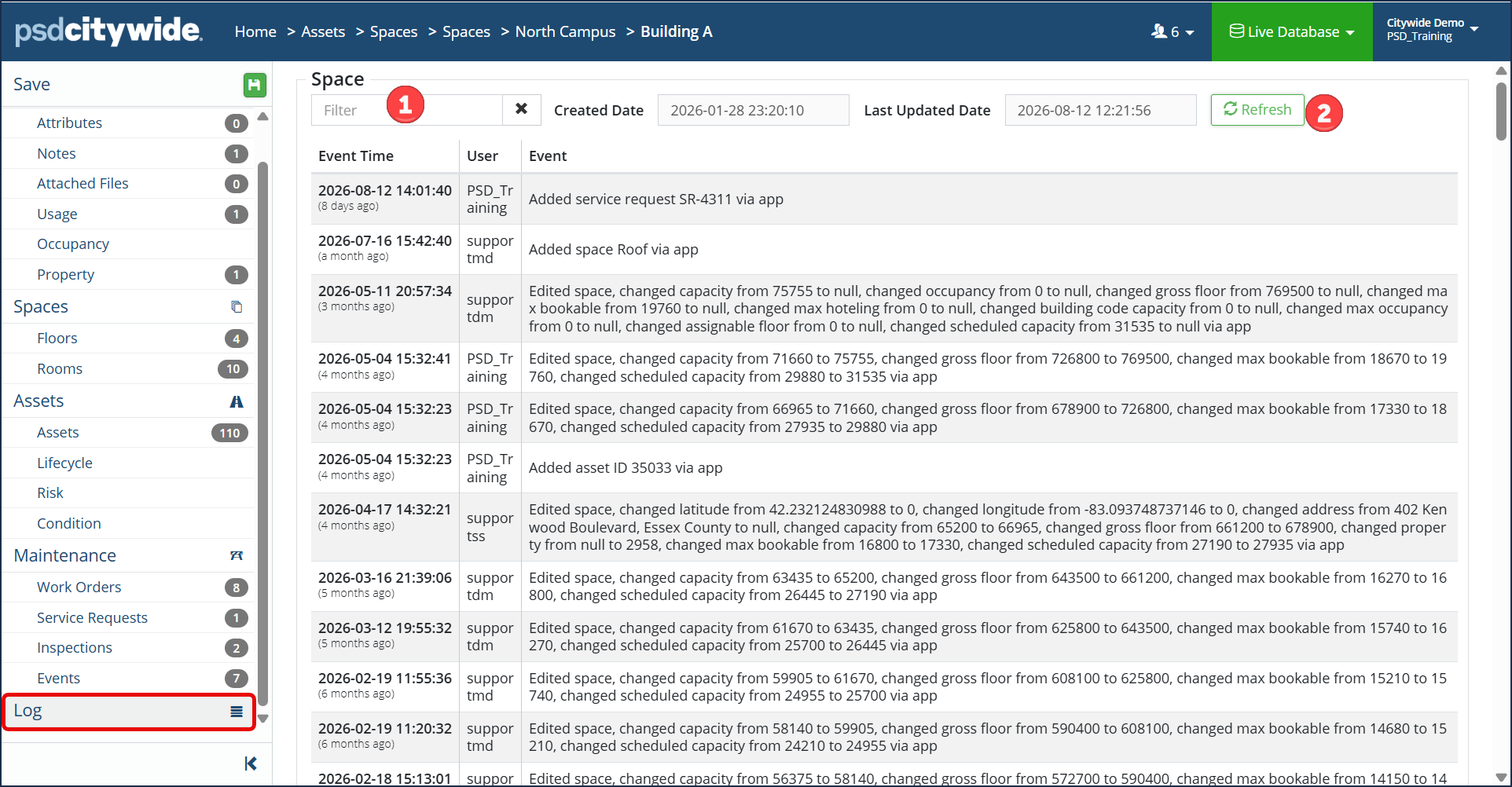
- Enter the text in the Filter box ❶ to filter the list down to the its matches.
- Click Refresh ❷ to see any entries that have been logged since this screen has been opened.


