Overview
Custom Reports module provides an intuitive, self-service environment for gathering, formatting, and presenting your budget data. Built to simplify financial communication, the reporting engine enables users to tailor reporting views specifically for budget owners, municipal council, and public stakeholders.
Key Features
- Folder Management: Organize reports using folder structures and save frequently used reports as favorites.
- Multi-Level Hierarchical Display: Group data using existing multiple levels such as Tree or Segments with structured ordering
- Read Mode: Present financial data directly from your browser with expandable groupings and real-time data expansion during live presentations.
- Segmented Page Generation: Utilize page selection capabilities to generate multiple report instances segmented by specific Tree or Related Segments.
- Multi-Format Exports: Export final reports directly to PDF with various page controls like sizes and headers. Options also exists to export to Excel or a CSV file.
Navigating Custom Reports
The Custom Report screen is where new Custom Reports can be added/deleted, existing Custom Reports can be organized into folders and Custom Reports can be marked as favourite.
Folders - are a visual way to group similar Custom Reports together. All folders are created and managed by the end user and once a Custom Report exists it can be added to a Folder.
Important areas:
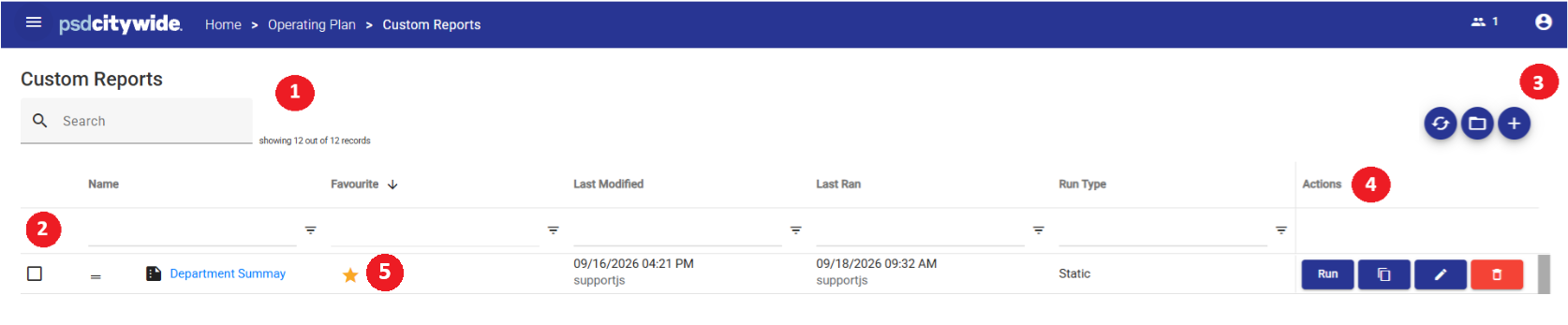
- Search Bar - refine the list of Custom Reports and Folders based on the text searched.
- Sorting & Filtering - sort a column by clicking the title. The filters allows for quick search operations like 'begins with' or picking specific values like Yes/No.
- Tools - These are operations that apply to the table. The tools include Refresh, Toggle Groups and Add.
- Actions - This column allows you to interact with a single Custom Report. The possible Actions are Run Report, Copy Report, Edit Report and Delete Report.
- Favourite - Mark individual Custom Reports so that they can be quickly accessed.
Add a New Custom Report/Folder
- From the the Tools press the
 icon.
icon.
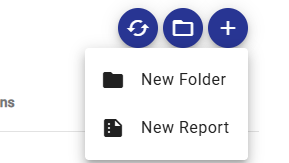
- This will give you two Options:
- New Report - a dialogue to create a New Custom Report will be shown. Please see the Related Articles below for assistance with this.
- New Folder - a dialogue will ask you to specify a name before accepting.
- The Folder of Custom Report will be added to the table.
Move a Custom Report into a Folder
- You can move a Custom Report using the Drag and Drop icon as seen in this image.
- The only supported operation is moving a Custom Report into a Folder, or out of a Folder.

Duplicate an existing Custom Report
- In the Actions column of the table press the
 icon on relevant Custom Report.
 - A new dialogue will appear where you will need to provide a new name for this copy and press the Save button.
Note: Custom Reports are allowed to have the same Name provided they are in different Folders.
Filter Favourites
Once Custom Reports start to be marked with Favourites follow these steps to quickly see them.
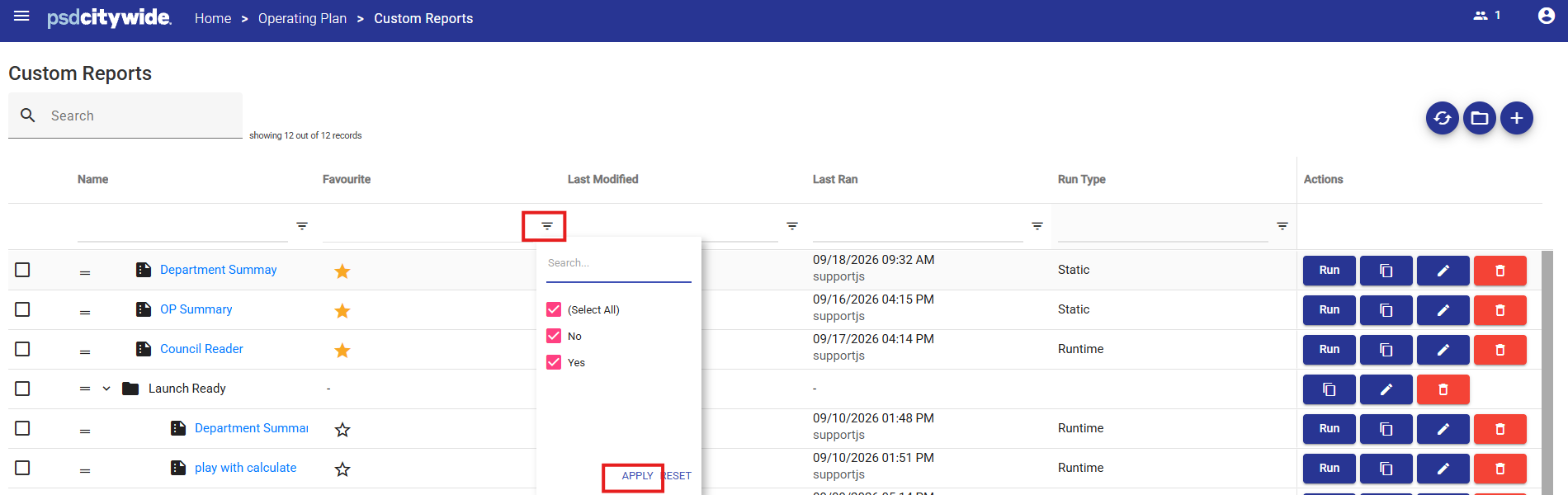
- .Click the Filter button on the Favourites column
- Uncheck No and ensure that Yes is checked.
- Press the Apply button.
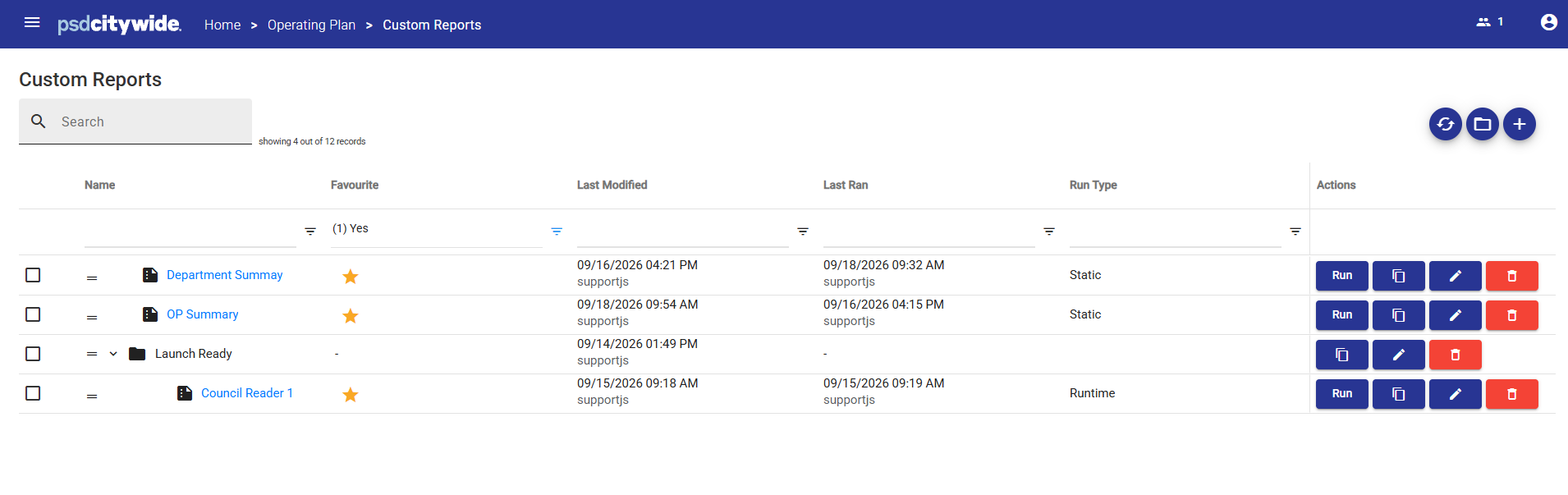
- Now only the Custom Reports table will only show Custom Report (and their respective Folder) in the table.
- There is also a Reset on the Filter button on the Favourites column. This will return all Custom Reports.