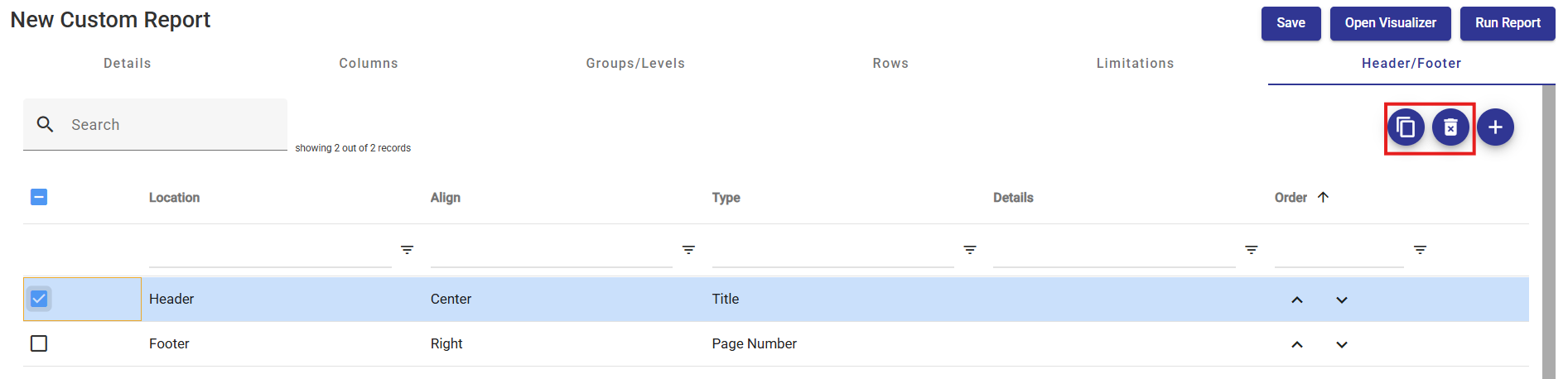
Headers and Footer can be added to Custom Reports. They help multi-page documents become more readable and organized, and more personalized for your organization. Headers and Footers provide more content and branding to reports that are shared with your stakeholders. When exporting a Custom Report to a PDF is when this setting will have the most impact. From an existing Custom Report navigate to the Header/Footer tab:
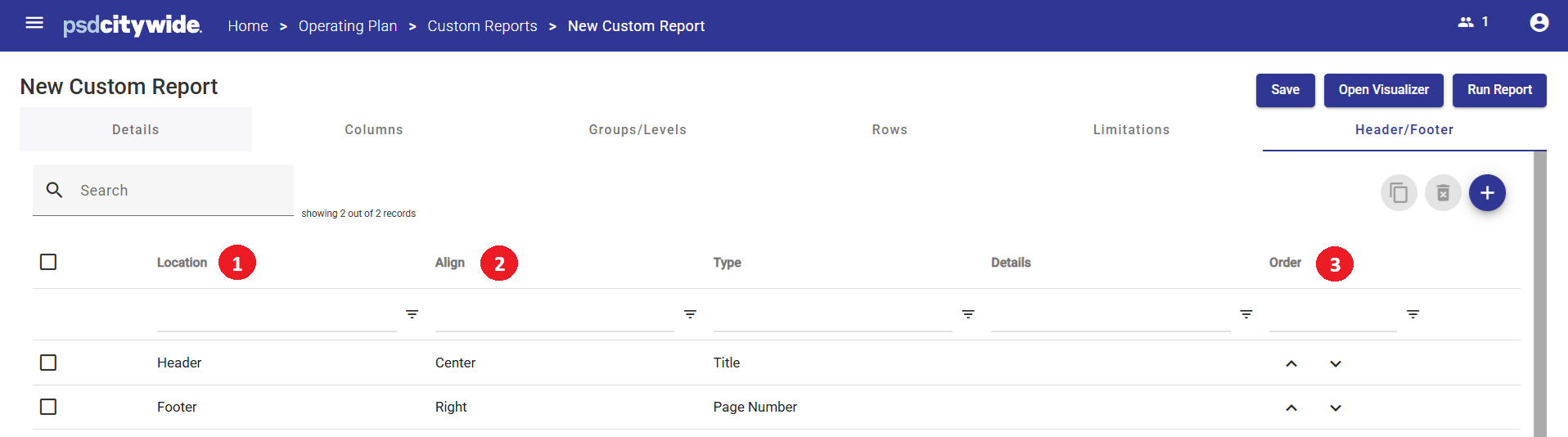
Important Areas
- Location - decide if content is being added to the top of the page (Header) or bottom of the page (Footer.)
- Align - the page is divided longitudinally into three equal parts; Left, Center, and Right.
- Order - use the arrow buttons to move the physical order. This is important when you have multiple lines within one Location.
Header/Footer placement:
- An example of formatting a Location and an Align to identify where the content will go is (Footer, Right).
- Multiple lines are permitted in both the Header and Footer. To create two rows of content on a Header you will need to configure two Headers in the same Align:
- (Header, Left)
- (Header, Left)
Header/Footer Type
| Type | Description |
|---|---|
| Logo | Display the image saved to Logo under Security Administration > Configuration. |
| Title | Display the Name of the Custom Report. |
| Text | Allow the report designer to enter what will be displayed into a textbox. |
| Selection | If using Page Selection in the Custom Report, show the Page Selection. |
| Run Date | Show today's date formatted as "January 01, 2026." The time can also be added formatted as "9:00 AM." |
| Month |
This is not related to today’s date. Find the first column in the Custom Report under the following conditions:
The formatting options that display on the Custom Report which represent the Year are as follows:
A Report Designer can hide this class column once it is added to your Custom Report. |
| Year | Show the Year that was used to generate this report. |
| Page Number |
Automatically generate a page number.
|

Note - The format of the Header/Footer also takes into considering the Page Margins setup.
Add a Header/Footer
- From the Custom Report for to the Header/Footer tab
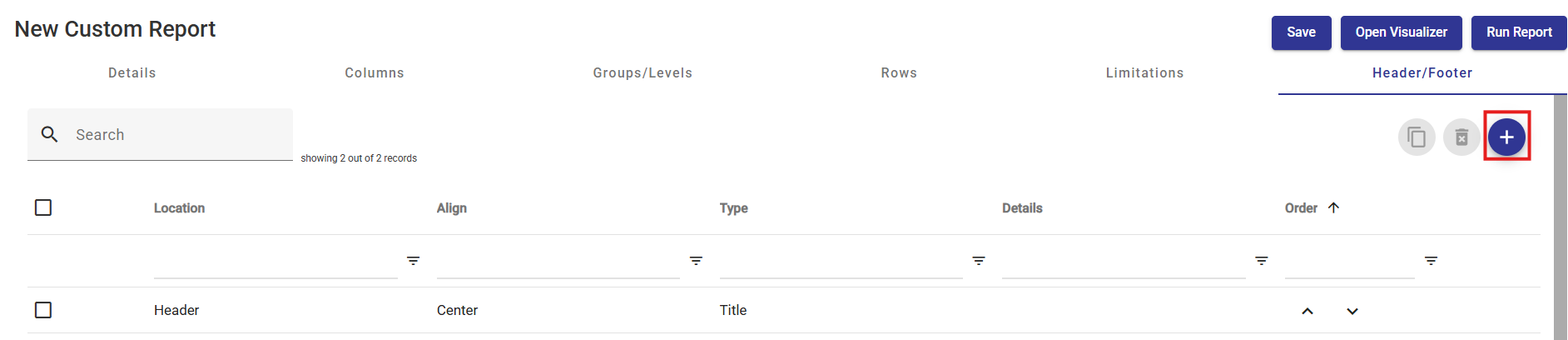
- Press the Add icon
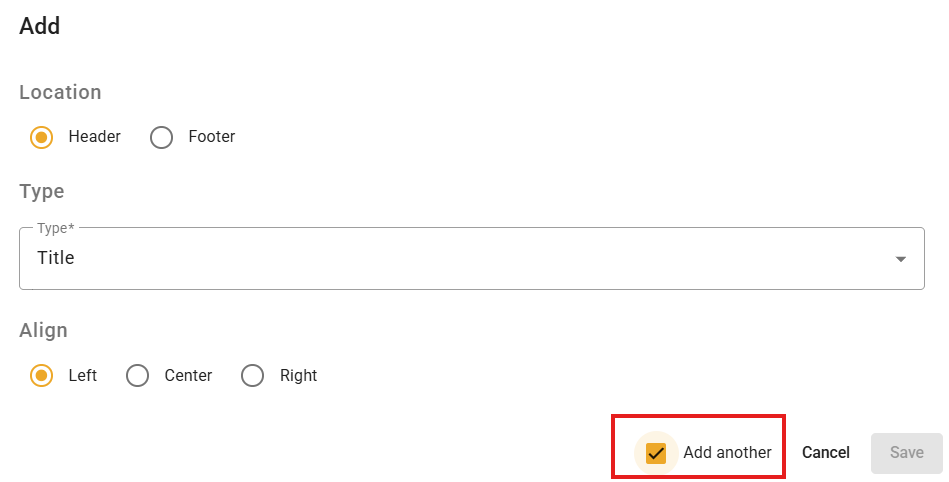
- You can use Add Another checkbox if you need to add multiple Header/Footer items.
Duplicate or Delete a Header/Footer